In Open ACU you [cannot edit transactions,](https://help.openacu.net/books/admin-scheduler-help/page/cant-edit-checkins "Can't Edit Checkins") checkins or otherwise.
To edit a transaction you’ve already saved, first you’ll need to reverse the check-in. Click the pencil icon next to the patient’s name. In the pop-up that appears, check the box next to “Check Out This Transaction?” then click Remove Transaction. This will remove the payment transaction. [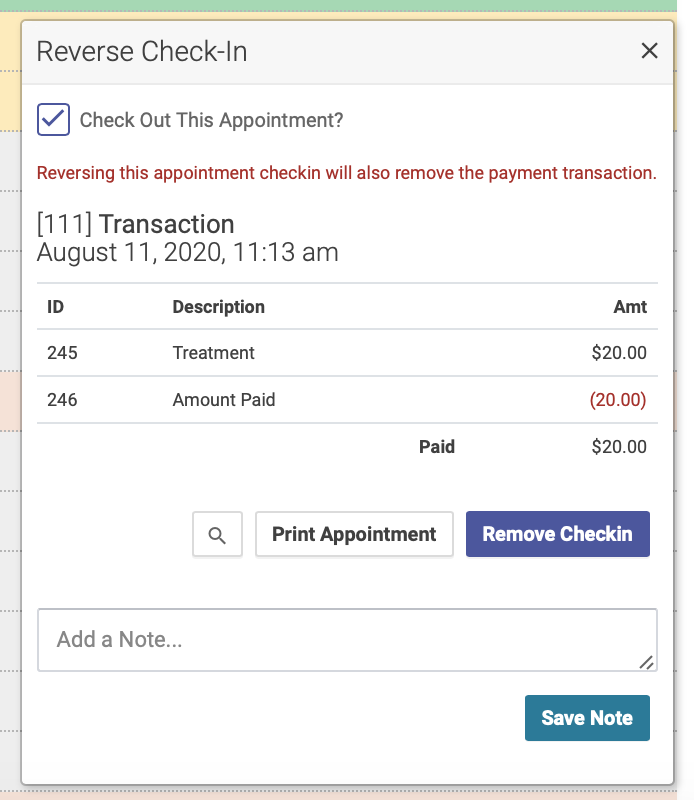](https://help.openacu.net/uploads/images/gallery/2020-08/Qdh46qKiehaby2AW-reverse-checkin.png) You can then check in the patient again and enter the correct transaction information. # Recording a transaction without a check-in To record a transaction that isn’t connected with an appointment, you’ll use the Purchase Transaction option. At the top of the schedule, click the Day Tools dropdown menu, then click New Purchase Transaction: [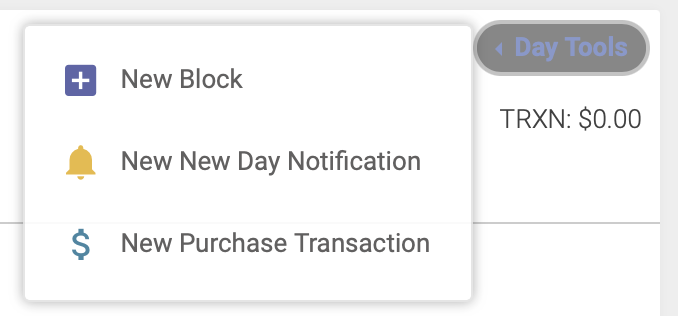](https://help.openacu.net/uploads/images/gallery/2025-07/LGf8uPwu3NPYHyTM-new-purchase-transcation.png) A popup modal will appear, where you will select the location, enter the patient’s name, a description of the charge, the amount paid and the form of payment. [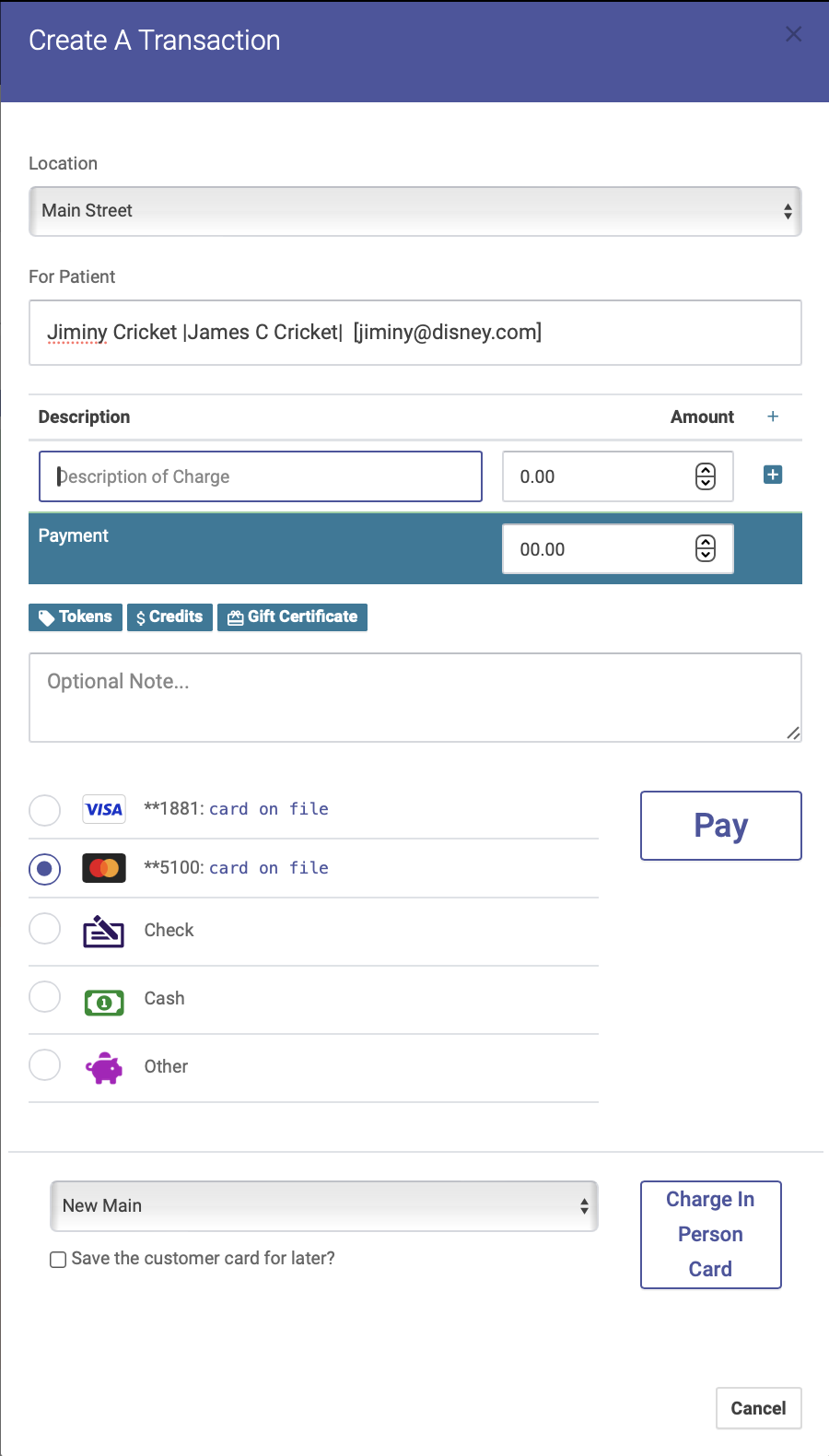](https://help.openacu.net/uploads/images/gallery/2024-05/DamQSGqtd9v0lau1-purchase-transaction-stripe.png) If someone is purchasing [tokens, credits](https://help.openacu.net/books/admin-scheduler-help/page/tokens-and-credits-overview), or a gift certificate, click on the corresponding button under the Description of Charge field. Tokens and/or credits purchased will automatically be added to the patient's account. Purchase transactions will appear on the day’s [Transaction Report](https://help.openacu.net/books/admin-scheduler-help/page/transaction-report) but not on the [Appointment Report](https://help.openacu.net/books/admin-scheduler-help/page/appointment-report). # Reversing a Transaction Sometimes you create a transaction and there was an error or the credit card failed. In Open ACU you can reverse any transaction. **Just be aware that this process may be connected to credit card processing and your account may charge a fee for reversals. This goes for reversing checkin transactions as well.**In Open ACU you [cannot edit transactions,](https://help.openacu.net/books/admin-scheduler-help/page/cant-edit-checkins "Can't Edit Checkins") checkins or otherwise.
On the [schedule page](https://help.openacu.net/books/admin-scheduler-help/chapter/scheduling "Scheduling") under the [waiting list](https://help.openacu.net/books/admin-scheduler-help/page/waiting-lists "Waiting Lists") is a "Transactions" button. Click the button to the left to load a list of that day's transactions. [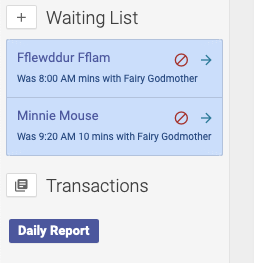](https://help.openacu.net/uploads/images/gallery/2020-12/vLqt0wEzoFiLxvCb-transbutton.png) Blue items in the list are appointments. To reverse the transaction and [un-check the appointment](https://help.openacu.net/books/admin-scheduler-help/page/canceling-appointments "Canceling Appointments") go to the appointment in the schedule to do so. Gray items in the list are transactions. Click the pencil to see the transaction. It will show the details in a modal window. [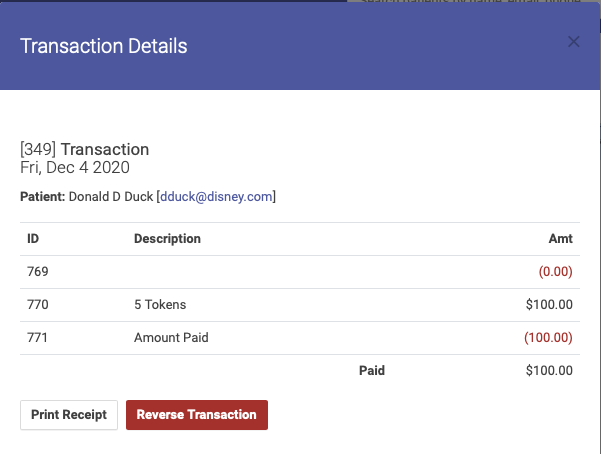](https://help.openacu.net/uploads/images/gallery/2020-12/5neSuIgiBiowAczL-trans-moda.png) If you want to reverse the transaction, deleting it from the system, click "Reverse Transaction". This will remove the invoice and all its items from the records. It will also reverse any credit or token values for the patient.