Adding a Patient's Credit Card
You can save multiple credit card payment method for each patient for applying payments for appointments, non-appointment transactions and No-Show fees. There are a couple places that allow you to add payment methods.
Note: Stripe currently does not allow you to save a payment method for Apple Pay, Samsung, or Google Pay.
Add a Credit Card Payment Method to a Patient's Profile
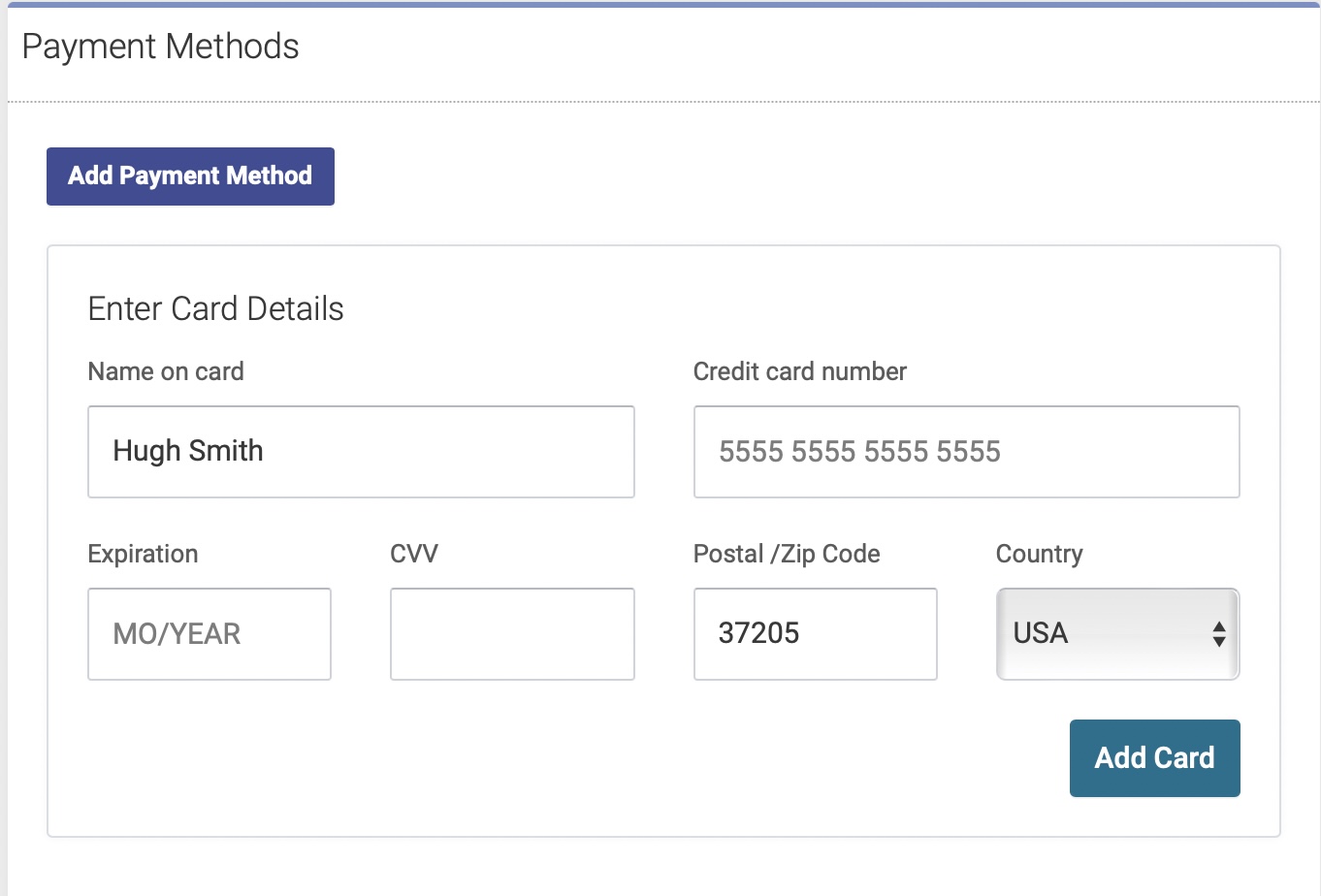
- Go to the patient's profile upon which you want to add the method
- Go to the Payment Method section of their profile on the left side
- Payment methods only show up on patient profile pages when your clinic has signed up for credit card payments and has completed the onboarding process.
- Click on "Add Payment Method"
- Enter card information.
- Click Add Card
- This will take a few seconds.
- If the card does not show as available immediately after you add it refresh the patient's page by clicking their name in the title area at the top of the page to refresh the payment methods. This is due to the approval process taking up to an hour to complete
- Now the payment method will show up as a choice when checking in a patient.
How to Delete Payment Methods or Make them the Default Method
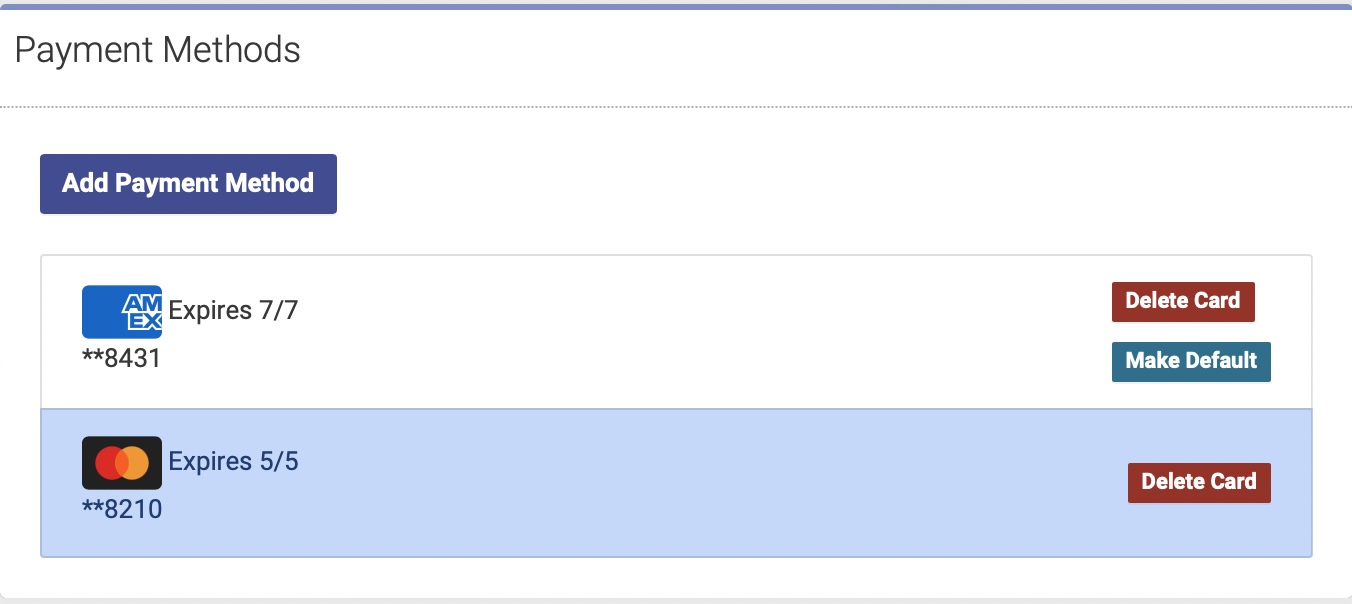
From the patient profile page the default payment method is highlighted with a blue background. If there is more than one payment method you can choose the default method by clicking on Make Default.
To delete any payment method from the Patient's profile click Delete Card. This will permanently delete this payment method from the patient's profile. Any transactions or appointments paid using that card will remain and reference that card number.
Add a Credit Card Method at Checkin or Transaction Pay
When checking in a patient the usual choices for payment method are available: Cash, Check, and Other. CreditCard is no longer available if you have payments added to your account. This is replace by "Add A Credit Card".
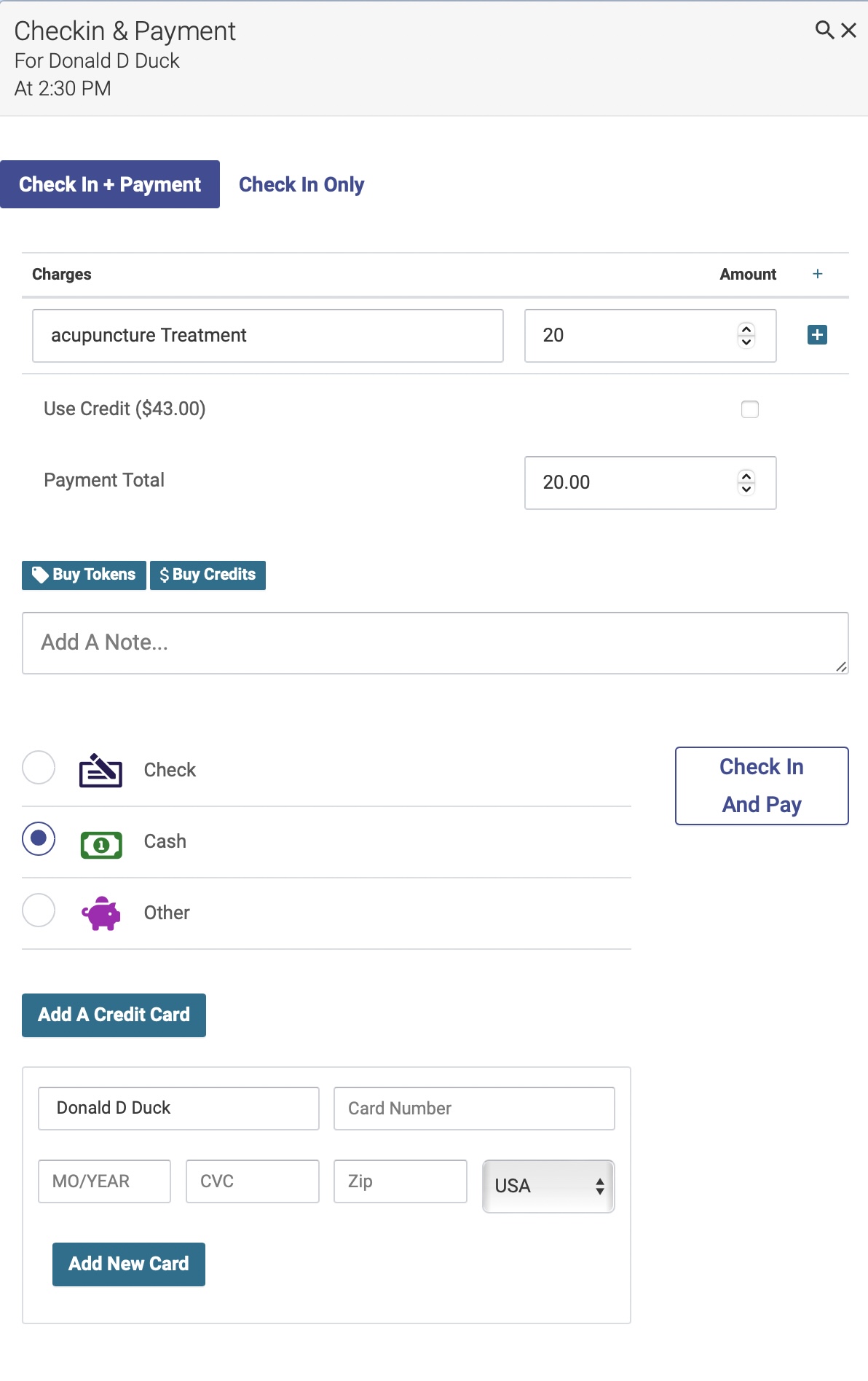
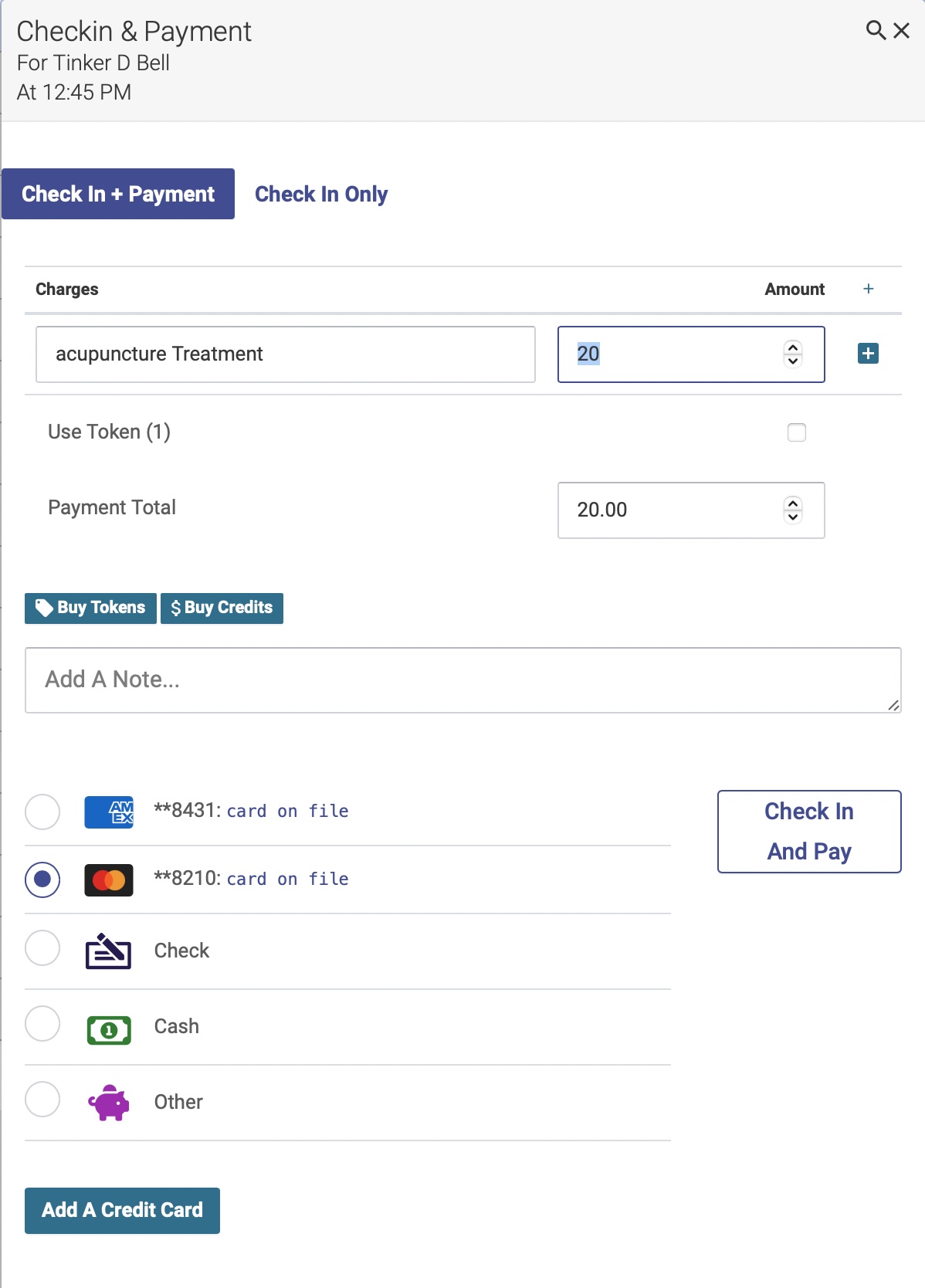
Clicking on "Add A Credit Card" opens a credit card form just like the one on their profile page. Enter the card and billing information and click "Add New Card". If successful, after a few seconds the payment methods will refresh with the new card as a choice. Clicking "Check In and Pay" will charge the card the Payment Total if it is more than zero.
Add a Credit Card Payment Method via Patient Portal
Patients can also add a credit card payment method to their own account via the patient portal. Instructions are in the Patient Portal Help section.