**Click the right arrow at the bottom of the page to advance to the next step:** **Host**
##### **Host** On the Host page, you'll enter: - Event Host from a dropdown menu of your clinic's Practitioners. To add a Practitioner, select their name from the dropdown menu, then click the Add Practitioner button. You can add multiple practitioners per event. - Click the "Add EHR notes to this event" checkbox if you want to enter and save health records for this event. - If you have other event presenters or hosts who are not on the menu of your clinic's Practitioners, you can add their name in the Other Presenters box [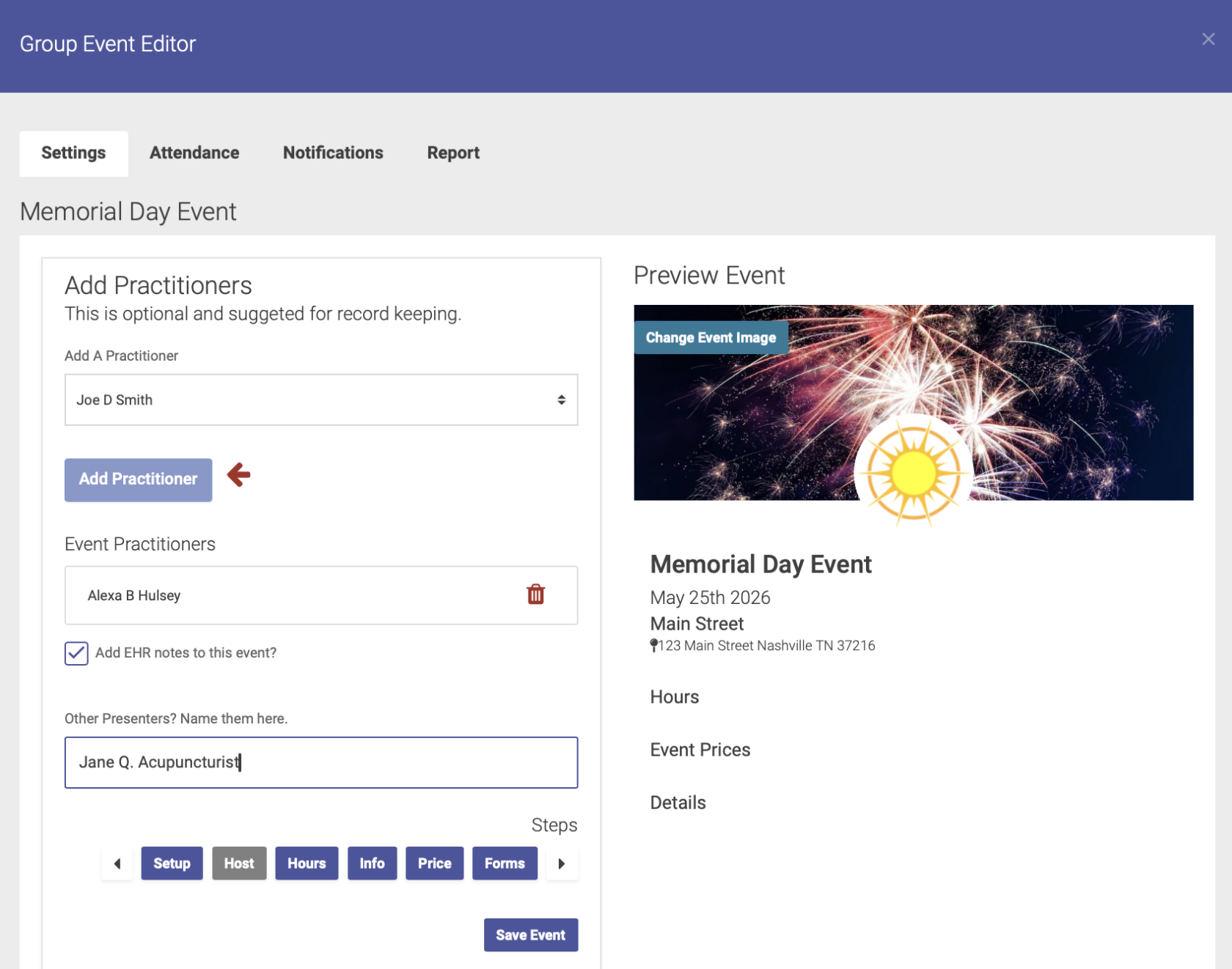](https://help.openacu.net/uploads/images/gallery/2026-04/DCbKcYlfrW3aasKY-new-event-host.png)**Click the right arrow at the bottom of the page to advance to the next step: Hours**
##### **Hours** On the Hours page, enter the start and end times for your event: [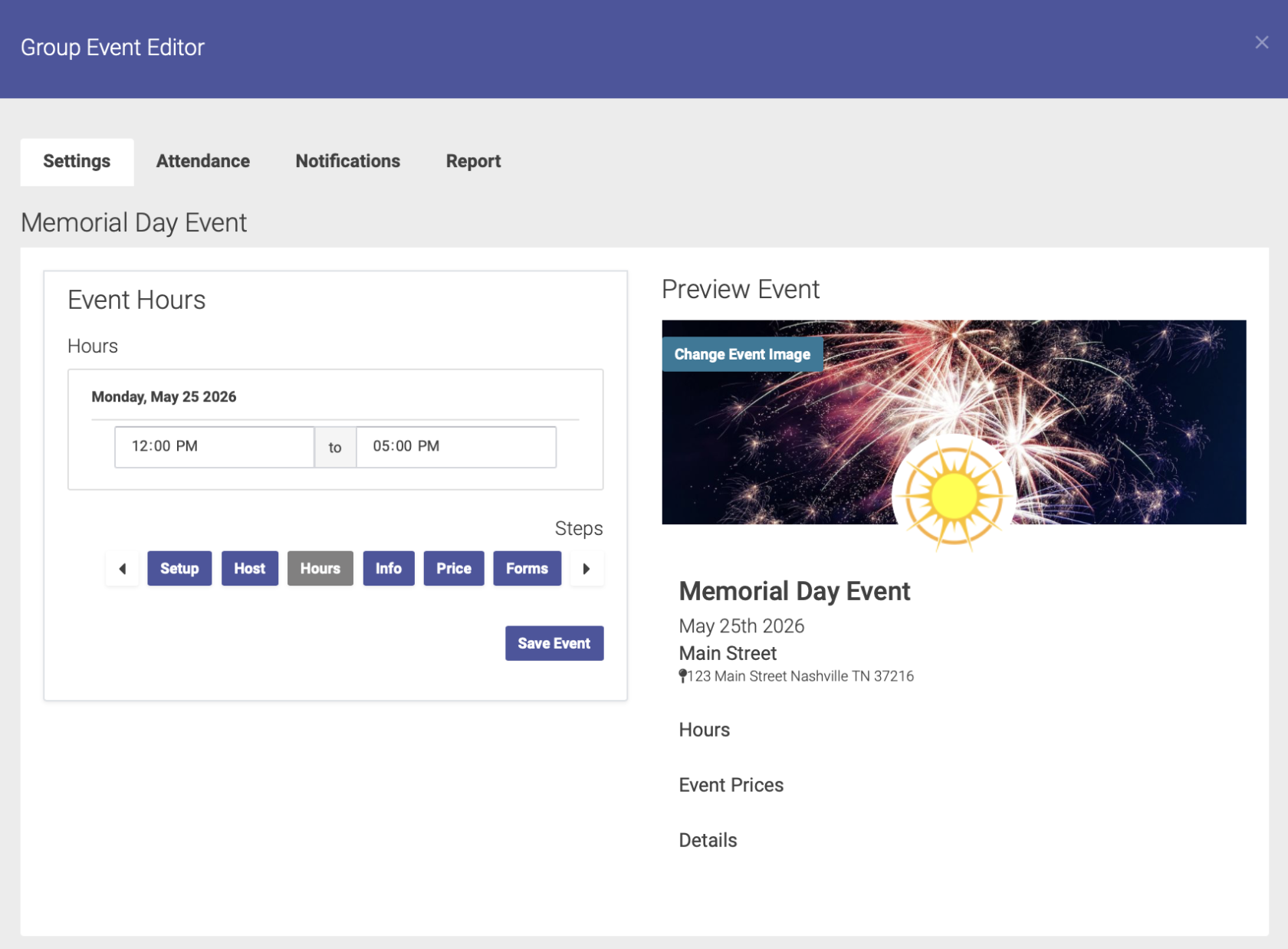](https://help.openacu.net/uploads/images/gallery/2026-04/LvbGqAk100LFQpAh-new-event-hours.png)**Click on the right arrow at the bottom of the page to advance to the next step: Info**
##### **Info** On the Event Info page, you'll enter more details about your event: - Event Description: enter a description of your event so attendees know what to expect - Event Details: here's where you'll enter the fine print such as cancellation policy, parking information, etc [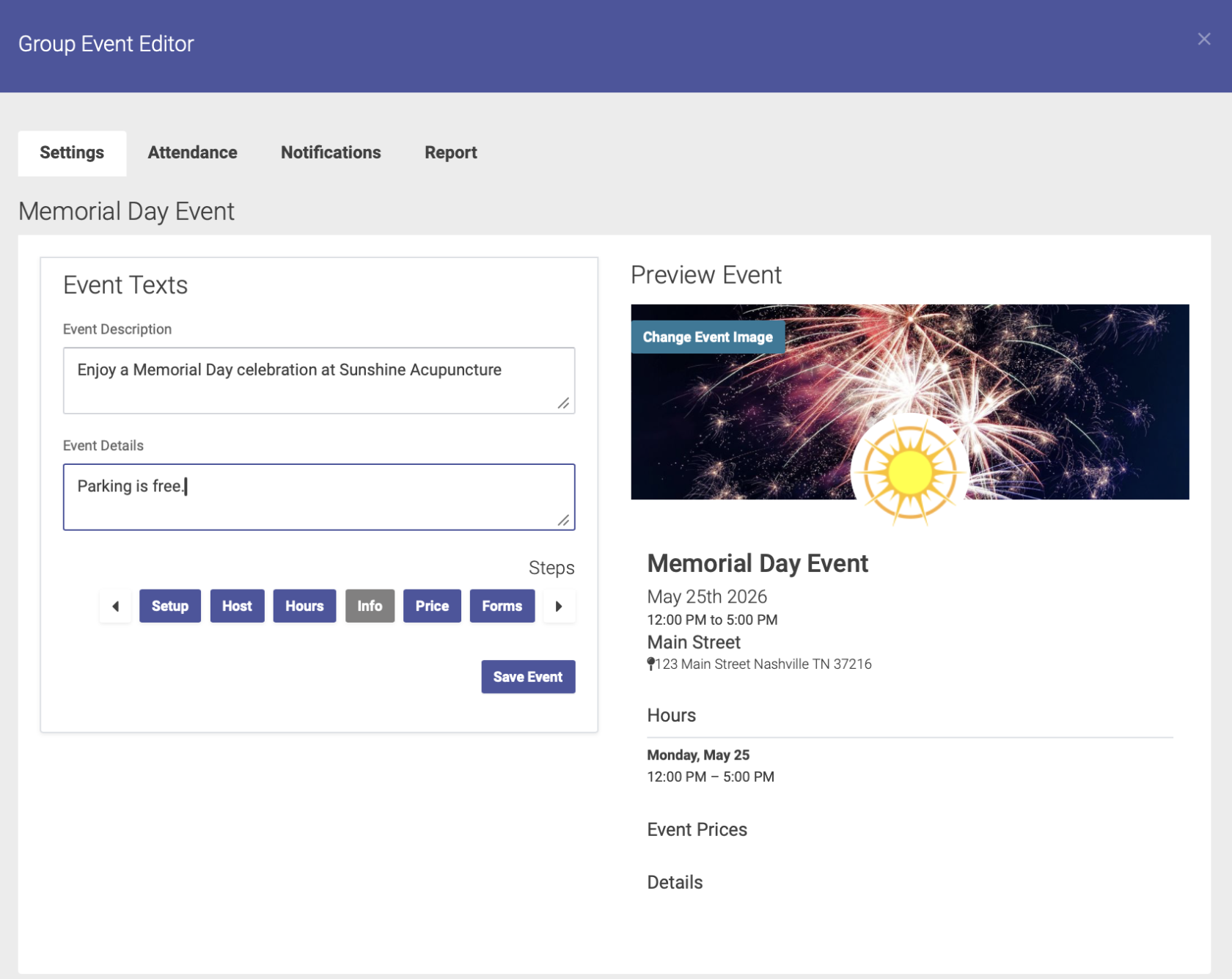](https://help.openacu.net/uploads/images/gallery/2026-04/tLelr1t5E6JQx2Gs-new-event-details.png)**Click on the right arrow at the bottom of the page to advance to the next step: Price**
##### **Price** On the Price page, you'll enter your pricing for the event. **For a free event:** Enter your price title and 0.00 for your price amount. Click the Add Price button to save: **[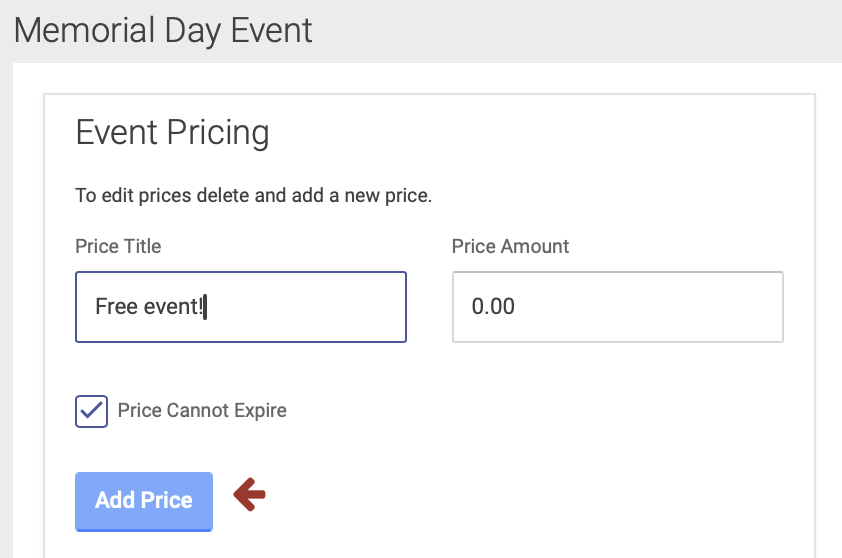](https://help.openacu.net/uploads/images/gallery/2026-04/8VExt4DsEOmEfKsh-new-event-free.png)** **For a paid event:** - Enter your price title, amount, and expiration date (if applicable). Then click the Add Price button. - You can add expiration dates to a price for an early-bird pricing option. - If you want to require prepayment, click the Prepayment Required box (note: you must use Open ACU's [Stripe integration](https://help.openacu.net/books/admin-scheduler-help/chapter/taking-credit-cards) feature to enable prepayment for Events). [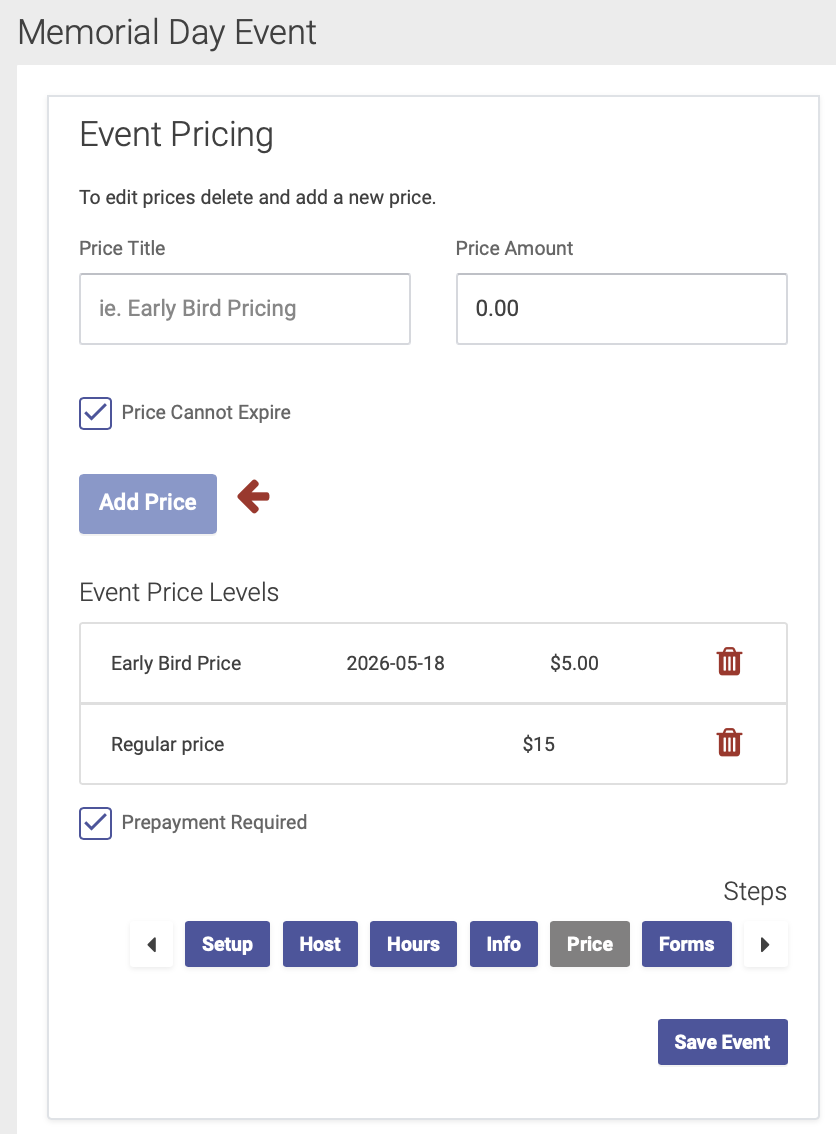](https://help.openacu.net/uploads/images/gallery/2026-04/xqvmKGFwH7cV0c89-new-event-pricing.png)**Click on the right arrow at the bottom of the page to advance to the next step: Forms**
##### **Forms** On the Forms page, you have the option of sending forms to attendees, to be completed in advance of the event. - Select the forms you'd like to send from your clinic's Intake Form options, - Or click the Create a New Form to create a new form for your event. This will take you to your Intake Settings page. - You can skip this step if you do not require attendees to fill out a form for this event. [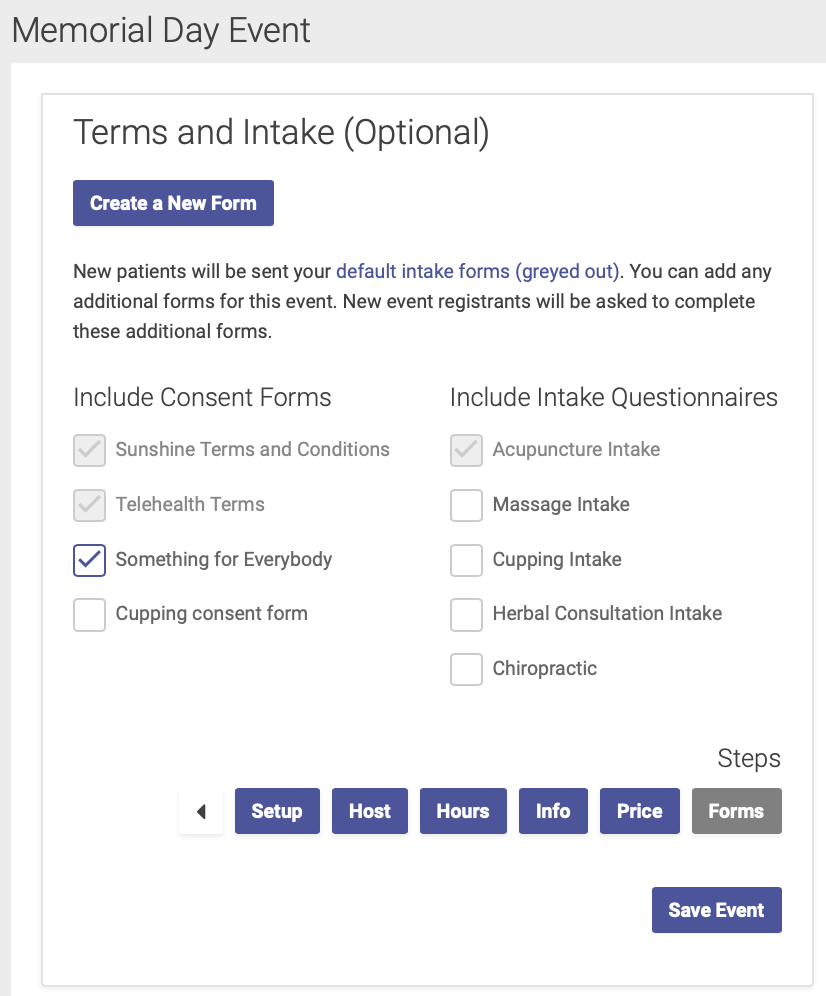](https://help.openacu.net/uploads/images/gallery/2026-04/0ZXtJZbRV6Dr3bex-new-event-forms.png)**Click Save Event to finish the event setup process**
**Next step: [Event Notifications](https://help.openacu.net/books/admin-scheduler-help/page/event-notifications)**