# Locations
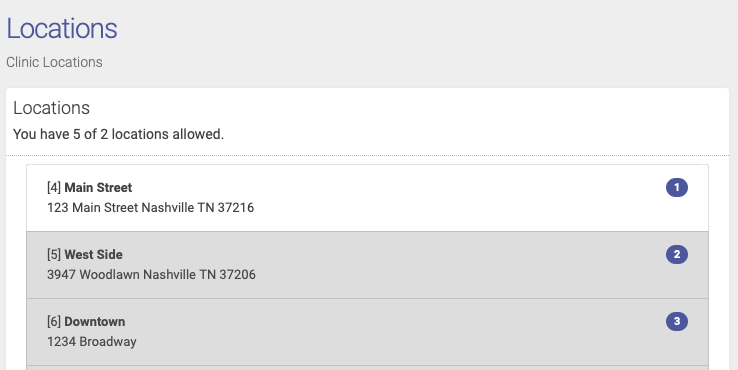
Open ACU gives all accounts 2 free active locations. You can add a location to your account for $10 a month. If you need more than 10 locations contact us for bulk location pricing.
### Adding A New Location
If you don't need to purchase more locations you can add one at anytime. Just go to Locations and click the \[+\] Plus sign to the right. If you need to add locations to your account click "Add A Location".
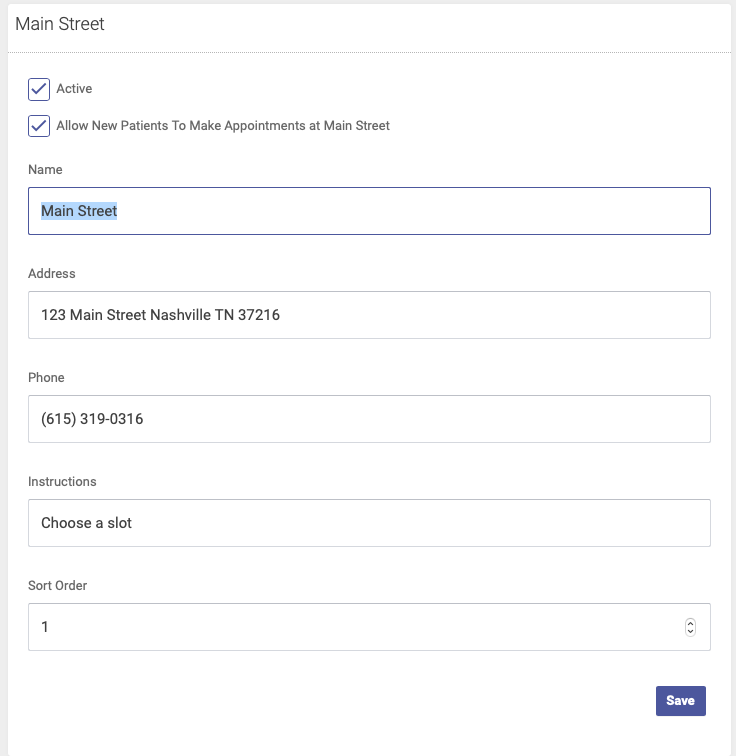
Each location has these options
- **Active**. This checkbox makes the location available online to patients and in the appointments grid of your admin. Unchecking it hides it from those options. Inactive locations still show up in reports and remain associated with appointments that occurred in those locations. **You cannot delete a location. If you need to you make contact us to do so for you but that still may not guarantee a deletion.**
- **Allow New Patients To Make Appointments.** Uncheck this to prevent new patients to make any appointments at this location.
- **Name** \*required. This text shows up when the patient is choosing the location. Enter something descriptive and short.
- **Address** \*required. Enter a well formed address as it will enhance the patient's ability to locate your clinic via GPS.
- **Phone \***required. Enter a location specific to the location.
- **Instructions** optional. Enter a short text with specific location instructions. This will appear on the location page of your schedule in the Patient Portal.
### To edit your locations
1. Go to Locations in the main menu on the left.
2. Select one of your locations in the left column by clicking or tapping.
3. Edit the location details and click save.
[](https://help.openacu.net/uploads/images/gallery/2021-11/HIBUNloxEuIgHm95-alllocs.png)
[](https://help.openacu.net/uploads/images/gallery/2021-11/fVbrAgz8tjKQyDQH-editloc.png)