Saving Block Styles and Using Them
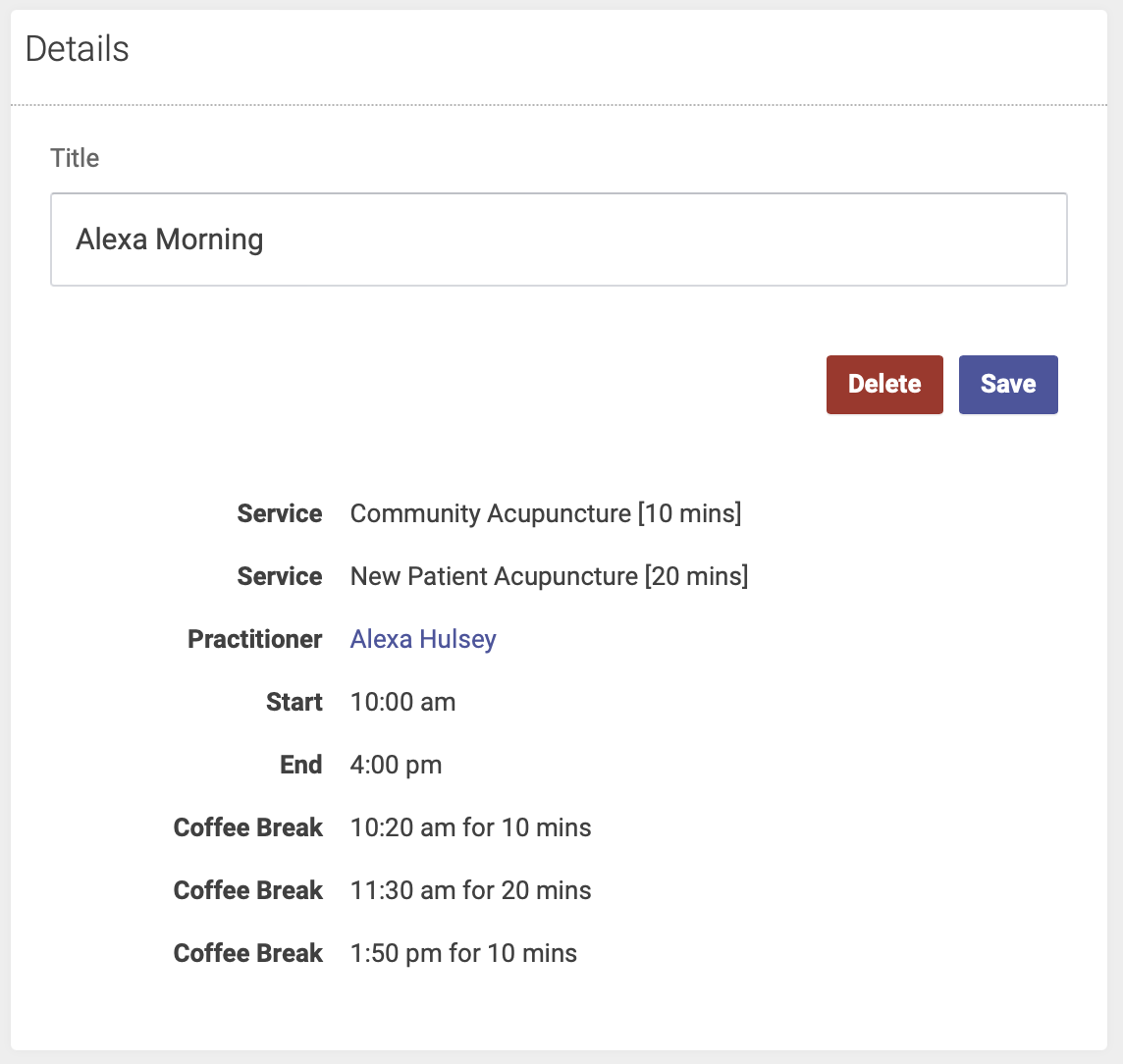
Any block can be used as a template of sorts, saving that block as a block style. Block styles include the practitioner, the service options, the start to finish times and any coffee breaks included. This is intended to make it easier to make blocks and to have fewer errors.
To create a block style
- Locate a block you want to save. It should have the start and finish times, Service choices, practitioner and coffee breaks you want.
- Click the stacked plus icon in that block's edit icons.

- In the popup form give it a unique and descriptive name and click save.
- Now, when you create a new block the option of using your saved block styles is available.

You can save any existing block to be used again on any other day or location. This includes the practitioner, Service options, start and end times and all coffee breaks.
To Save a Block for Later Use
- Find a block in your schedule
- Click the [+] sign in the block header on the right.
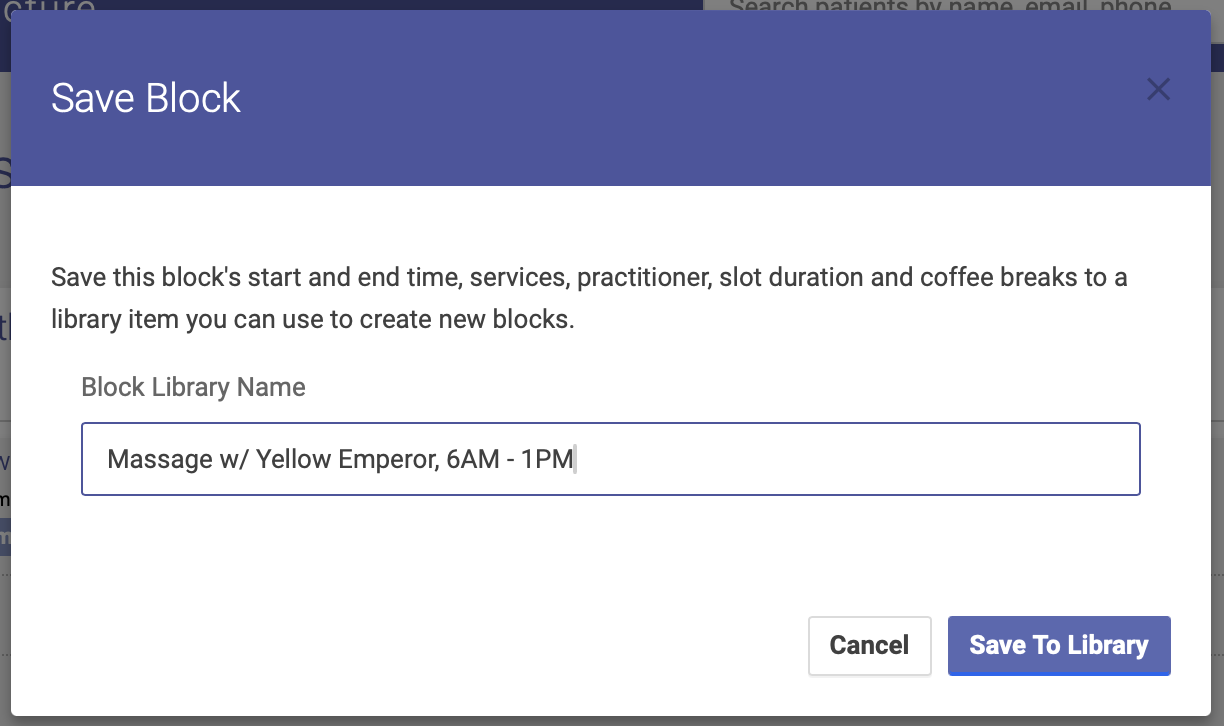
- Give your block a unique and descriptive name (max 80 characters)
- Click Save
To Use a Saved Block
- Go to the day and location where you want to create the block.
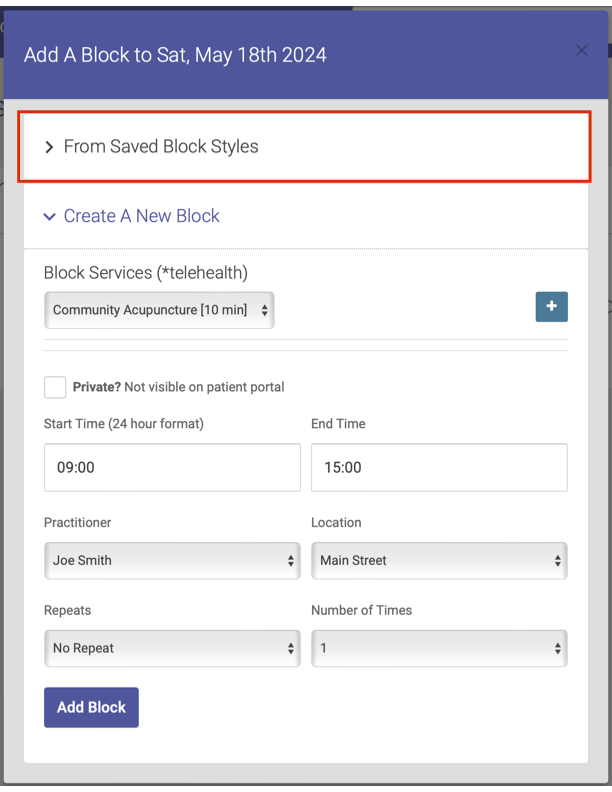
- Click the [+] at the top right of the day header

- Select "From Saved Block Styles" to open the selection form (Create New Block is opened by default).
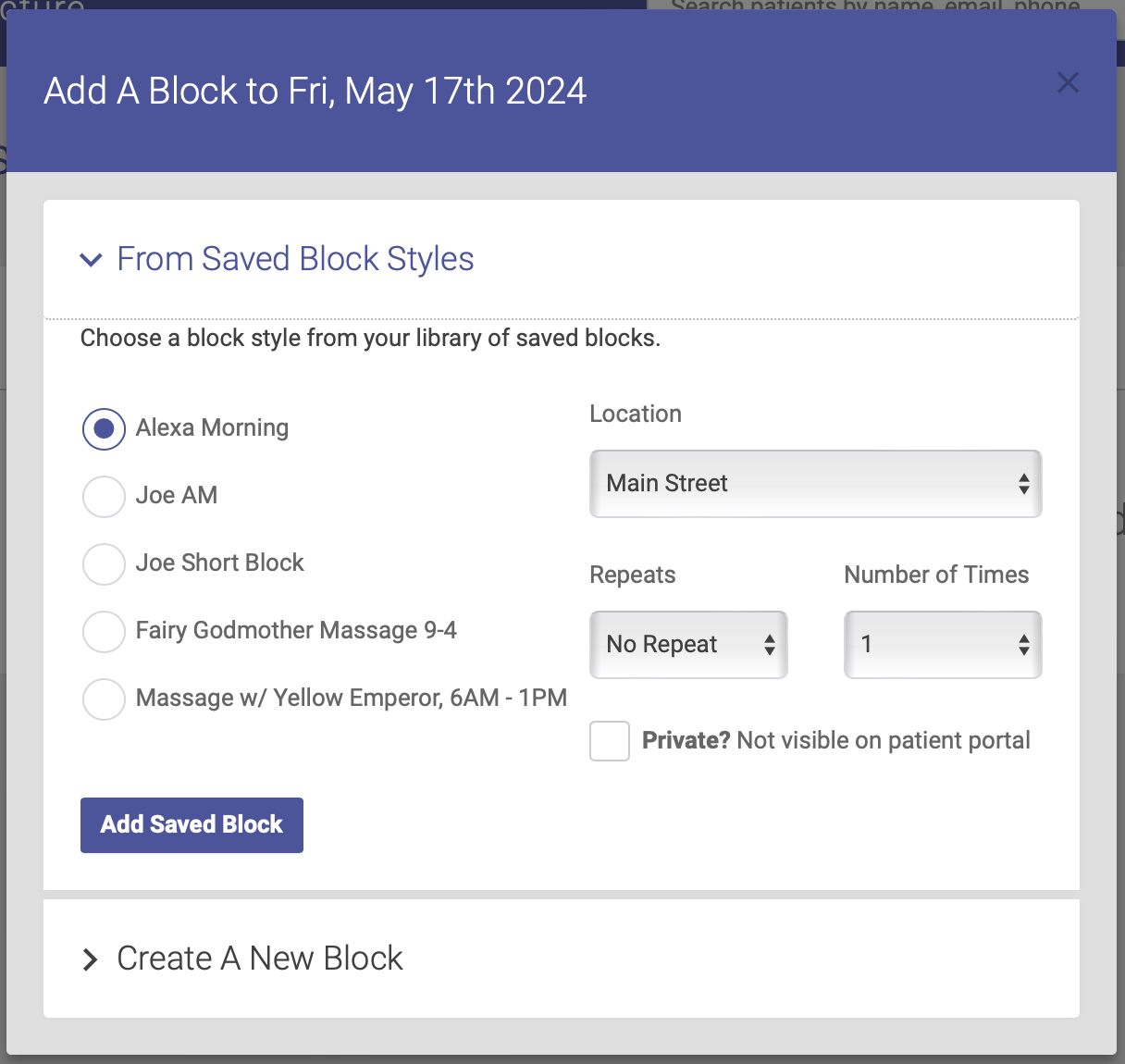
- Choose the block style you want to insert
- Click "Add Saved Block"

To View Your Saved Blocks
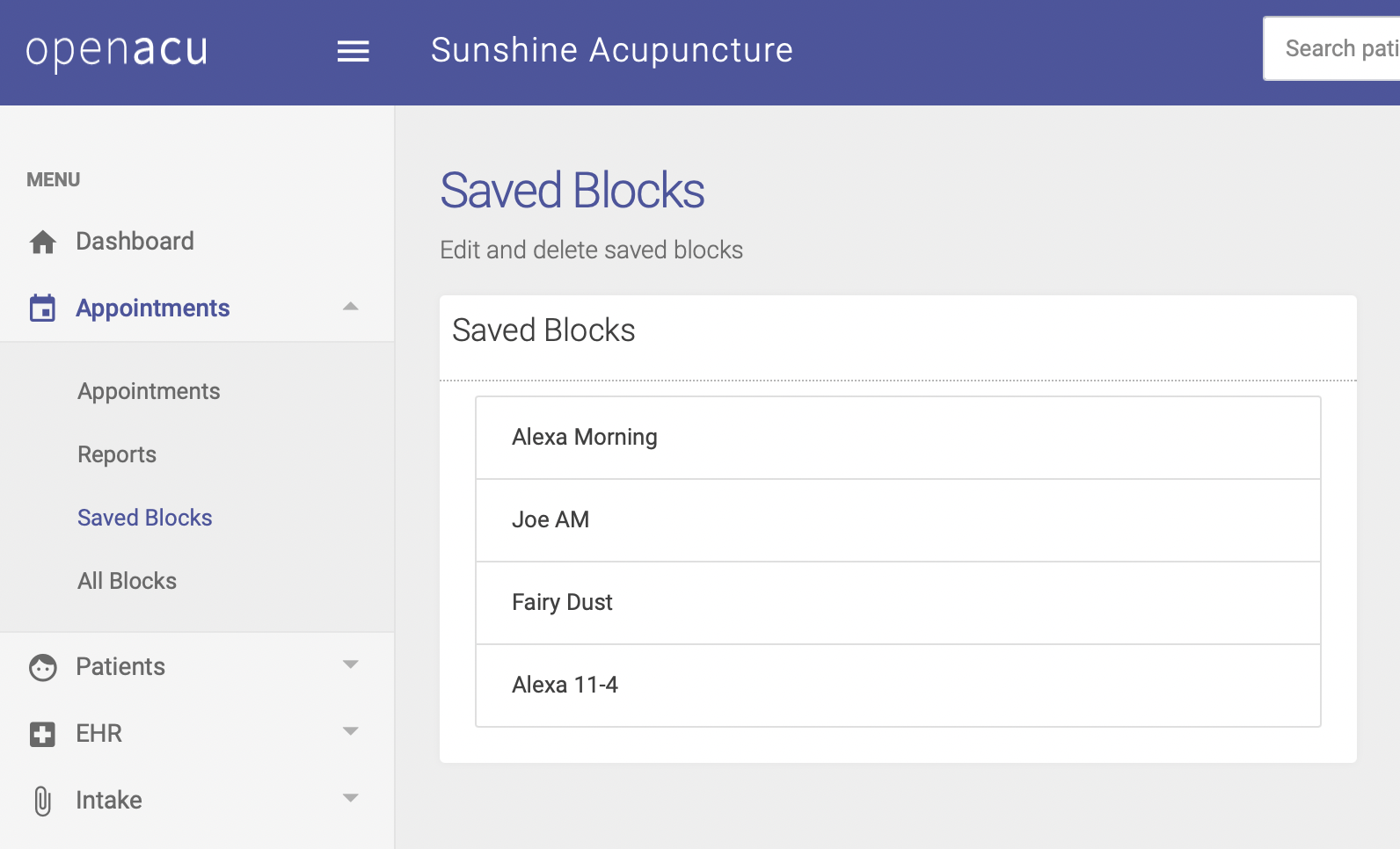
Under the Appointments tab on the left-hand side of the page, click Saved Blocks. This will bring up a list of your saved blocks. From here, you can change the title of a saved block or delete a saved block.
To Delete a Saved Block
From your Saved Blocks page, click on the name of the block you want to delete. The details of the saved block will appear to the right. Click Delete to delete the saved block.
To Edit a Saved Block
You can edit the title of a Saved Block but not any of the details. From your Saved Blocks page, click on the name of the block you want to edit. The details of the saved block will appear to the right. Enter your new title in the Title field and click Save.