# Service Report
The Service Report shows all appointments for a specific Service in given range.
Here's a video overview:
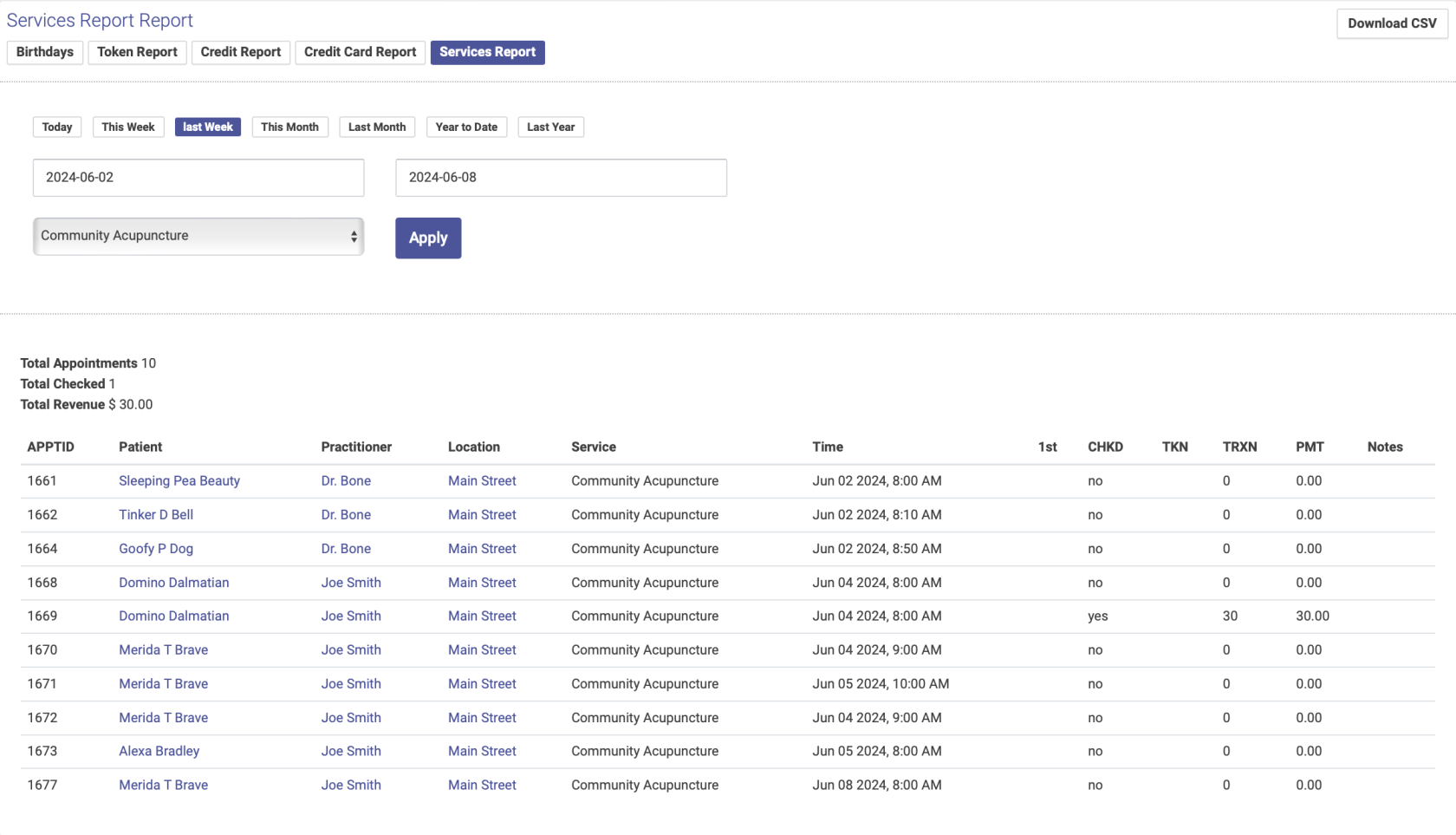
Follow these steps to run a Services report:
1. From the left hand side menu, go to Appointments --> Reports
2. Click Services Report at the top of the page
3. Enter your date range and select your Service from the drop down menu, then click Apply
4. Your report will list every appointment for that Service in your date range. The top of the report will show totals, including number of appointments, number of checked-in appointments, and revenue.
[](https://help.openacu.net/uploads/images/gallery/2024-06/aooLkqMz2sxGjFTS-services-report.png)