# Entering EHR Notes

You'll enter your EHR notes from the [EHR By Block](https://help.openacu.net/books/ehr-help/page/ehr-by-block-page) page or the [EHR Appointments](https://help.openacu.net/books/ehr-help/page/ehr-appointments-page) page.

Here's a quick video look at how it works:

<iframe allowfullscreen="allowfullscreen" height="350" src="//player.vimeo.com/video/447203278?title=0&byline=0&portrait=0&color=8dc7dc" width="425"></iframe>

#### Entering a New Note

To enter an EHR note, click on the pencil icon next to the patient’s name:

[![entering-notes-1.png](https://help.openacu.net/uploads/images/gallery/2020-08/scaled-1680-/STaWmXpHPnJ757lm-entering-notes-1.png)](https://help.openacu.net/uploads/images/gallery/2020-08/STaWmXpHPnJ757lm-entering-notes-1.png)

The Health Record Entry fields will appear. The format for the fields is based on your clinic’s EHR preferences, and will appear in either in plain field format:<span class="Apple-converted-space"> </span>

[![entering-notes-5.png](https://help.openacu.net/uploads/images/gallery/2020-08/scaled-1680-/51WwtGc92UQUvtWP-entering-notes-5.png)](https://help.openacu.net/uploads/images/gallery/2020-08/51WwtGc92UQUvtWP-entering-notes-5.png)

Or in SOAP format:<span class="Apple-converted-space"> </span>

[![entering-notes-6.png](https://help.openacu.net/uploads/images/gallery/2020-08/scaled-1680-/jg07tjj87AkVgBVD-entering-notes-6.png)](https://help.openacu.net/uploads/images/gallery/2020-08/jg07tjj87AkVgBVD-entering-notes-6.png)

Complete each field, and add your points. First highlight the field for the area of the body: use the top box for head points or bilateral points, and the four quadrant fields for distal or unilateral points. Then click on your [saved points](https://help.openacu.net/books/ehr-help/page/treatment-codes) or [saved point groups](https://help.openacu.net/books/ehr-help/page/treatment-groups) to populate each field with points. You can also add points that aren’t saved in your list of treatment codes by using the custom point box.

<p class="callout warning">Make sure you click Save after you've added or changed points. The points will not be saved in the record without doing so. Even if you Lock the records.</p>

#### Repeating Past Treatments

You can repeat a prior treatment from either the [EHR Blocks](https://help.openacu.net/books/ehr-help/page/ehr-by-block-page) or [EHR Appointments](https://help.openacu.net/books/ehr-help/page/ehr-appointments-page) page.

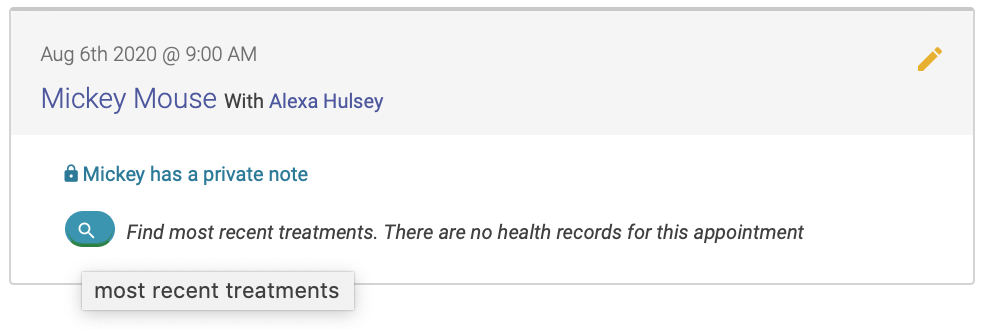
To repeat a past appointment, first you'll need to click on the magnifying class by the patient's name to [view their treatment history](https://help.openacu.net/books/ehr-help/page/viewing-treatment-history):

[![past-appts-3.png](https://help.openacu.net/uploads/images/gallery/2020-09/scaled-1680-/IaXizPBMKwoD2Ugf-past-appts-3.png)](https://help.openacu.net/uploads/images/gallery/2020-09/IaXizPBMKwoD2Ugf-past-appts-3.png)
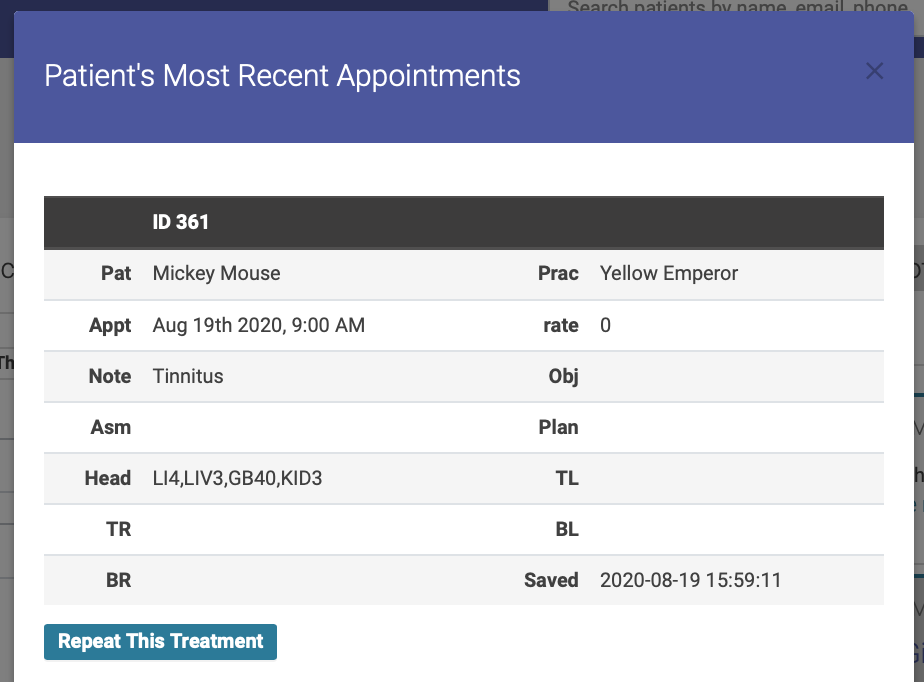
Their treatment history will appear in a popup modal. Simply click "Repeat This Treatment" below the treatment you'd like to repeat:

[![repeat-tx.png](https://help.openacu.net/uploads/images/gallery/2020-09/scaled-1680-/Qhws6kklCjl961bV-repeat-tx.png)](https://help.openacu.net/uploads/images/gallery/2020-09/Qhws6kklCjl961bV-repeat-tx.png)
You can then modify your treatment notes and point selections before saving and locking.

#### Locking Notes

Once you've entered a complete treatment note, you should finalize your entry by locking the note.

**Once you've locked a note, you will be unable to make any further modifications to the note. This ensures the security of your EHR records.**

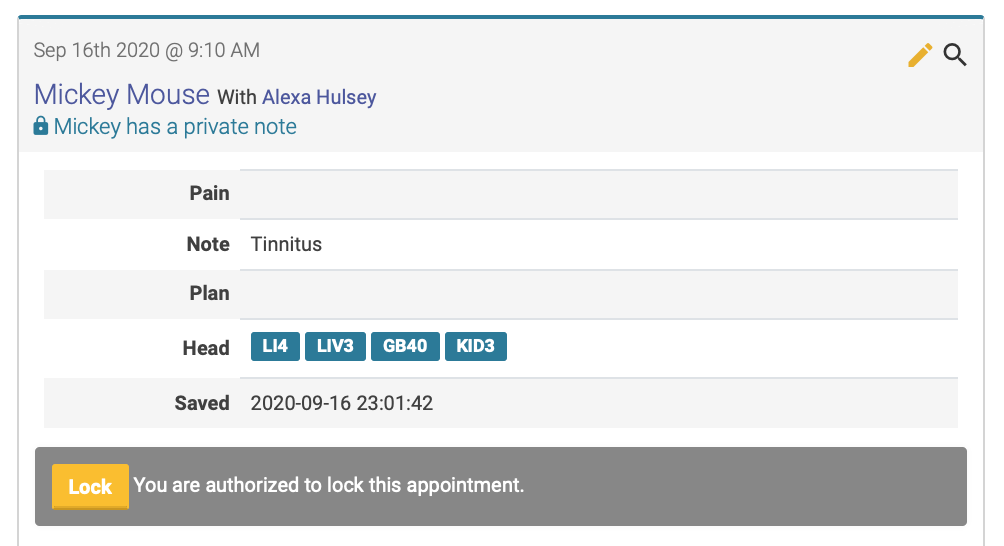
Before you lock a note, you'll see a yellow Lock button below your note entry for that treatment:

[![lock-1.png](https://help.openacu.net/uploads/images/gallery/2020-09/scaled-1680-/A1ZLyz8aFtb6T53v-lock-1.png)](https://help.openacu.net/uploads/images/gallery/2020-09/A1ZLyz8aFtb6T53v-lock-1.png)
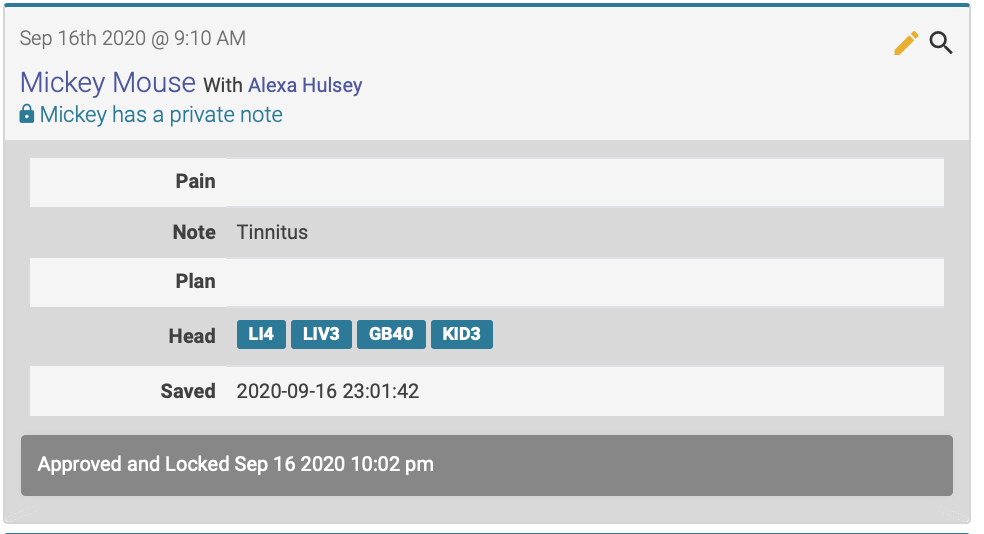
Once you've locked a note, the locked record will be date and time stamped:

[![lock-2.png](https://help.openacu.net/uploads/images/gallery/2020-09/scaled-1680-/LJurcNsoc7yZMO4g-lock-2.png)](https://help.openacu.net/uploads/images/gallery/2020-09/LJurcNsoc7yZMO4g-lock-2.png)
#### Adding a Note Addendum

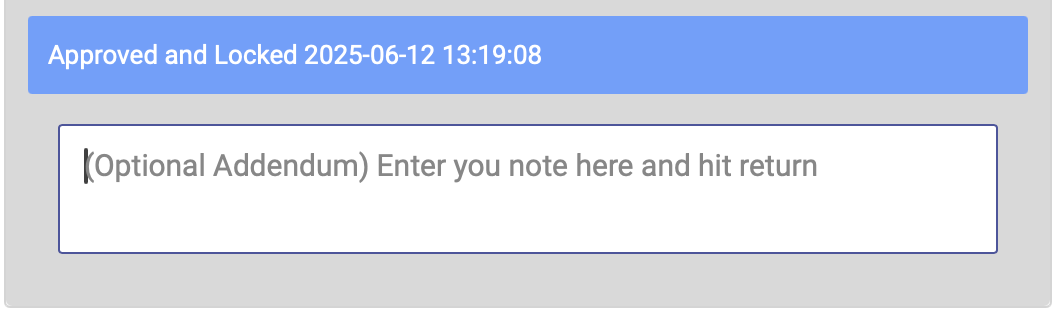
To add an addendum to a locked Note, enter your text in the field below the locked time and date stamp, then hit return. This will save your addendum, and add a time and date stamp:

[![Addendum.png](https://help.openacu.net/uploads/images/gallery/2025-06/scaled-1680-/om7UK1u44mUdAh36-addendum.png)](https://help.openacu.net/uploads/images/gallery/2025-06/om7UK1u44mUdAh36-addendum.png)