# How to Book an Appointment
Quickly and easily book an appointment on the patient portal:
---
#### **Step 1:**
Sign in to your patient account with your Username and Password
#### **Step 2:**
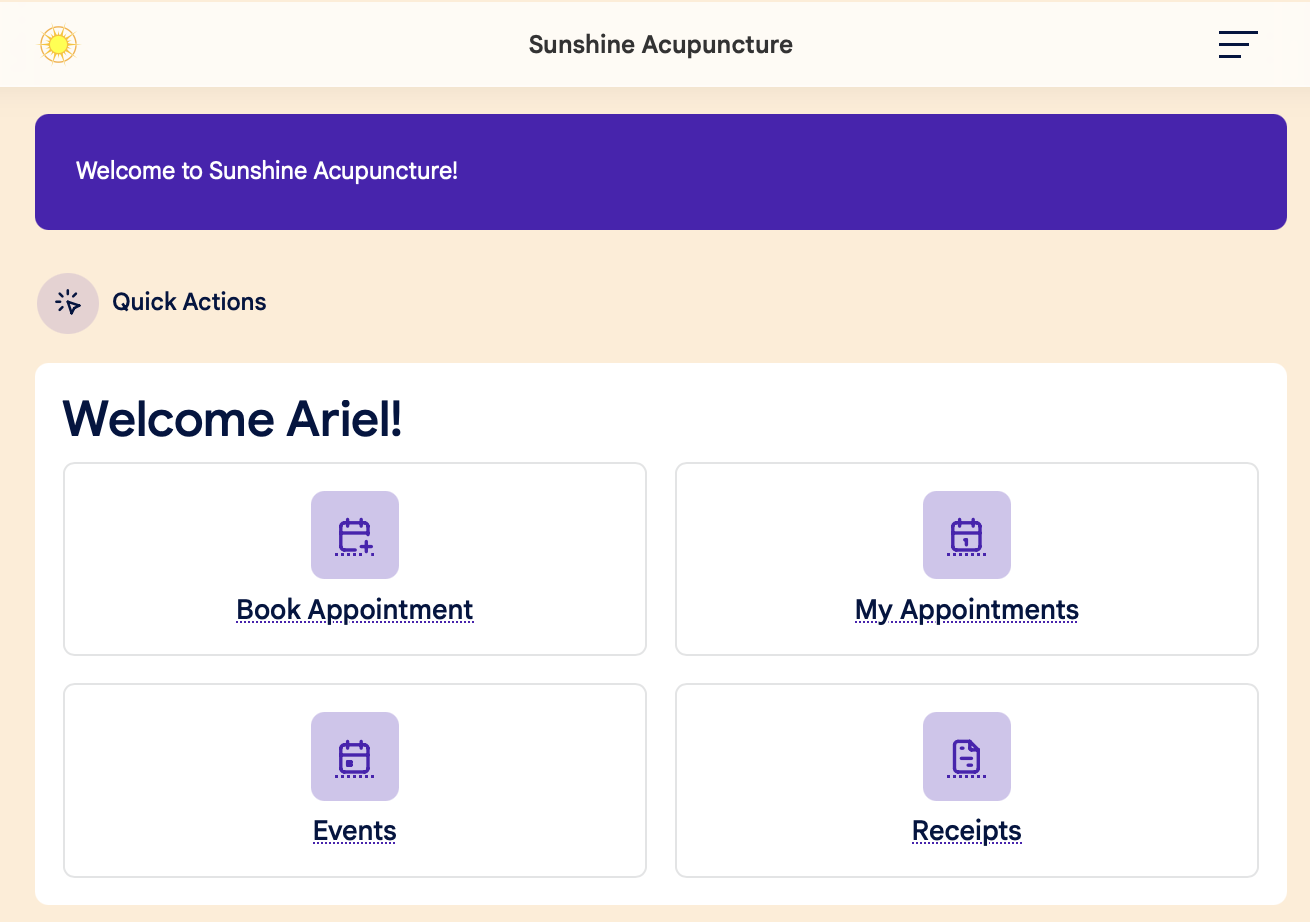
Click the Book Appointment button on the Dashboard:
[](https://help.openacu.net/uploads/images/gallery/2026-06/oyQkGq6Ky7RBdYd3-patient-dashboard.png)
#### **Step 3:**
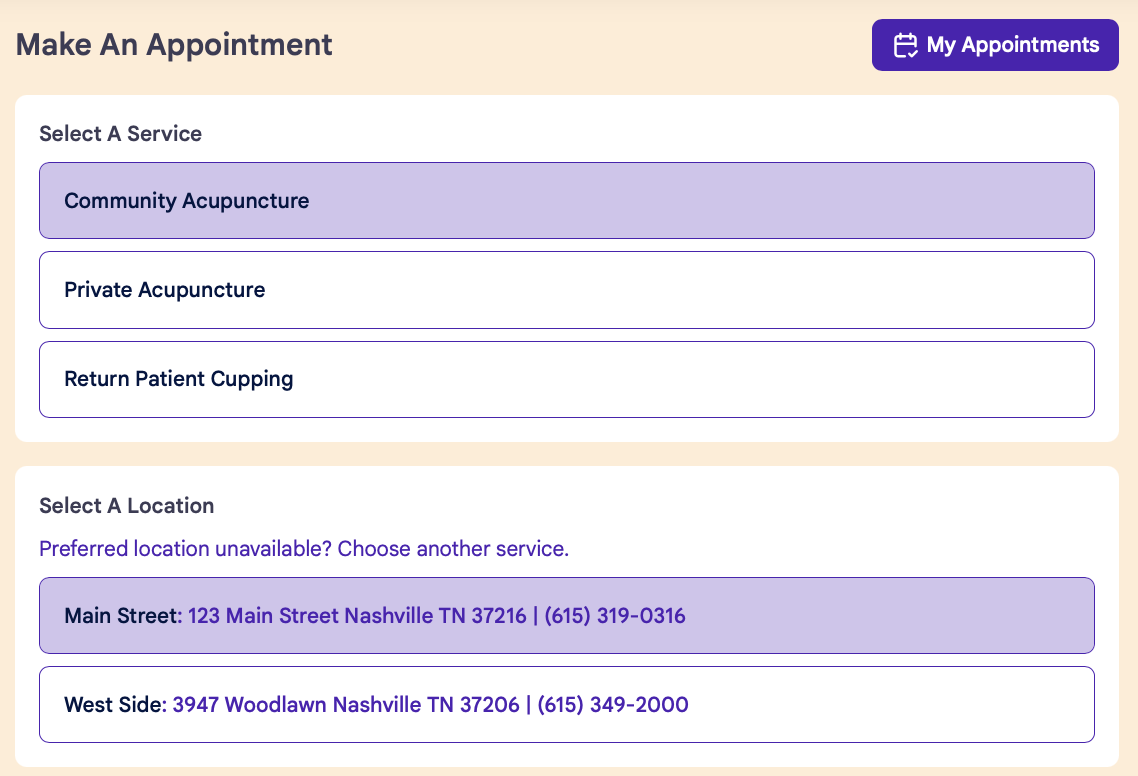
Use the dropdown menu to select your Service and Location. If only one selection is available, it will automatically be highlighted:
[](https://help.openacu.net/uploads/images/gallery/2026-11/POqV9slIR7bV9jnY-book-appt-step-2.png)
#### **Step 4:**
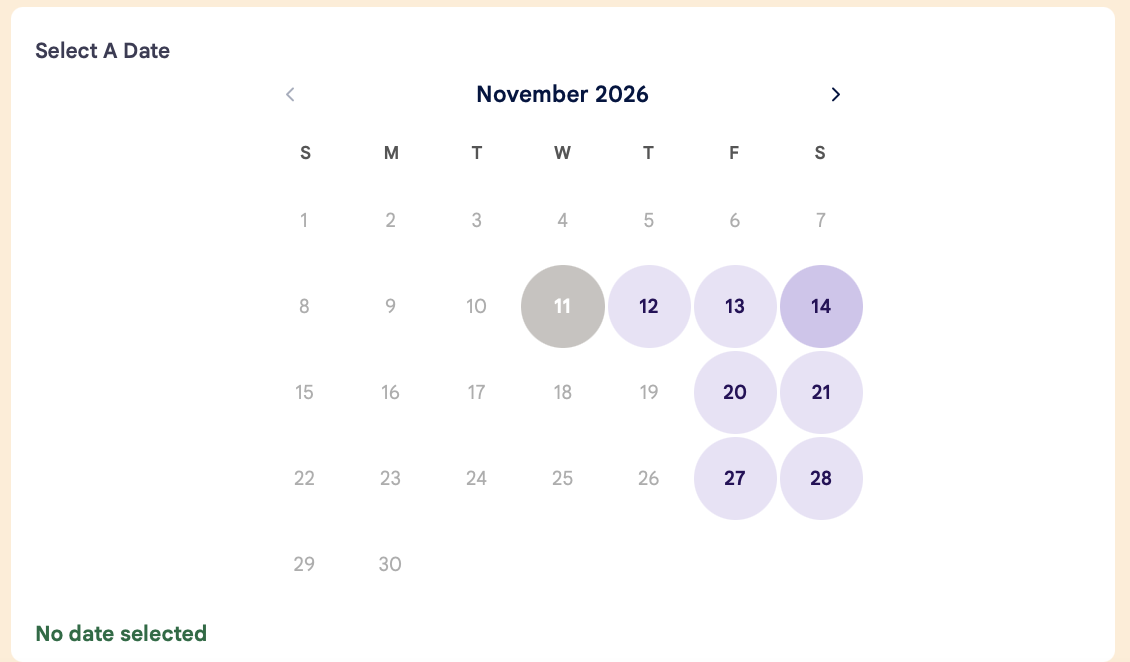
Select your date on the calendar:
[](https://help.openacu.net/uploads/images/gallery/2026-11/QrJGPcnmI8oAdOis-new-portal-select-date.png)
#### **Step 5:**
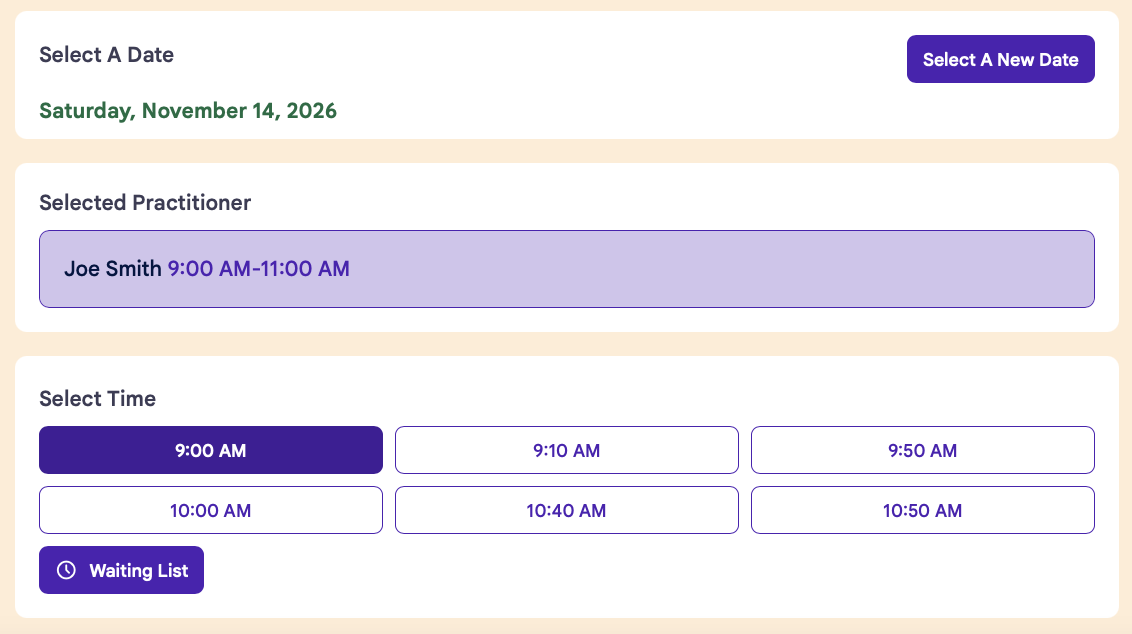
Select your Practitioner and time:
[](https://help.openacu.net/uploads/images/gallery/2026-11/kBms4LQNwNEWZUkJ-select-pract-and-time.png)
#### **Step 6:**
Once you've selected a time, you'll see a popup window to confirm your appointment.
- Click "Book It!" to complete your booking
- Click "Go Back" to return to scheduling
[](https://help.openacu.net/uploads/images/gallery/2026-06/j8wAji6SUgqgbmwG-book-it.png)
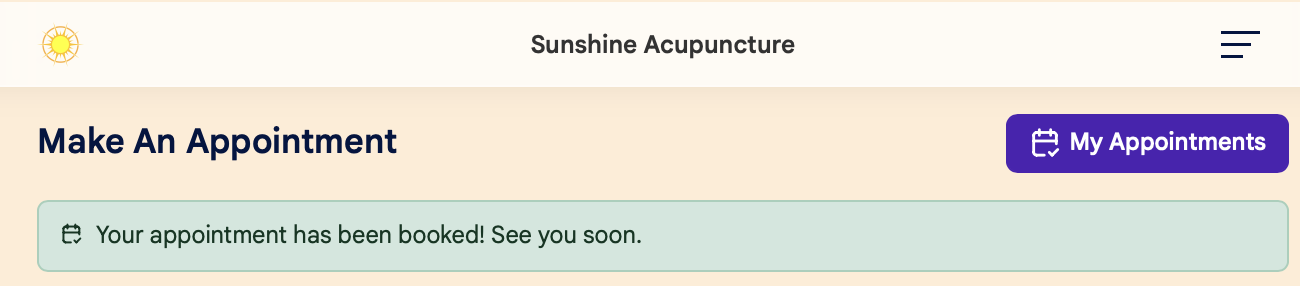
**Your appointment is now booked! You'll see a confirmation message at the top of the screen:**
**[](https://help.openacu.net/uploads/images/gallery/2026-06/26fY2TrhMM0f7K21-confirmed.png)**