Manually changing credit/debit and token balances
Note: to see how to add tokens, credits or debits to a patient account during a checkin or purchase transaction, please see Purchasing Tokens and Credits.Credits.
You can manually add tokens, add credits and debits, and change account balances on a patient's account from the Patient Profile page.
Manually changing account balances
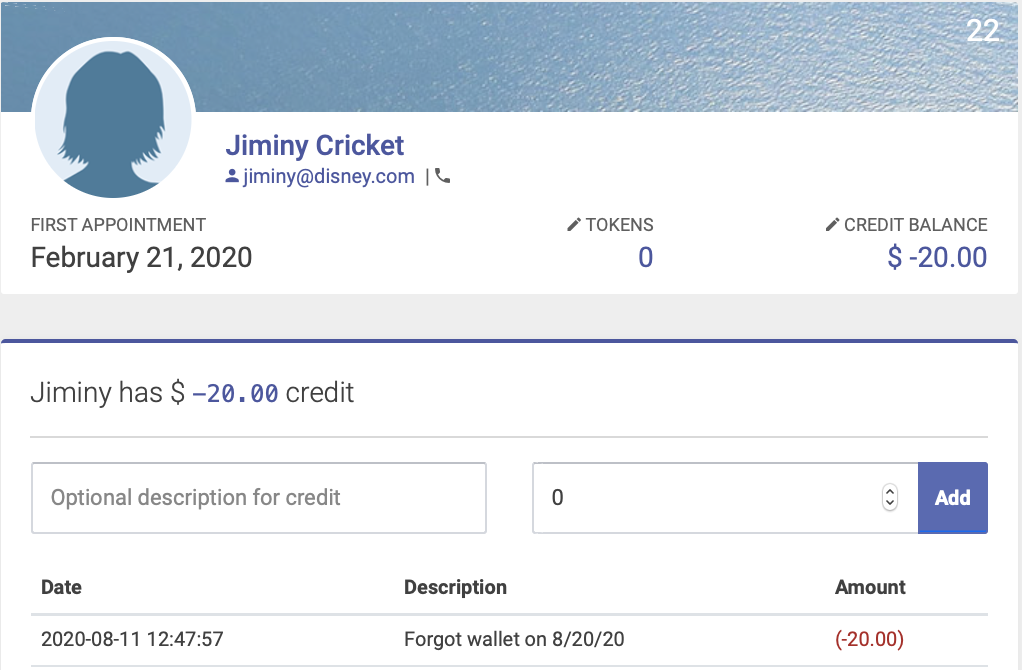
You can manually change an account balance - for example, waiving a cancellation fee - from the Patient Profile page. Under their name, you’ll see Credits - click that to expand the credits window, which includes their credit history:
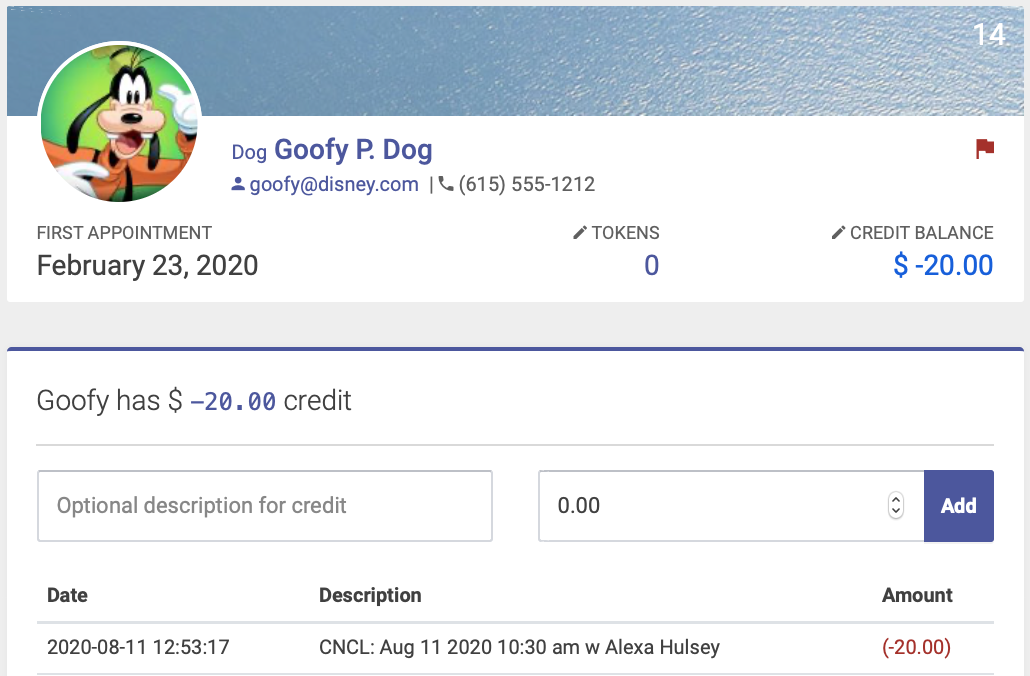
Enter your optional description, the dollar amount, and click Add:
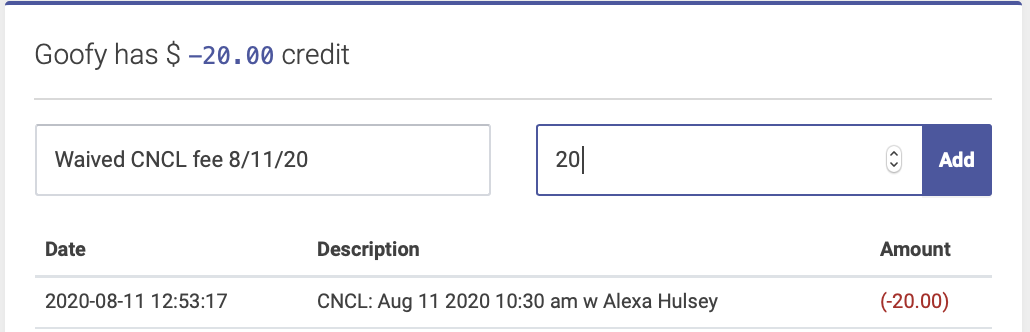
You’ll see the new credit balance under the patient’s name and the most recent entry for credits at the top of the history:

Adding tokens
Note: to see how to add tokens to a patient account during a checkin or purchase transaction, please see Purchasing Tokens and Credits.Credits.
Here's how to manually add tokens to a patient account, outside of a checkin or purchase transaction. Under the patient's name on their Patient Profile page, you’ll see Tokens - click that to expand the tokens window, which includes their token history:
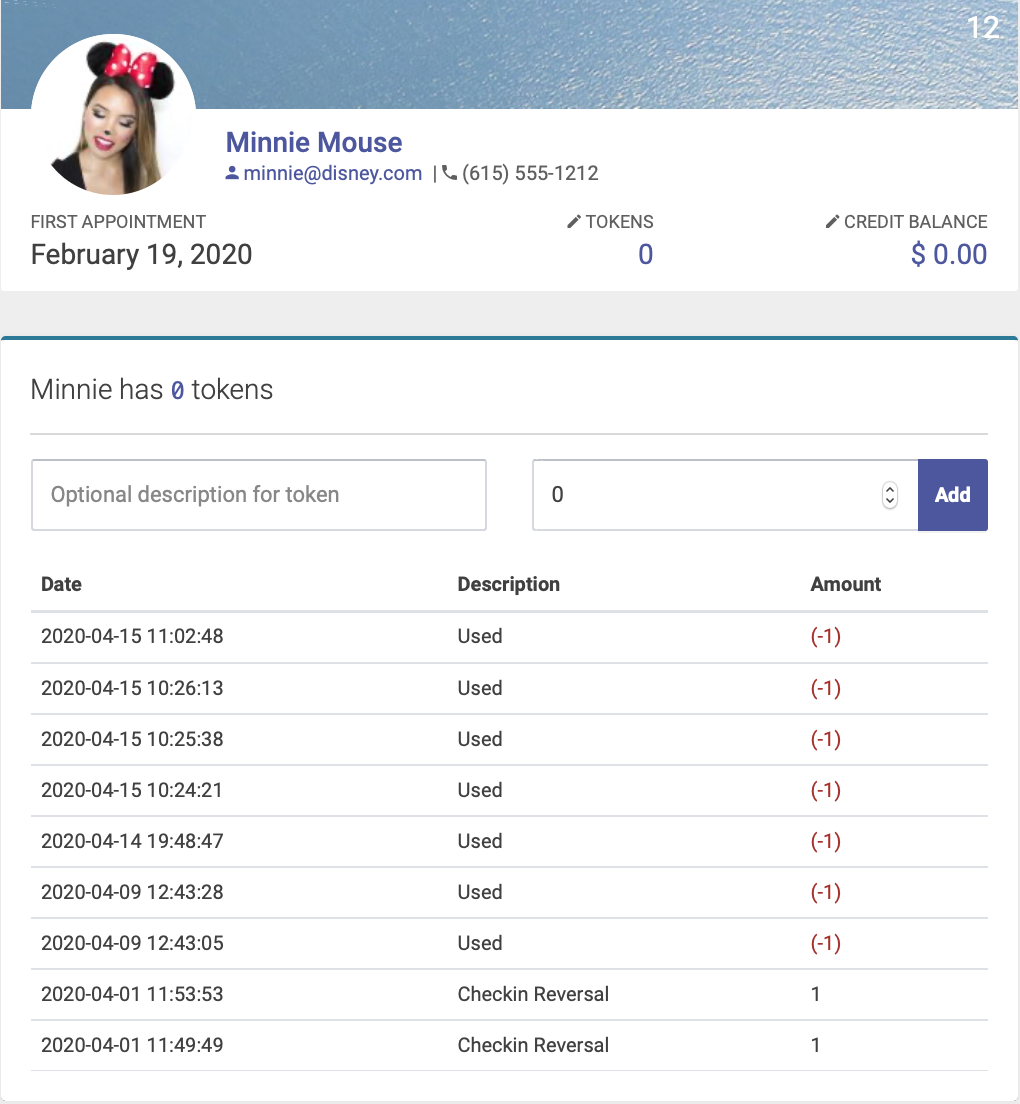
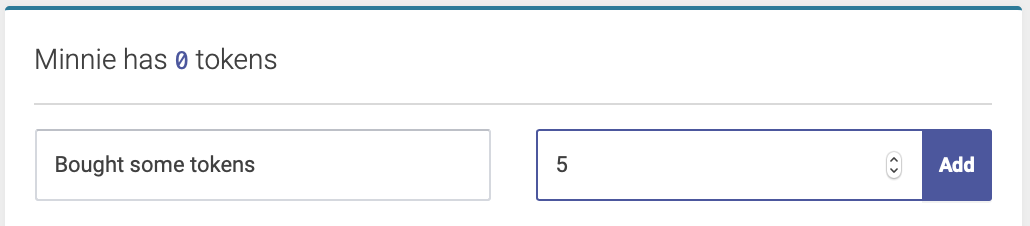
Enter your optional description for tokens, the number of tokens, and click Add:
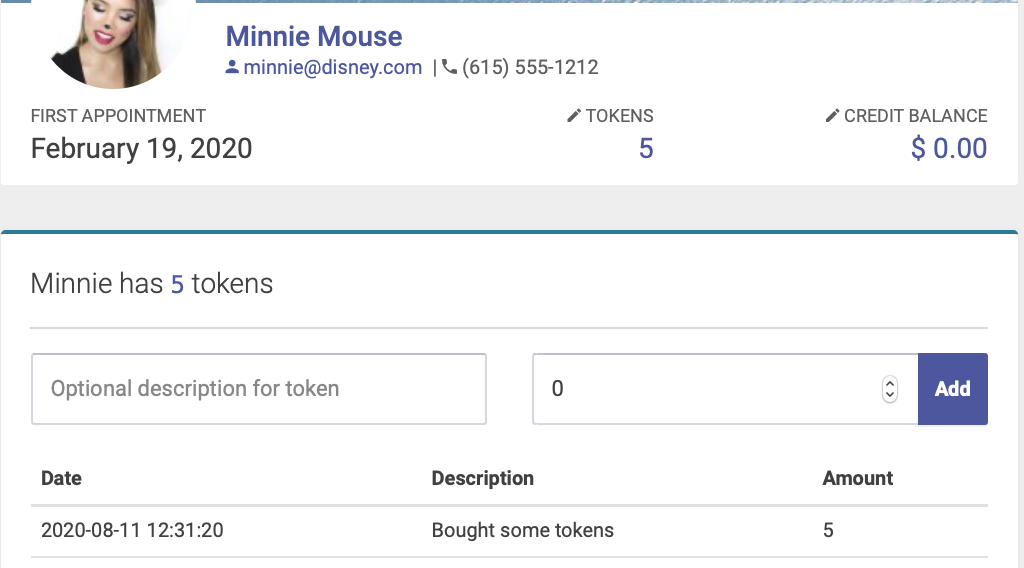
You’ll see the new balance of tokens under the patient’s name and the most recent entry for tokens at the top of the history:
Adding credits
Note: to see how to add credits to a patient account during a checkin or purchase transaction, please see Purchasing Tokens and Credits.Credits.
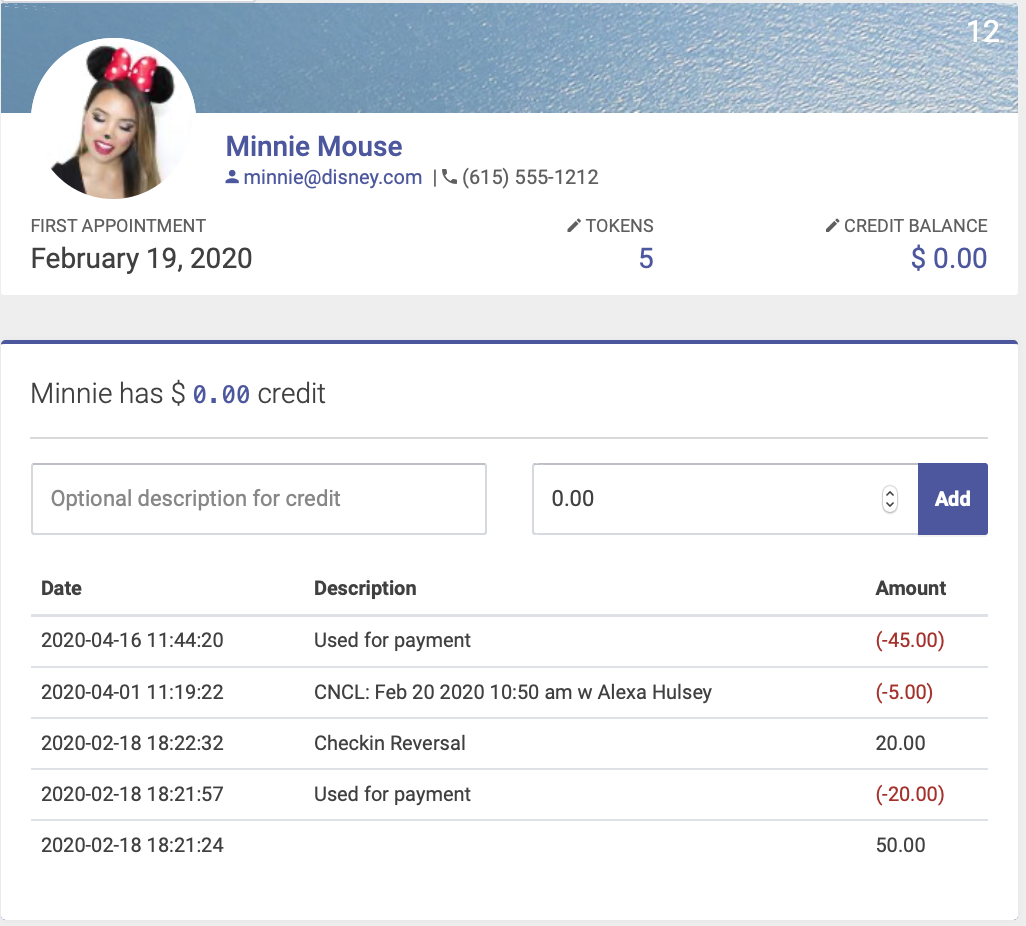
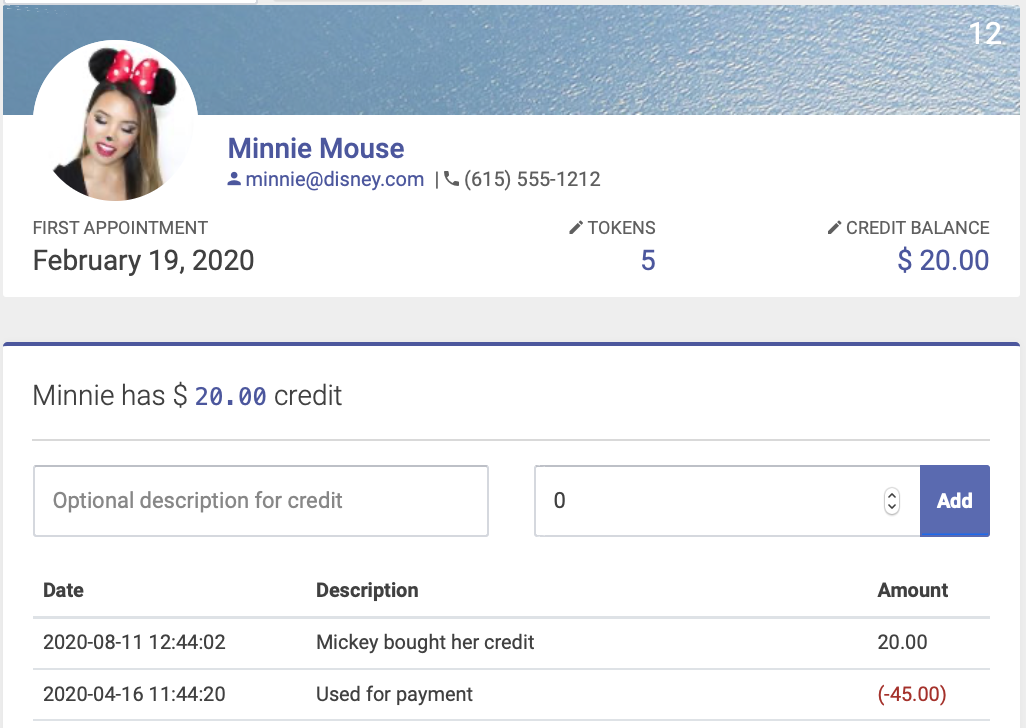
You can manually add dollar amount credits to a patient’s account from their Patient Profile page. Under their name, you’ll see Credits - click that to expand the credits window, which includes their credit history:
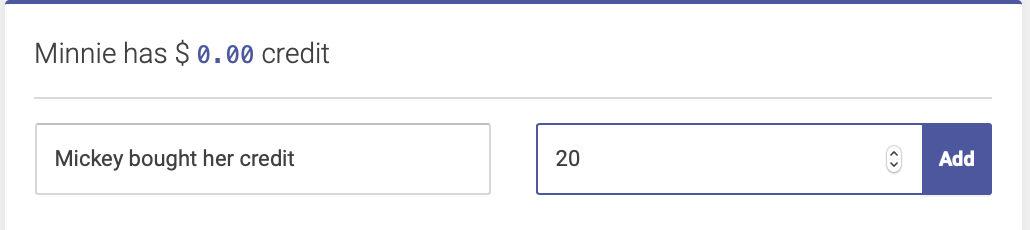
Enter your optional description for credits, the dollar amount, and click Add:
You’ll see the new credit balance under the patient’s name and the most recent entry for credits at the top of the history:
Adding debits/money owed
Note: to see how to add debits/money owed to a patient account during a checkin or purchase transaction, please see Purchasing Tokens and Credits.Credits.
You can manually add dollar amount that a patient owes from their Patient Profile page. Under their name, you’ll see Credits - click that to expand the credits window, which includes their credit history:
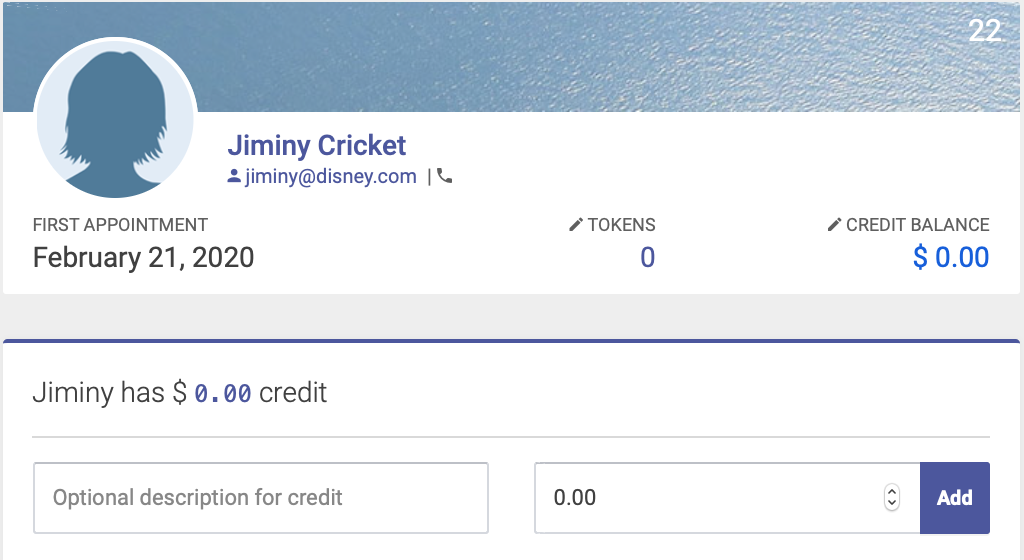
Enter your optional description for debit and the dollar amount. Be sure to enter a negative dollar amount, since this is an amount owed. Click Add:

You’ll see the new credit balance under the patient’s name and the most recent entry for credits at the top of the history: