
DRAFT: Move an appointment with drag and drop
YouIf you want to move an appointment to a different time within the same Block, you can movedo aso same-day appointment withthrough drag and drop. Instead of canceling and rescheduling, you can use the drag and drop method for a quicker way to modify the day's schedule.
Here's a video overview:
Step by step instructions:
- Highlight the preferred appointment time by clicking anywhere in the space next to the time on the schedule
- Click the arrow buttons next to the name of the patient whose appointment you want to move:
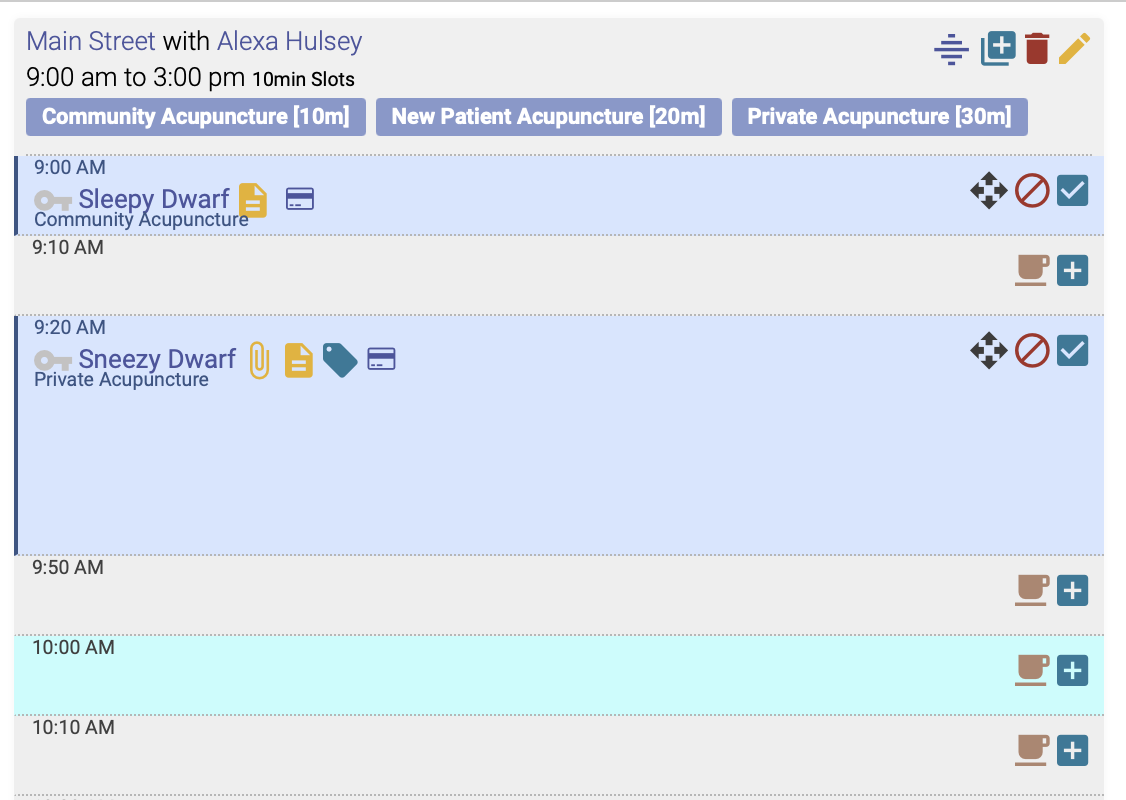
3. A popup box will appear, asking you to confirm the change:
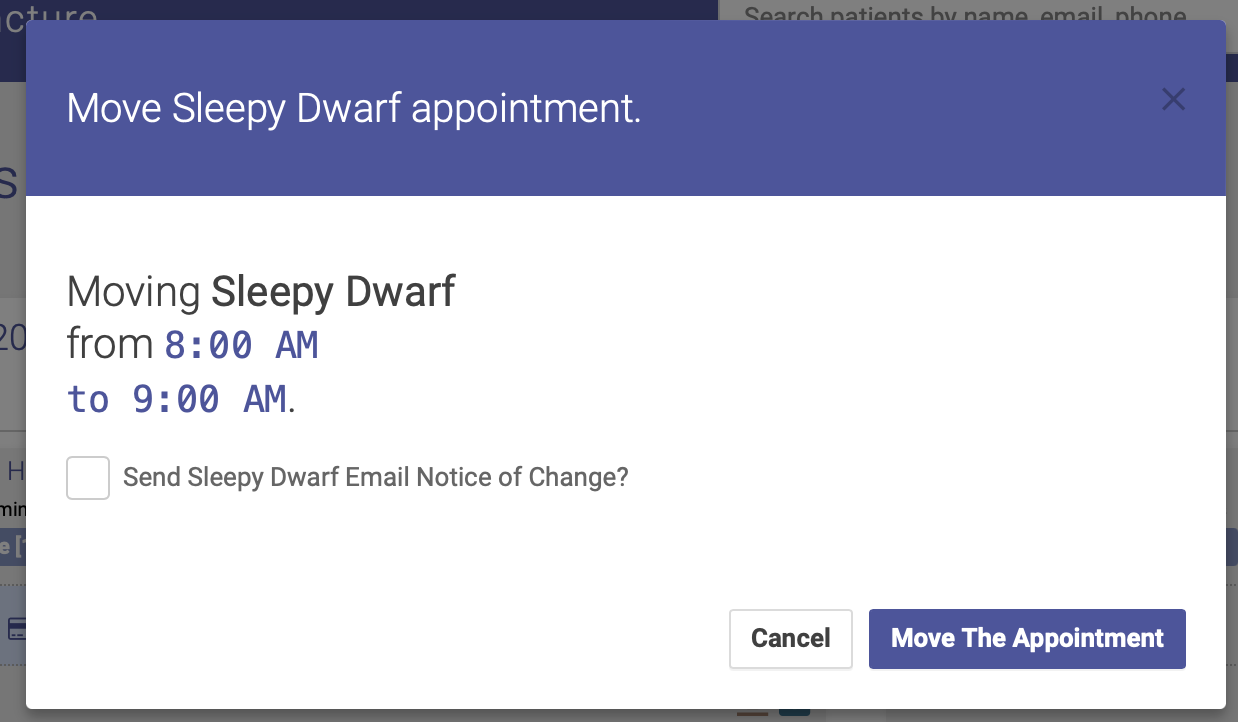
4. Click Move the Appointment, and voila! The appointment has now been moved to a new time. You also have the option of emailing the patient a notice of the change.