Settings and Templates
Your settings page is where you set your application preferences, templates and rules for your account, and your patient portal logo and colors. You can get to the Account Settings page but clicking Account —> Settings on the sidebar menu, or by clicking on your clinic’s name at the top of the page.
Logo and colors
Upload your clinic logo and edit colors buy clicking the Edit Logo, Colors button next to your clinic name:

Basics

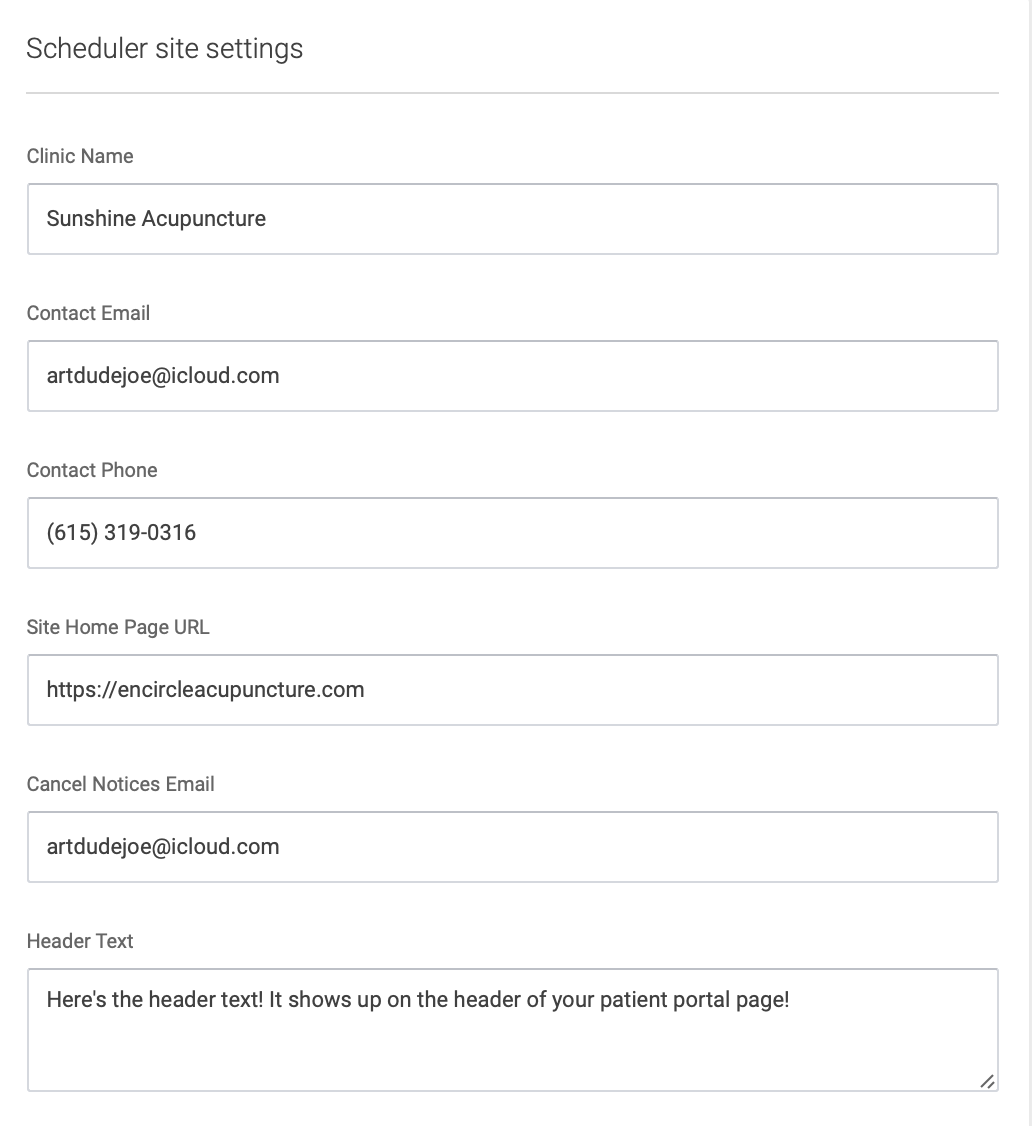
Scheduler Site Settings
In this section you’ll store your contact information, website, and the text for your email templates.
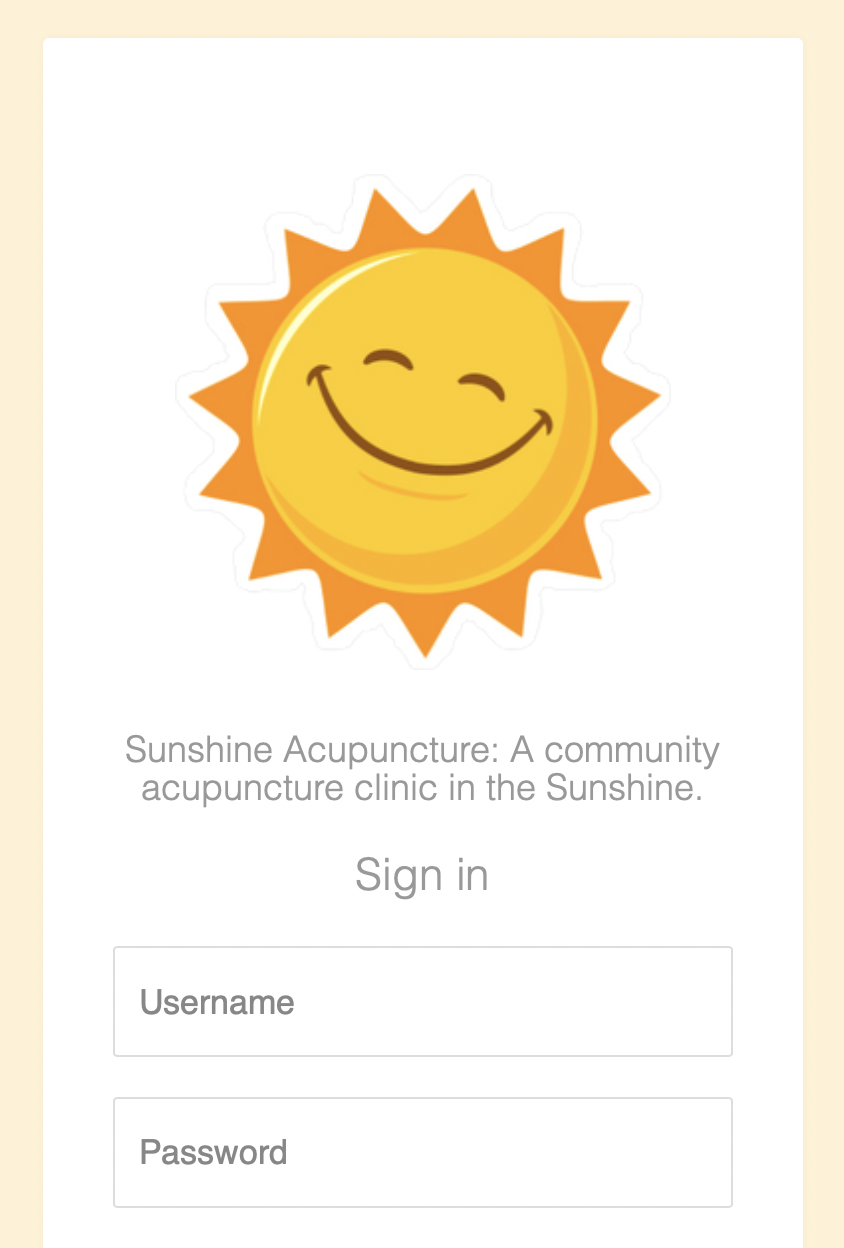
The text in the Slogan field will appear under your clinic's logo on the patient portal login page:
The New Account Instructions field is where you’ll save the instructions patients will see on your website for creating their account:

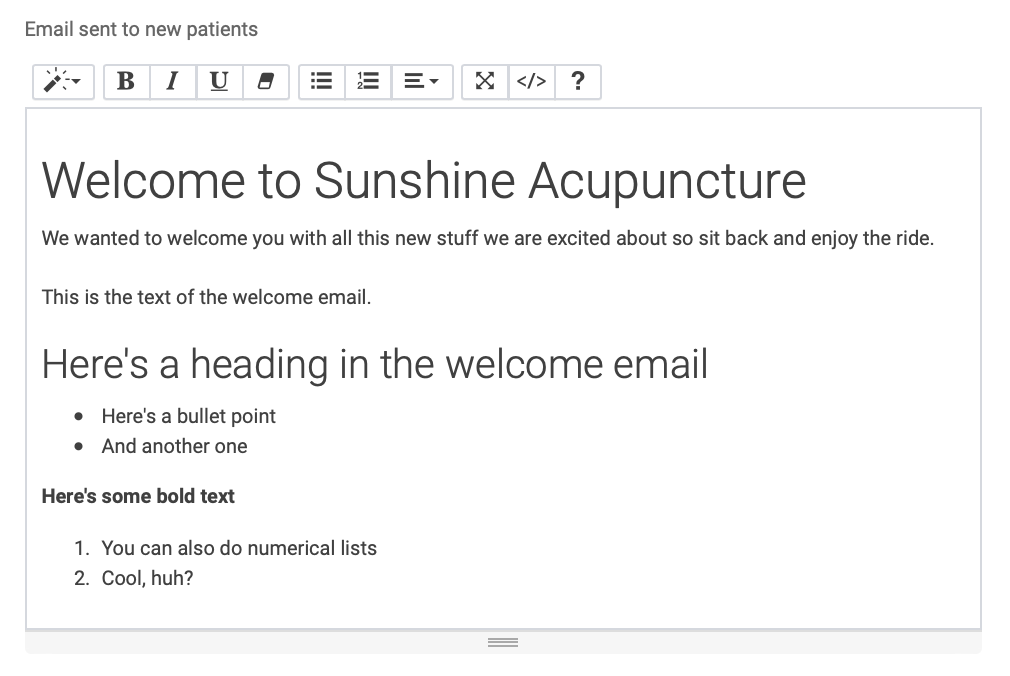
The Email sent to new patients will automatically be sent to a new patient once their account is created:
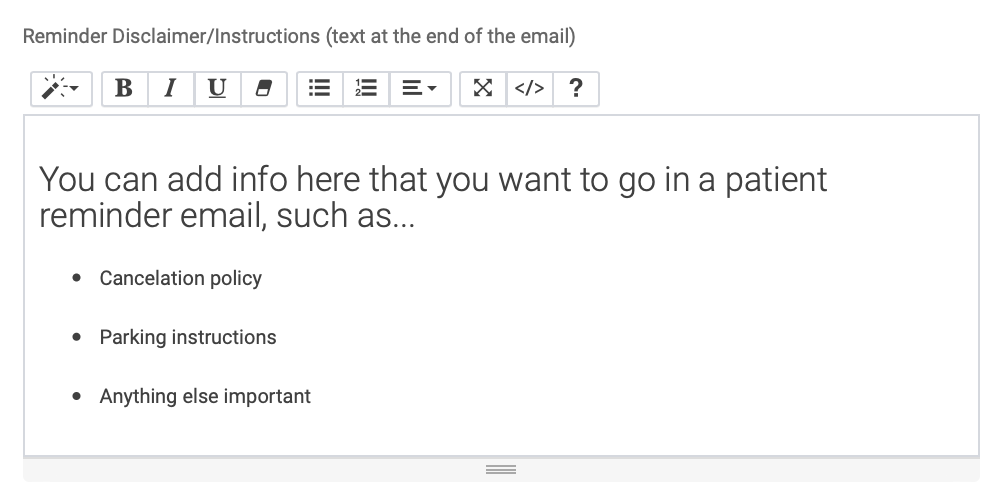
The Reminder/Disclaimer Instructions will go at the end of appointment reminder emails:
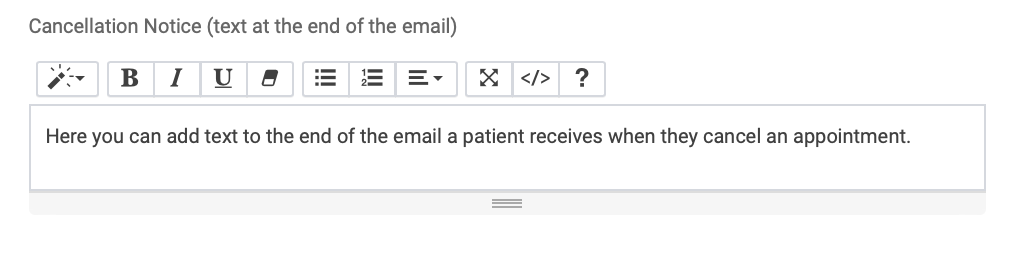
The Cancelation Notice is where you’ll add text for the email a patient can receive when an appointment is canceled.
New Patient Settings
This is where you’ll save settings related to when new patients can schedule appointments. You can:

Slot Time Settings
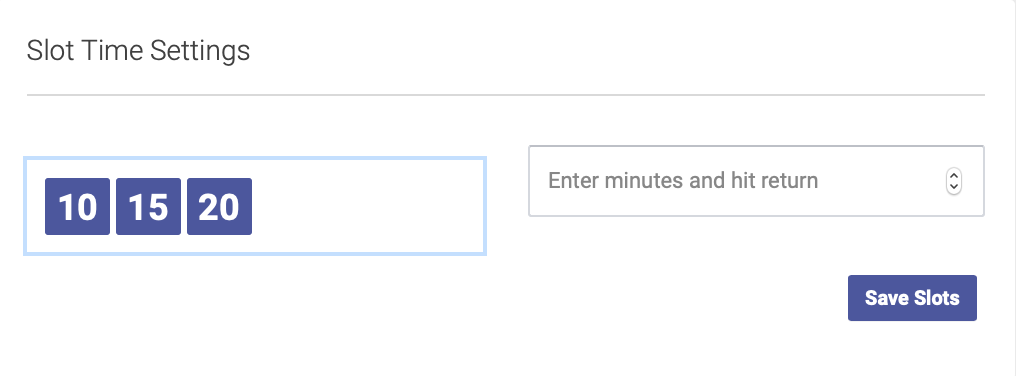
In this section you can add and delete your options for slot duration. To add an option, enter the number of minutes and click return. To delete an option, simply click on the number in the box on the left.
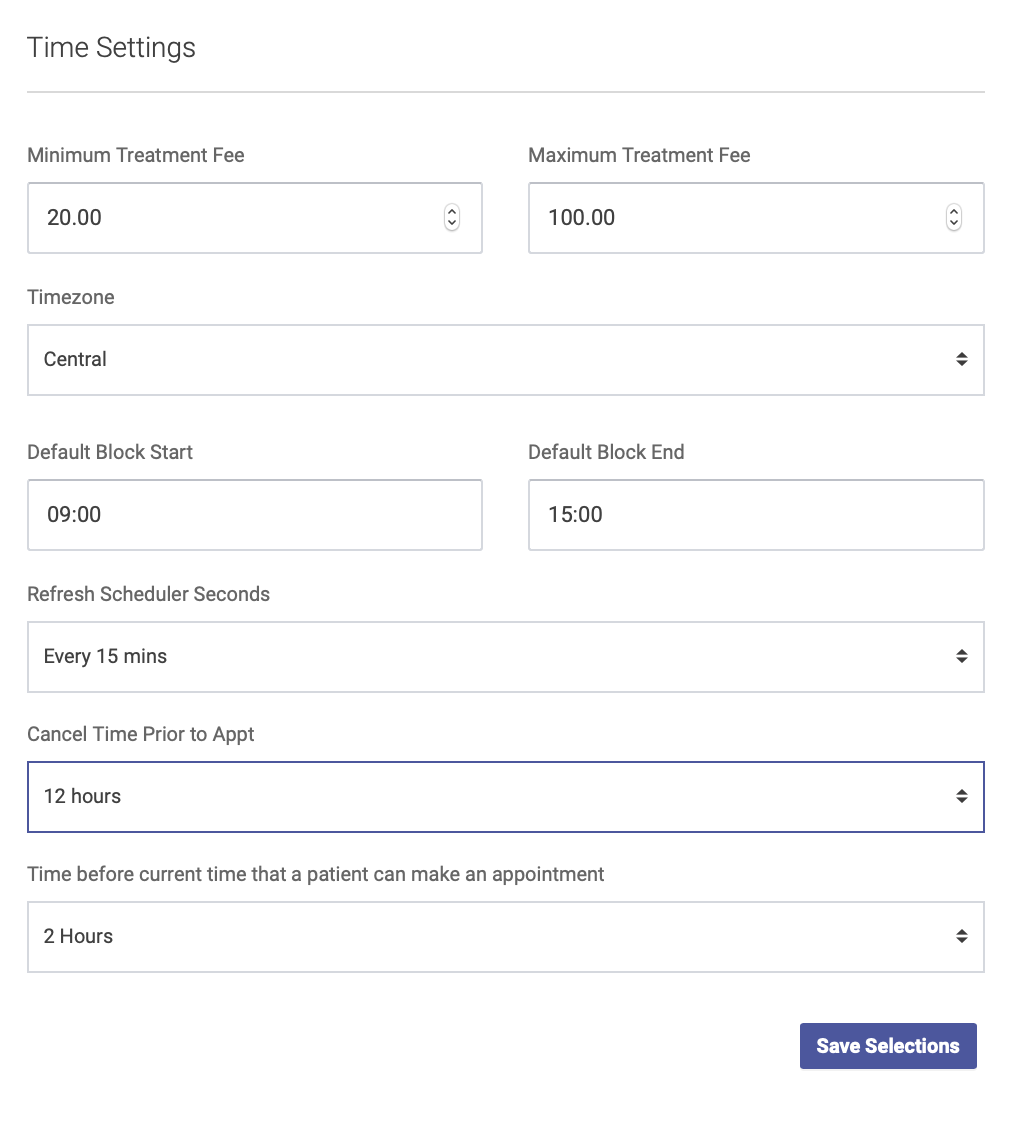
Time Settings
This is where you’ll save basic time and fee settings for your scheduler: