Start Taking Credit Cards
To take credit card payments within Open ACU you will need to add the feature to your account and then complete the Stripe onboarding process. These steps can all be completed from the Take Payments section of your account, which you can reach from the navigation menu on the left hand side of your screen:

Add Credit Card Payments to your Open ACU Account
Go to Accounts > Take Payments in the admin
Connect your Stripe Account
Follow the steps on the Take Payments page to create and connect your Stripe account.
Optional: Set up your Stripe Reader
If you want to take in-person credit card payments, you will need to order a WisePOS Countertop Reader from Stripe. You can do this from the Take Payments page:
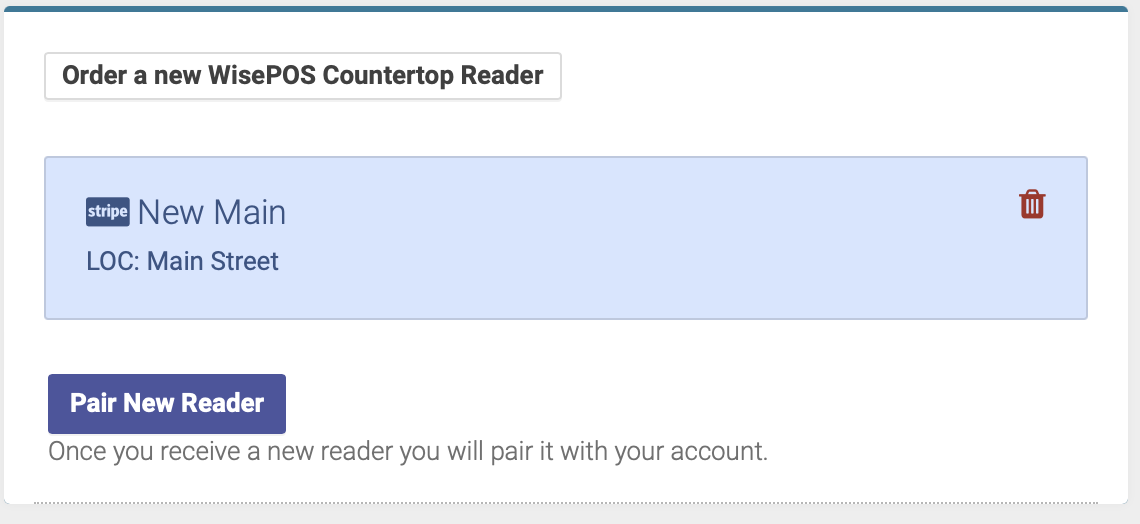
Once you receive your reader, you will need to complete the steps to set up and connect your reader:
Credit Card Settings
Switch the Require a Credit Card button to ON if you want to require patients to save a credit card payment method prior to booking an appointment:

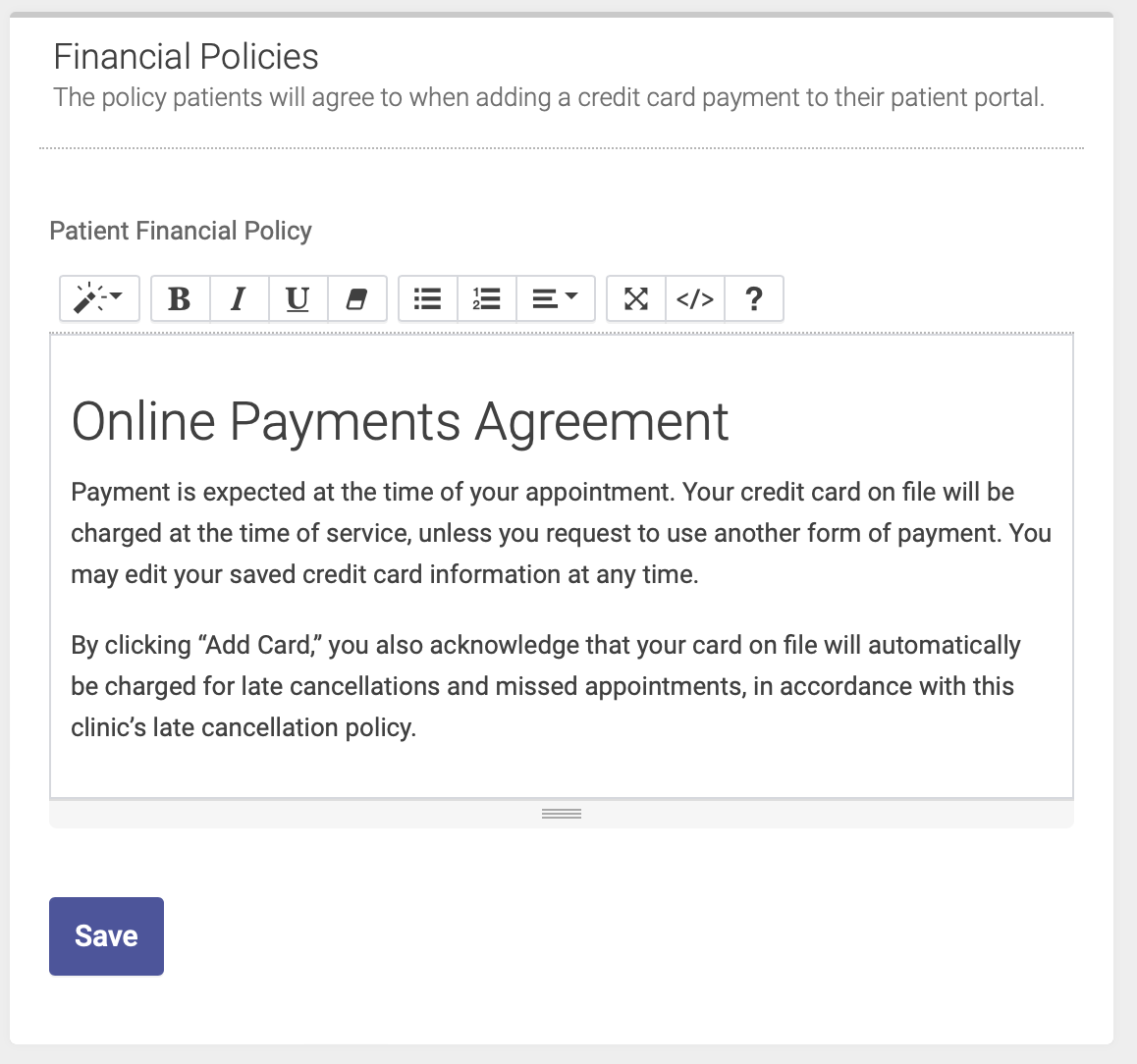
Financial Policy
Enter and save your Financial Policy. Patients will agree to your financial policy when saving their credit card information online via the patient portal: