Start Taking Credit Cards
To take credit card payments within Open ACU you will need to add the feature to your account and then complete the Stripe onboarding process. These steps can all be completed from the Take Payments section of your account, which you can reach from the navigation menu on the left hand side of your screen:

How to start taking credit card payments
- Go to Account > Take Payments
only users with Owner status can see this page. - Click "Getting Started" to create a Stripe Onboarding link specific to your Open ACU Account
After a few moments you will see the link below.

This is a link to your account onboarding process. The link makes sure your account will work with Open ACU. If you aren't ready to start the onboarding process don't worry you can always come back to the Take Payments page and generate a new link.
Stripe Onboarding must be completed by the business owner or someone with significant management responsibility of that business. What you will need
- You will enter business details (legal business name, address and IEN or Social Security number)
- Set your preferences and branding details (logo, name and web address)
- Connect a bank account for charges and payouts.
- Documents to confirm your identity:
business license, passport or other identifying document based on the type of business and other factors.
Check your Stripe account status
Follow the steps on the Take Payments page to create and connect your Stripe account.
You may need to go back for final authorization steps before your account is ready for payments.
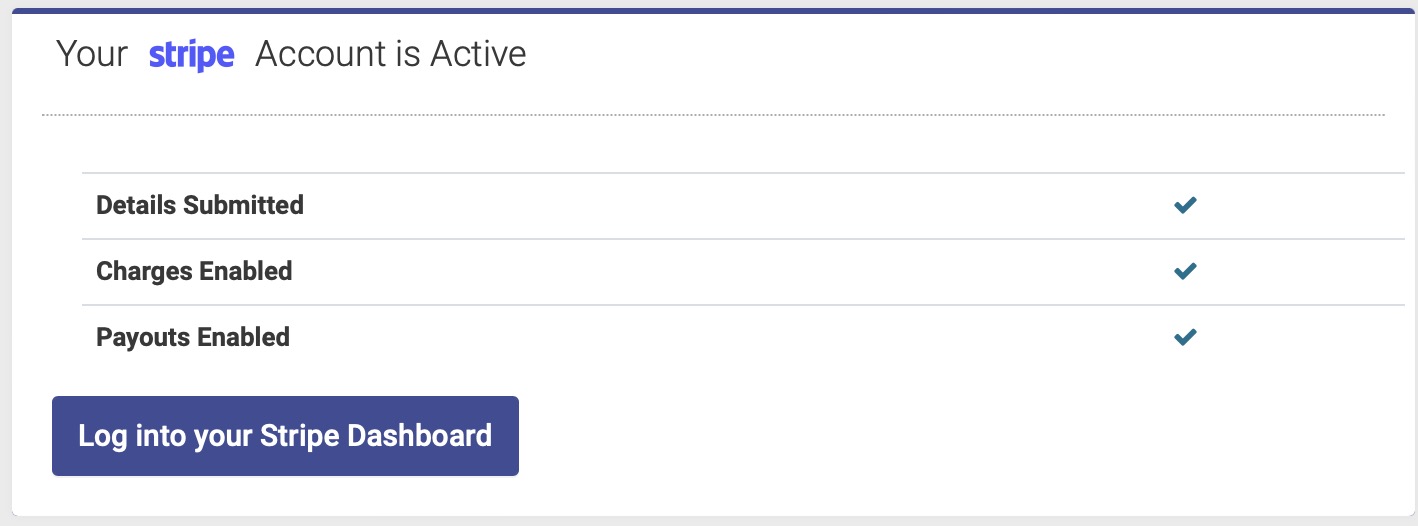
Look for three green checkmarks for each of the steps to go live. If the account needs further information you can click the "Log into your Stripe Dashboard" to finish the necessary steps.
Optional: Set up your Stripe Reader
If you want to take in-person credit card payments, you will need to order a WisePOS Countertop Reader from Stripe. You can do this from the Take Payments page:
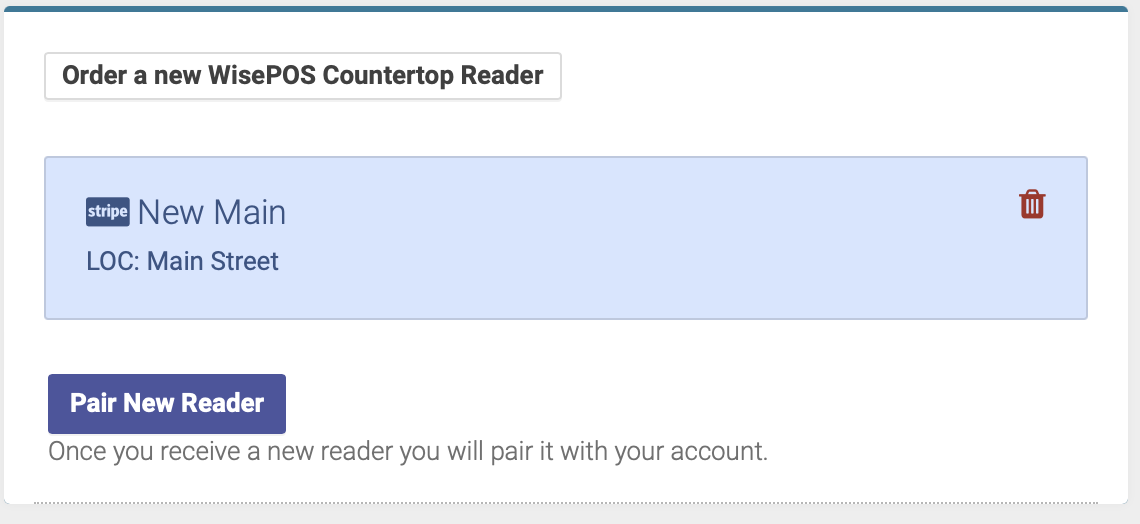
Once you receive your reader, you will need to complete the steps to set up and connect your reader:
- Follow the steps on the Take Payments page to set up your Wise POS reader
- Once the setup is complete, you will need to pair your reader with your account. You will also do this from the Take Payments page.
Credit Card Settings
Switch the Require a Credit Card button to ON if you want to require patients to save a credit card payment method prior to booking an appointment:

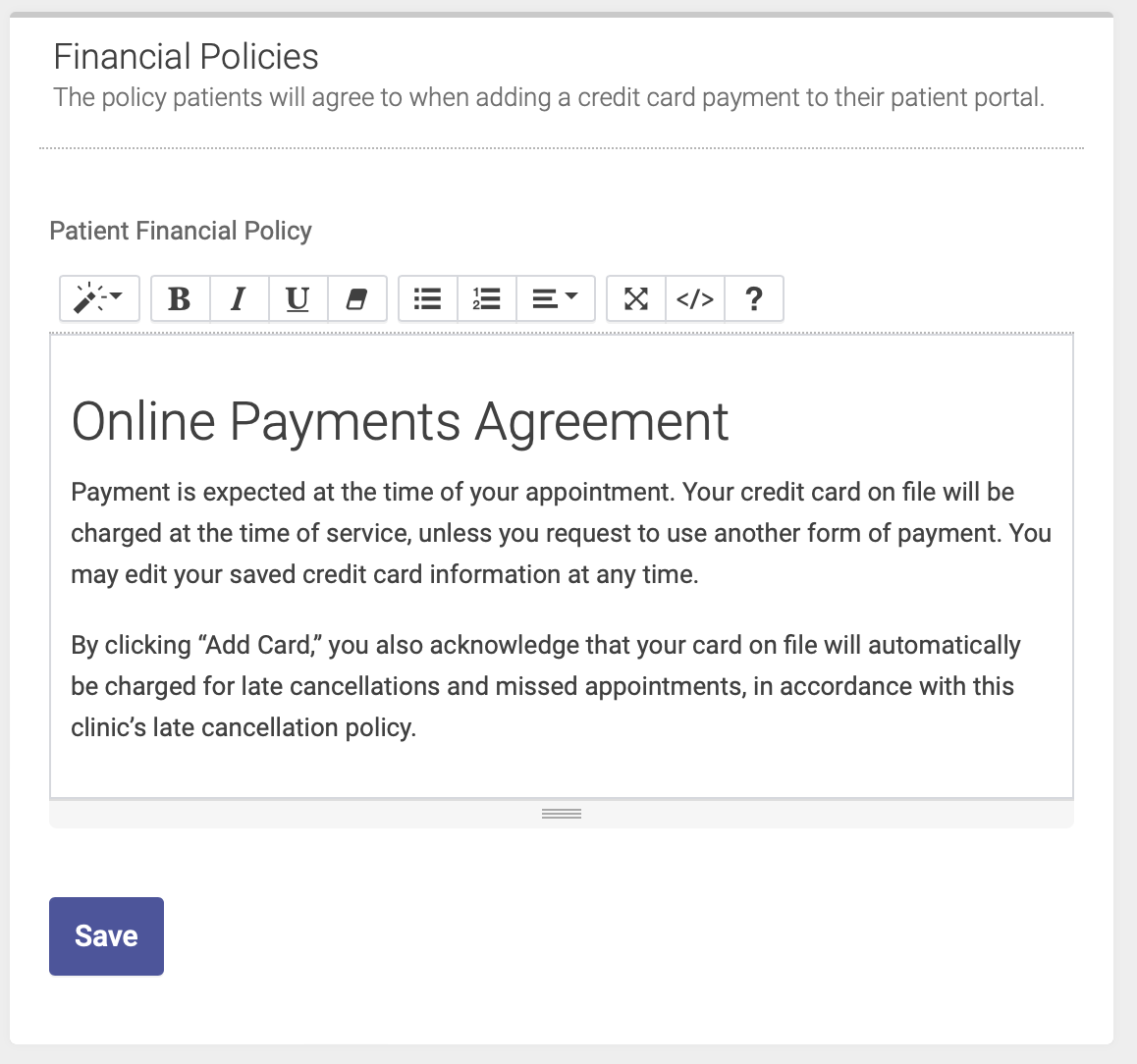
Financial Policy
Enter and save your Financial Policy. Patients will agree to your financial policy when saving their credit card information online via the patient portal: