Editing Your Intake Questionnaires
YouOnce canyou've editcreated your intake formsquestionnaire(s), you can add, edit and delete groups and individual questions for each questionnaire from the Intake Settings page.
ReorderingAdding intakeIndividual questionsQuestions and Groups
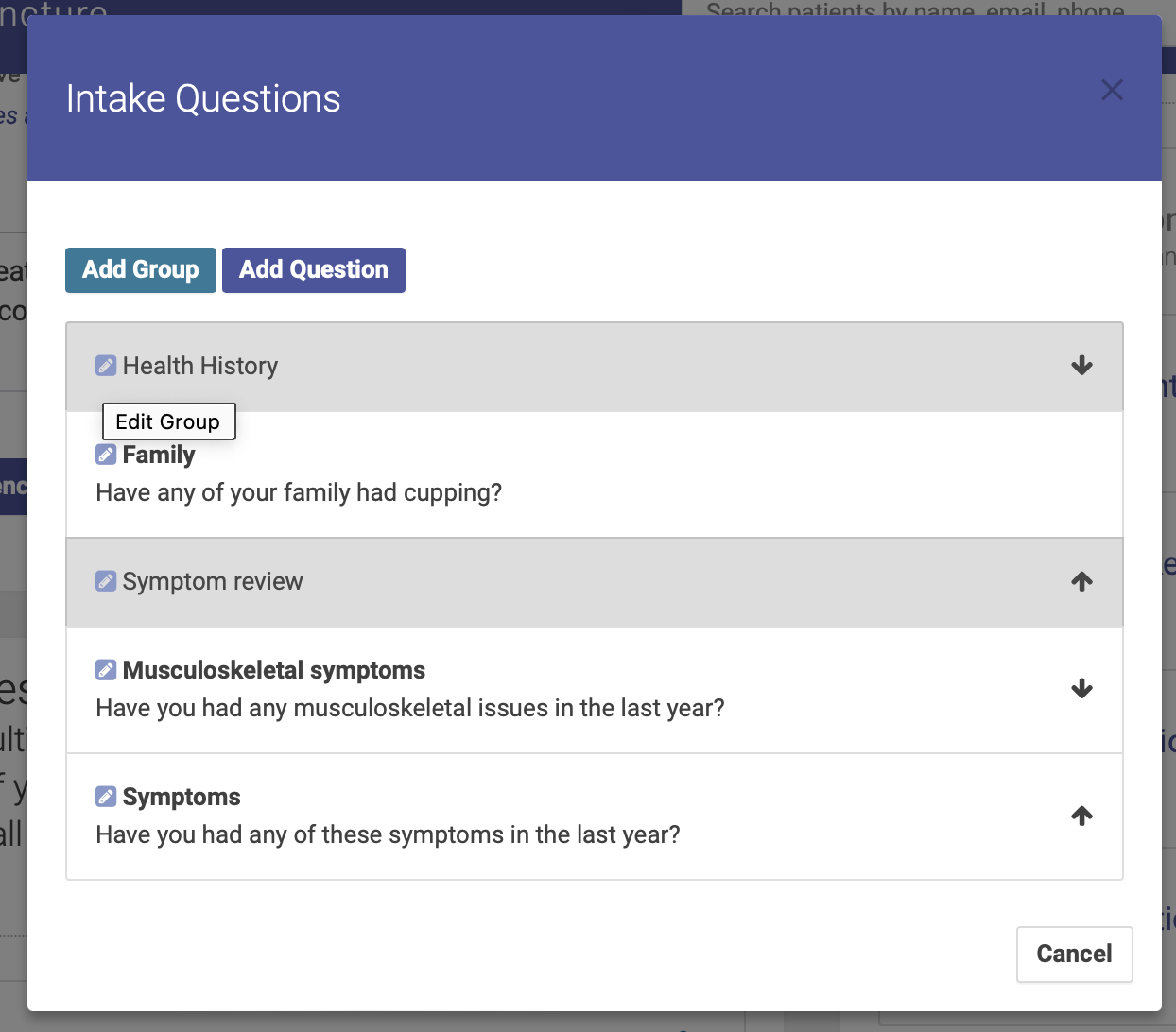
To reorderadd yourand intakeedit questionsQuestions orand questionGroups groups,for a questionnaire, click the Edit Questions button:

You can then use the arrowsAdd Group and Add Question buttons to add question groups and individual question. You must add at least one group, and each question must be assigned to a group.
Question Groups
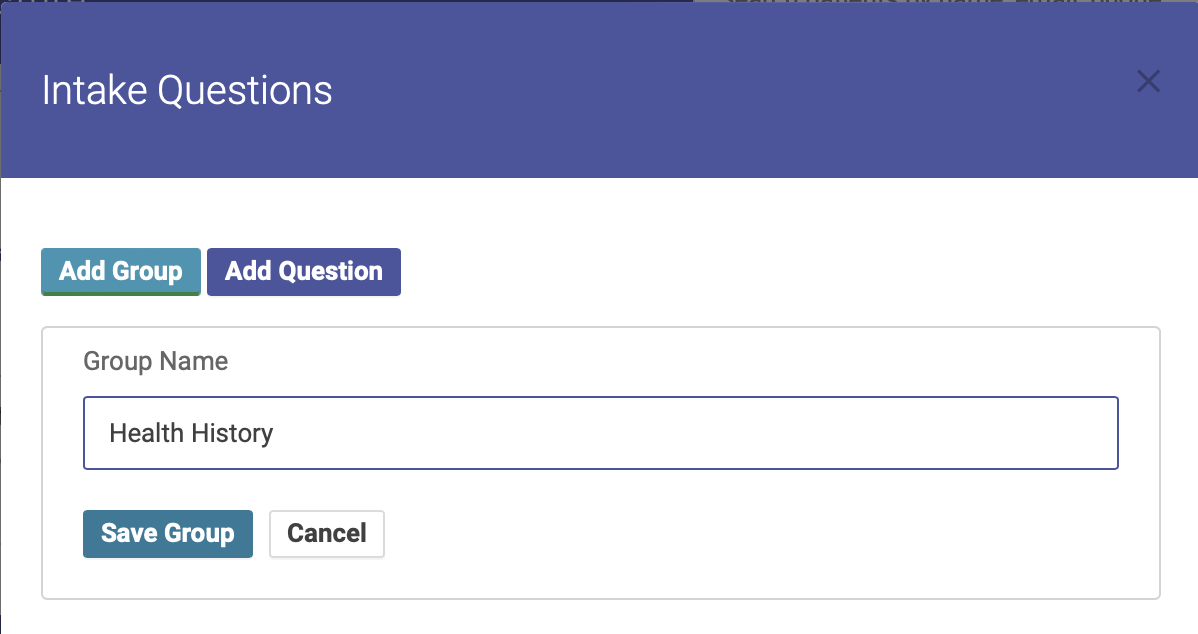
You must have at least one question group on your questionnaire. To add a group, click the rightAdd ofGroup thebutton and a popup modal will appear. Enter your Group name and/orand click Save Group. Your group is now saved.
Add a Question
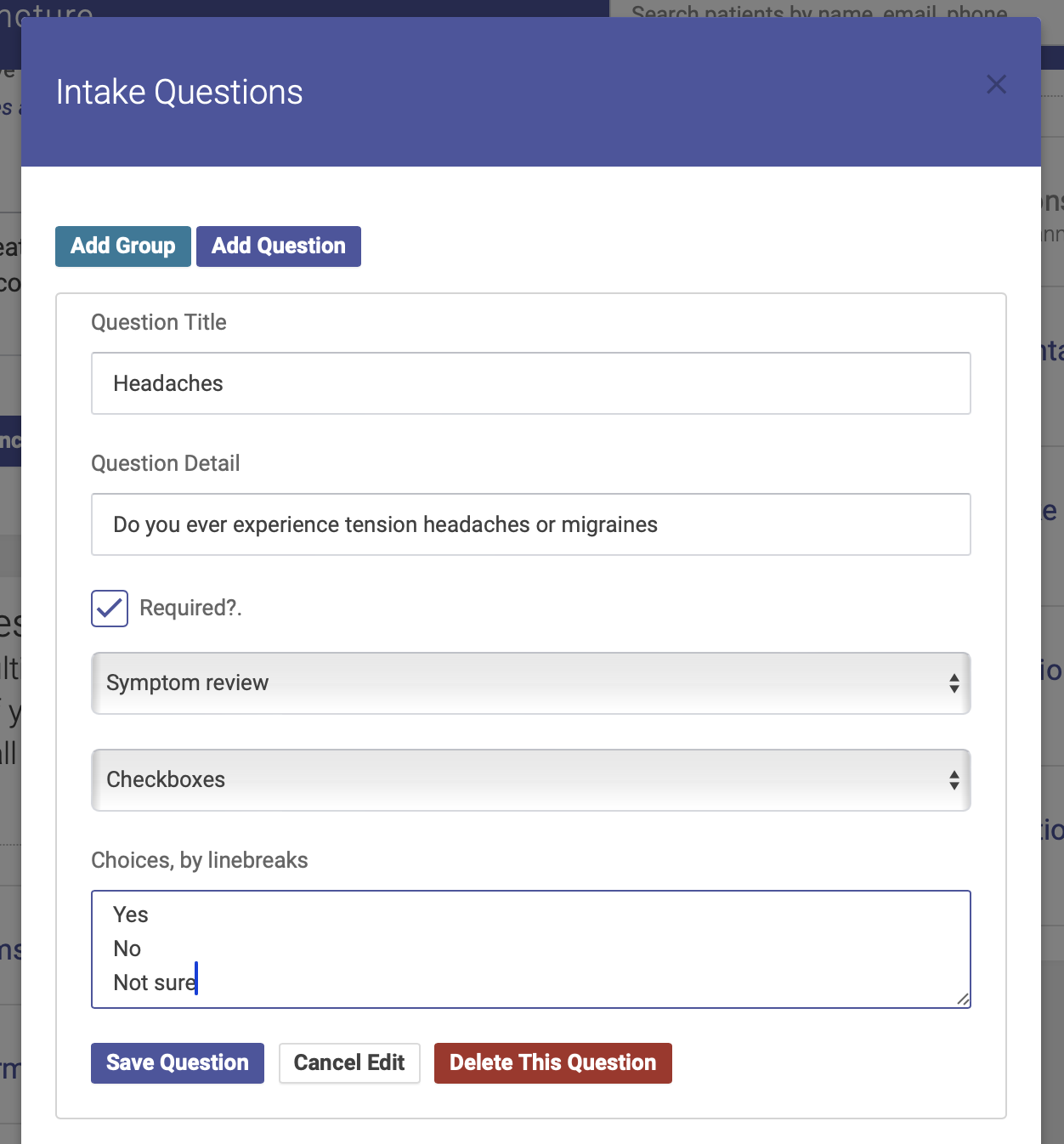
To add an individual question, click Add Question name.and a popup modal will appear. Enter your question title and detail, choose your answer field type, assign your question to a group, and check the “Required?” box to make this a question that requires an answer. Click Save Question to save your question.
Editing and reordering questions and groups
To edit a question,question or group, click on the pencil icon next to the question or group name. YouBe cansure thento editclick Save Question or Save Group when finished.
To reorder your questions or groups, use the arrows on the right hand side of your question orand deletegroup it: list.