Making an Appointment
First go to the date you want an appointment.
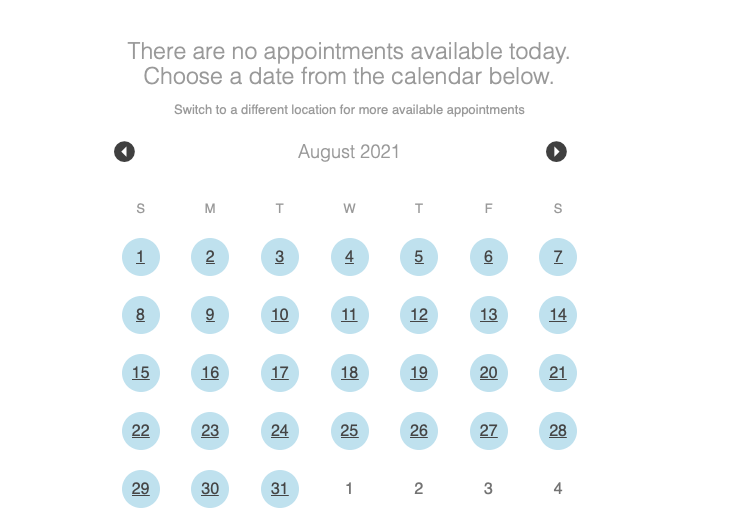
On the right top,hand underside yourof loginthe namepage, therenext areto threethe icons.date, you'll see a calendar icon. Click the on on the left, the calendar icon.Thisicon willto open a calendar. The dates with available appointments will be highlighted.highlighted in blue. Use the left and right arrow at the top of the calendar to navigate between months.
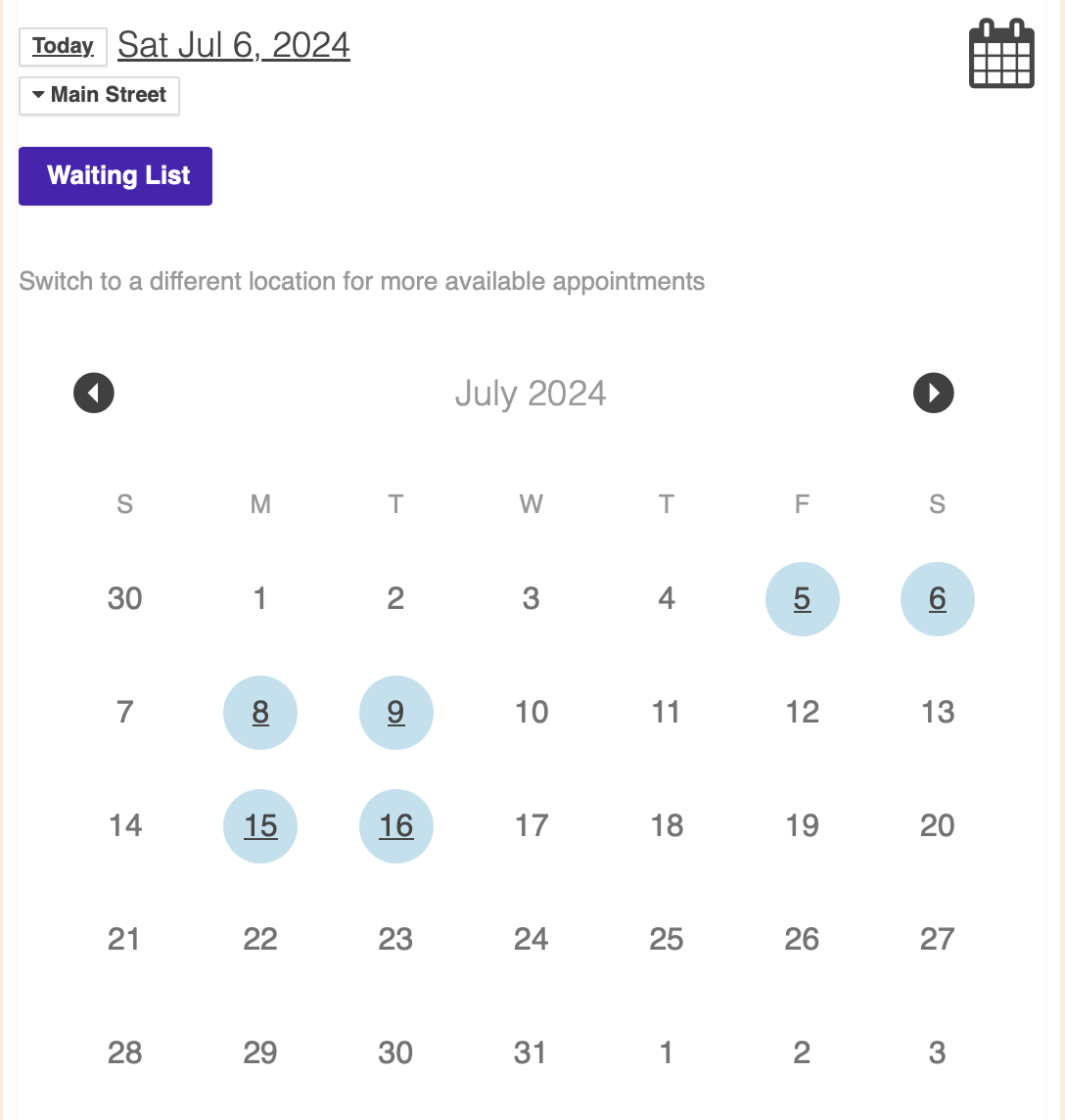
Click the calendar icon or outside the calendar grid to close the calendar.
RedDates datesthat are not highlighted indicate no availability.
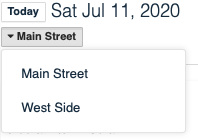
Location Selection
If there is more than one location you can navigate to the location you wish to use by selecting the location found on the left under the date.
Choosing From A Block (practitioner)
A block is a range of time for one practitioner. For example 10:00 AM9:00AM to 4:00 PM11:00AM with Joe. The Services available for that Block will appear at the top of the schedule. If multiple Services are available, there will be a drop down menu. Click the menu to see your Service options. If only one Service is available, you'll simple see the Service name:
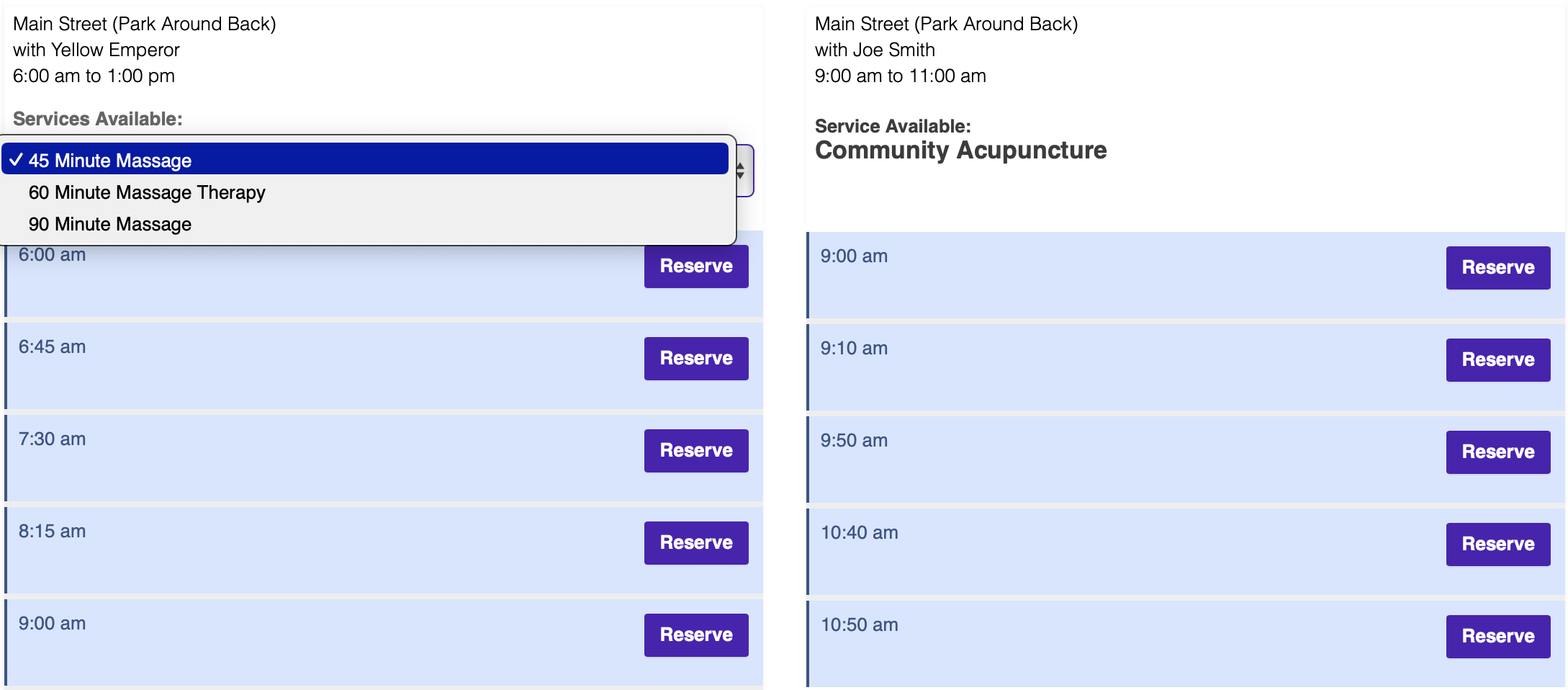
Click the image to enlarge it. On a mobile device the blocks will not be side by side.
Choose Your Appointment
- Find the slot you'd like with a reserve button in it.
- Click "Reserve"
- Click "Yes" to confirm
- It is yours!



No schedule for that day
If there are no appointments available on the day you are on on the calendar you will see a calendar to choose a date.