
Registering for an Event: Patient Portal
Participants can register themselves for an event via the Event URL on the patient portal.
Step 1: Sign In
If you are not already signed in to your account, you can sign in on the clinic's Patient Portal home page.
Step 2: Event Page
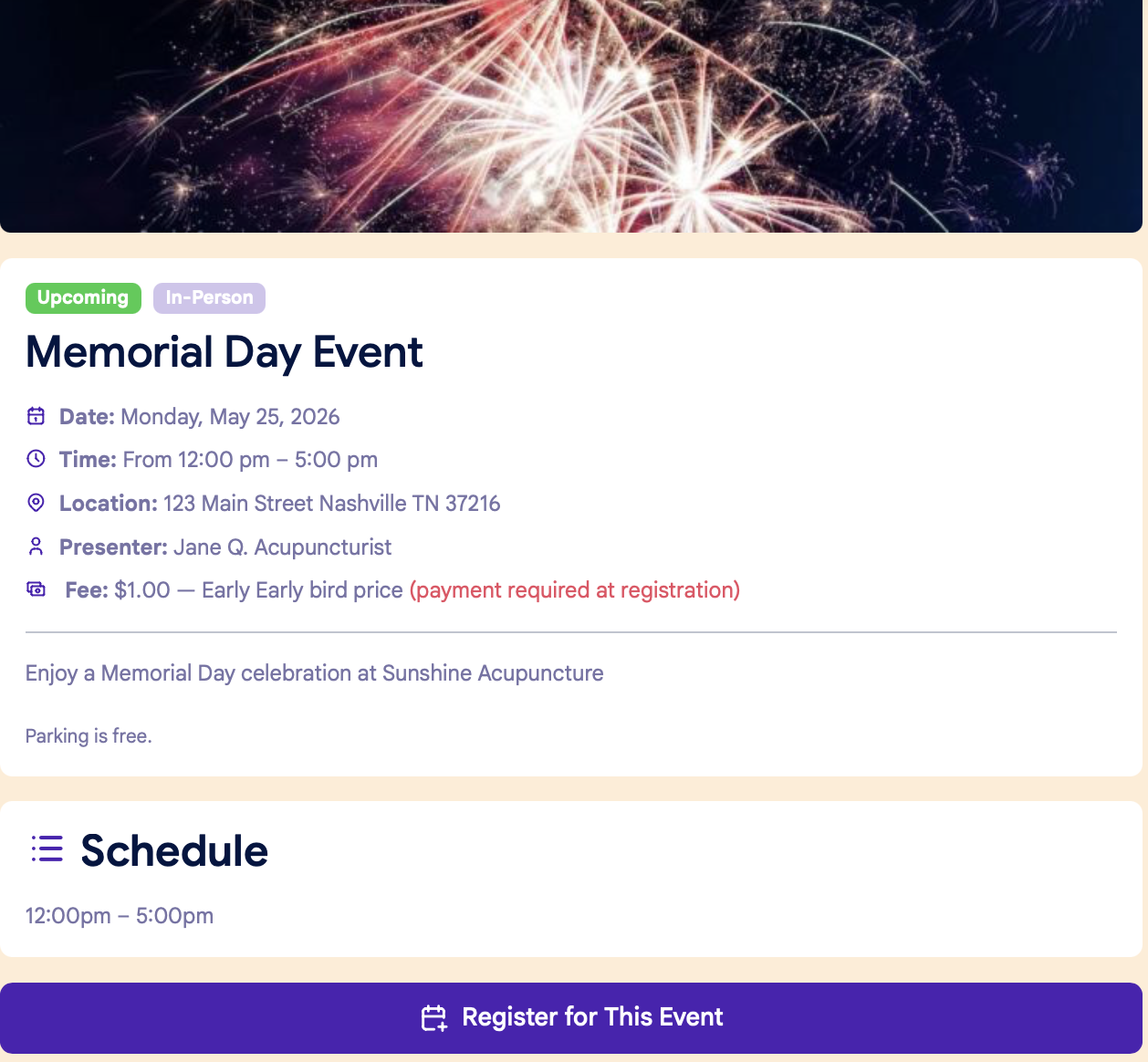
On the Event page, click the "Register for This Event" button at the bottom of the page:
Step 3: Confirm info
You'll see a popup window to confirm your information:
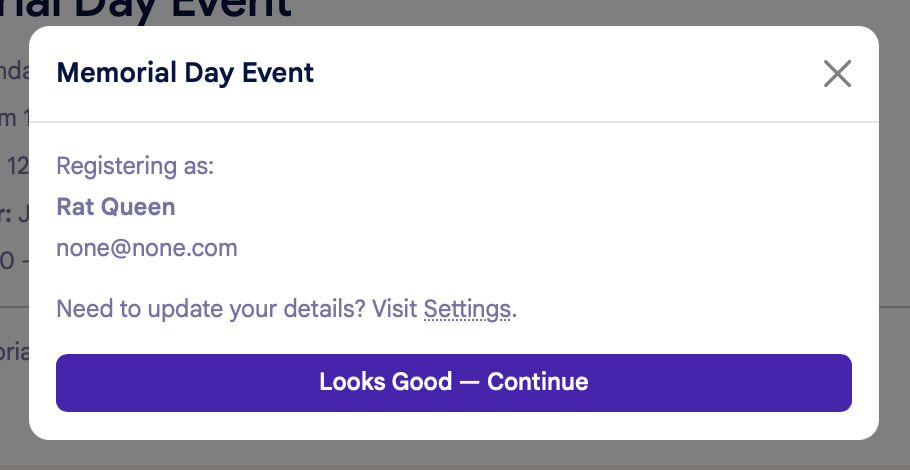
After the you confirms your information, the next step will vary based on payment options.
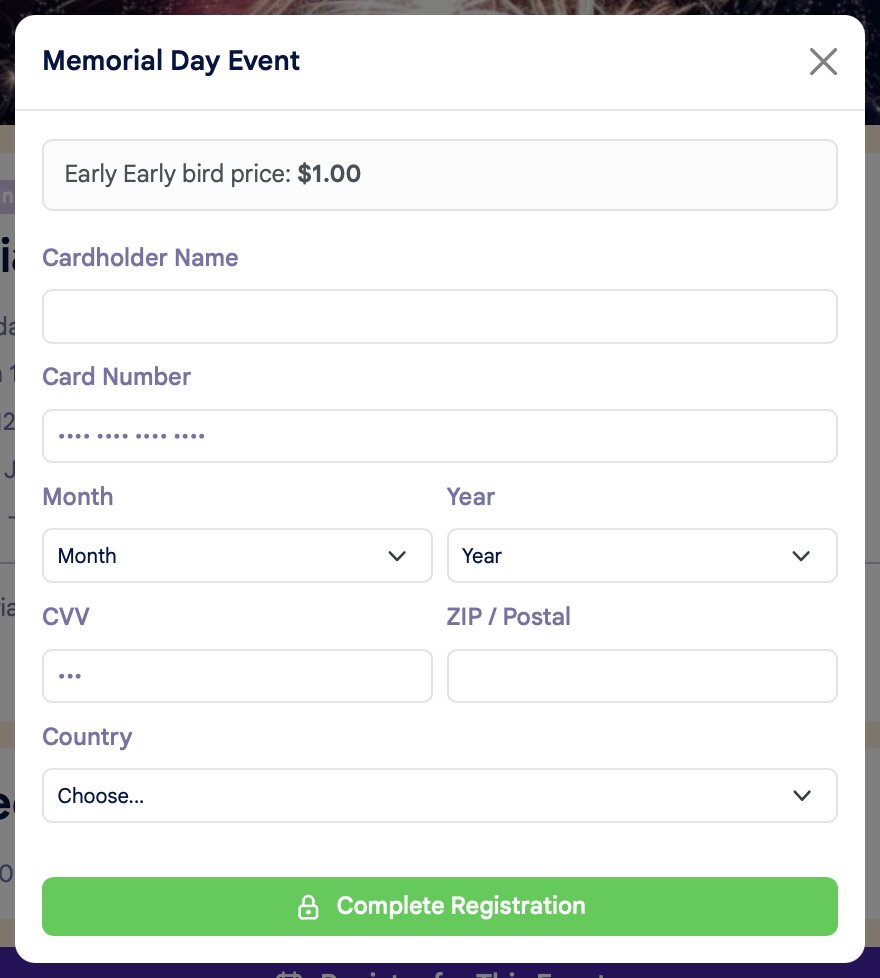
If prepayment is required and you do NOT have a card on file:
You'll be prompted to enter your credit card details to complete your registration:
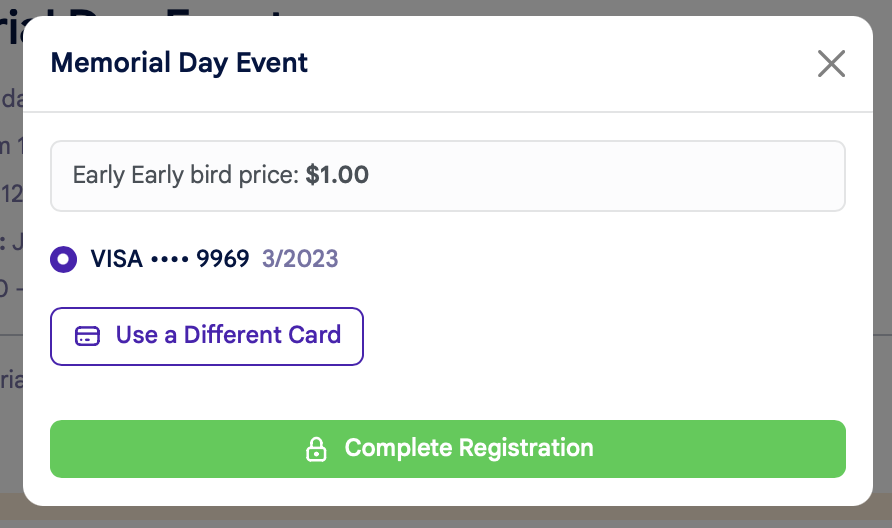
If prepayment is required and you DO have a card on file:
You'll be asked to confirm your credit card details, or you have the option to use another card:
Free Events:
Here's what happens
Paid Events with Open ACU's Stripe Integration:
If the clinic uses Open ACU's Stripe integration, event payments will be processed at the time of registration. The participant will enter their payment details on the payments tab.
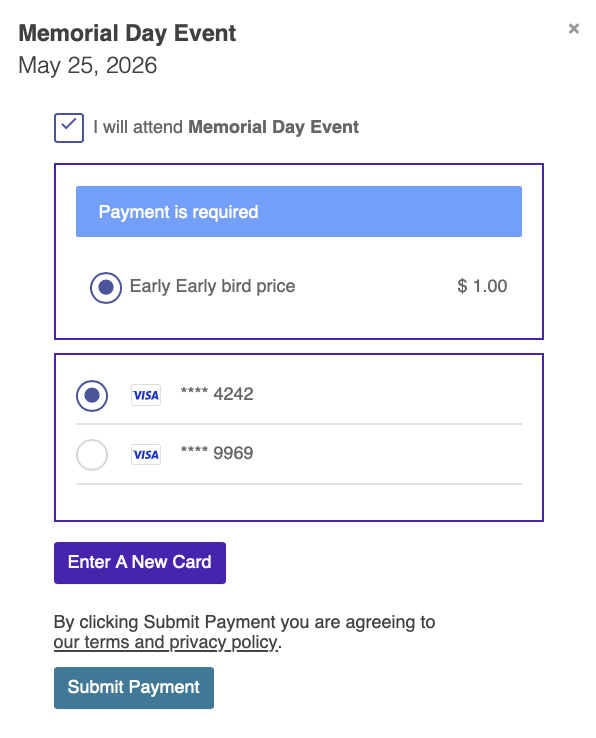
If they have a credit card on file:
They'll see options either to use a card on file, or to enter a new card:
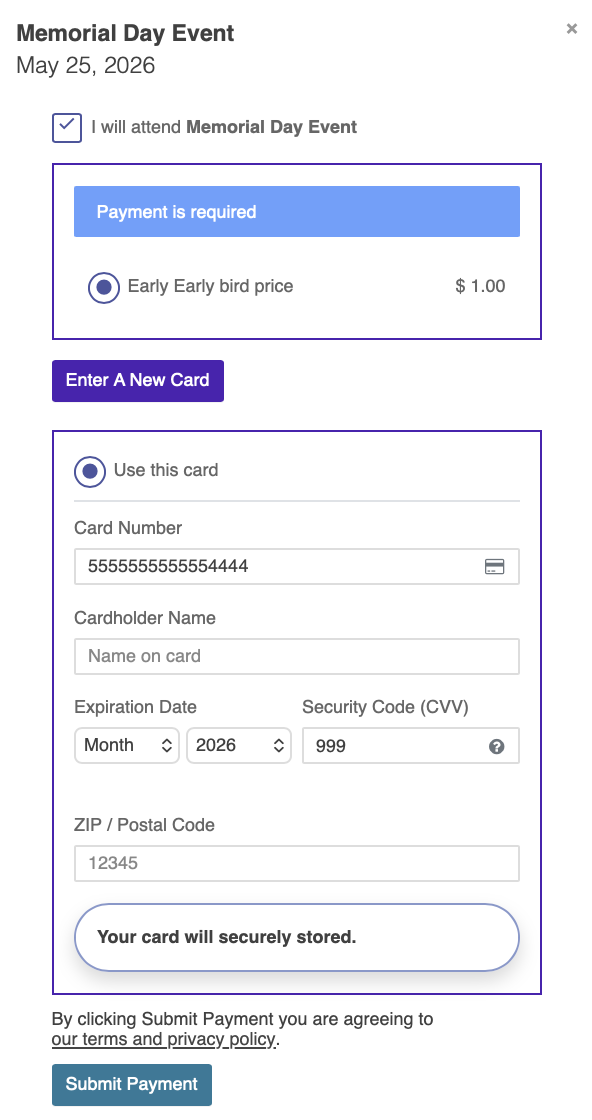
If they don't have a credit card on file:
They'll be prompted to enter their credit card information:
Paid Events without Open ACU's Stripe Integration:
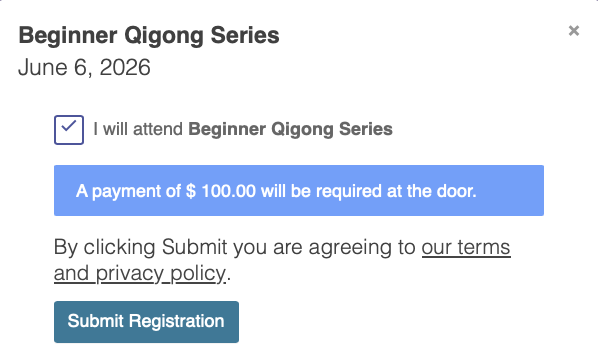
If the clinic does not use Open ACU's Stripe integration, the participant will see a message that payment will be collected at the time of the event:
Final registration step....