
DRAFT: Adding, Editing and Deleting Services
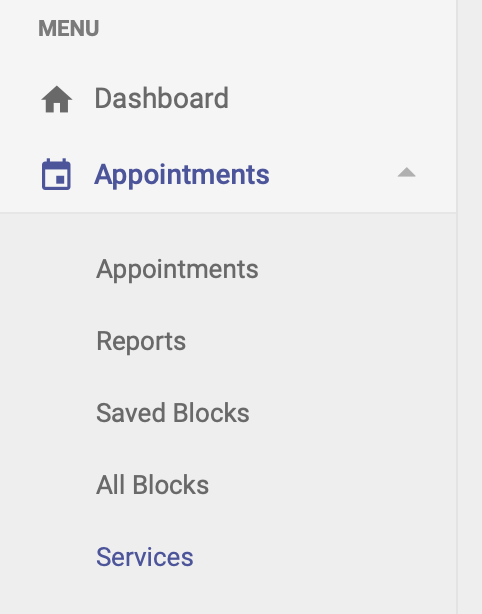
Your Open ACU account needs to have at least one Service choice. This is because every schedule block must be assigned one or more Service choices. To add a Service, you’ll go to the left-hand side menu and click Appointments —> Services:
Service choices
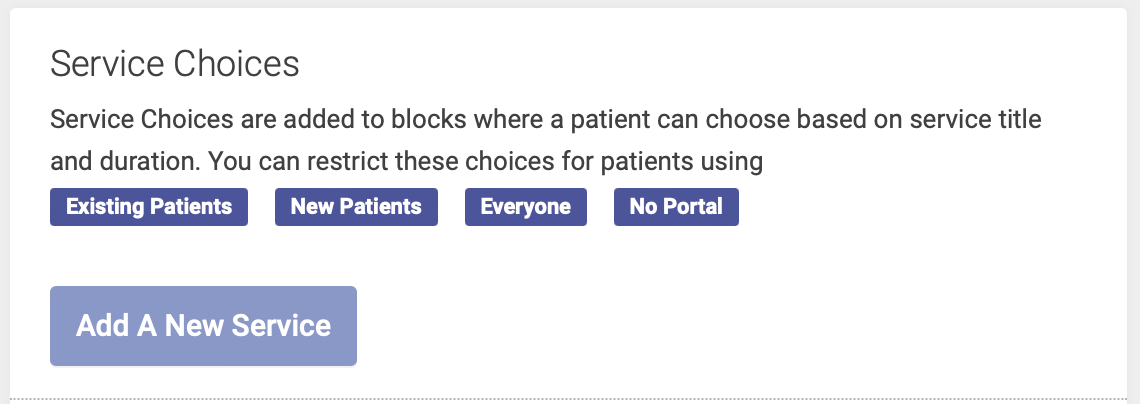
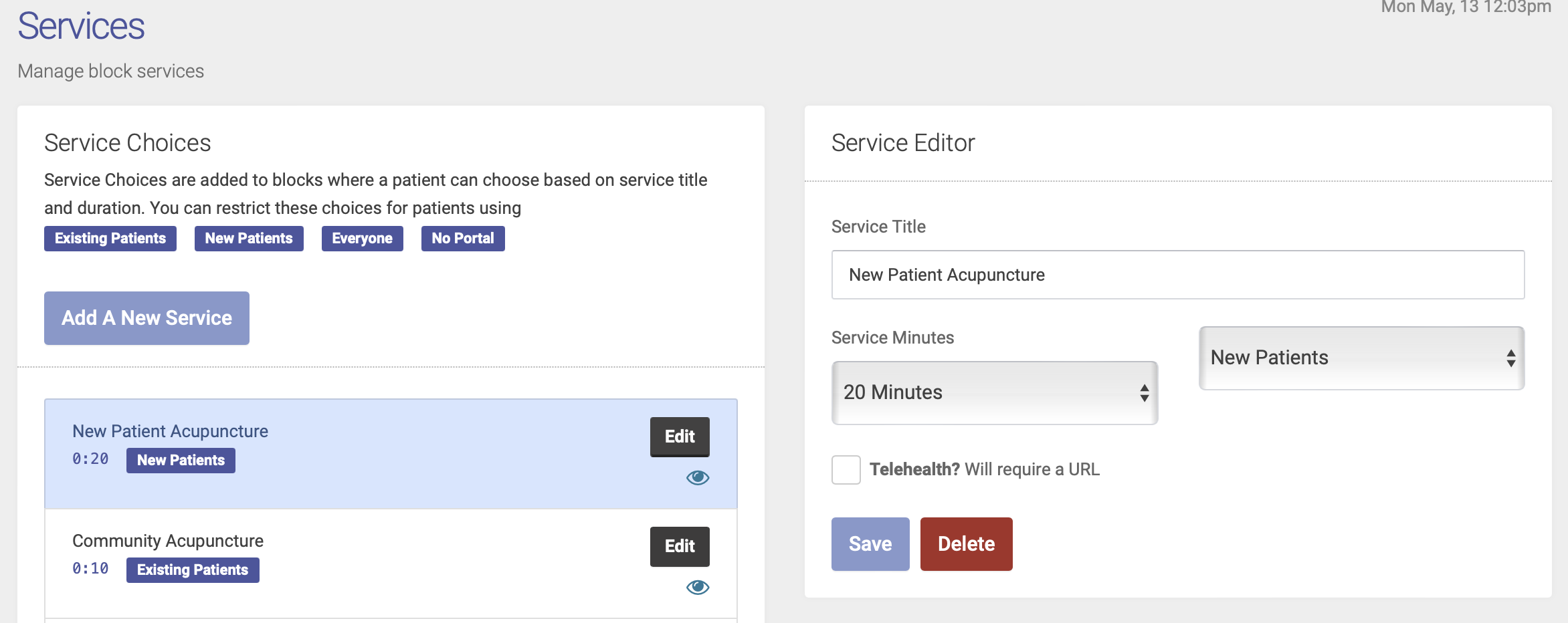
Service choices will allow patients to select which service they'd like to schedule. You will choose patient restrictions for each service:
- New patient: only new patients can schedule this Service
- Existing patient: New patients cannot schedule this Service; it's only available to someone who's already been to the clinic
- Everyone: anyone can schedule, new or existing patients
- No portal: this Service does not appear as an option on the Patient Portal, but is visible on the admin portal
Adding a Service
To add a new Service, click the Add a New Service button:
You will then create your Service in the Service Editor box. Add the following details for each service:
- Service Title: this will appear on the admin and patient portals, so make your title short and descriptive
- Service Minutes: this will determine how much time a Service will take up on the schedule, and not necessarily the length of the entire appointment. For example, a "Community Acupuncture" Service might take up 10 minutes on the schedule, but the appointment length might be an hour. In this case, you'd choose 10 minutes for your Service Minutes. The Service Minutes options in the drop down menu are based on the Slot Time Settings that you saved on your Settings page.
- Who Can Book: select which patients you want to be able to book this Service: Existing Patients, New Patients, Everyone, or No Portal (hidden on the patient portal but still visible on the admin side)
- Click the Telehealth box to make this a virtual appointment (must include a URL where the patient will join the Telehealth appointment)
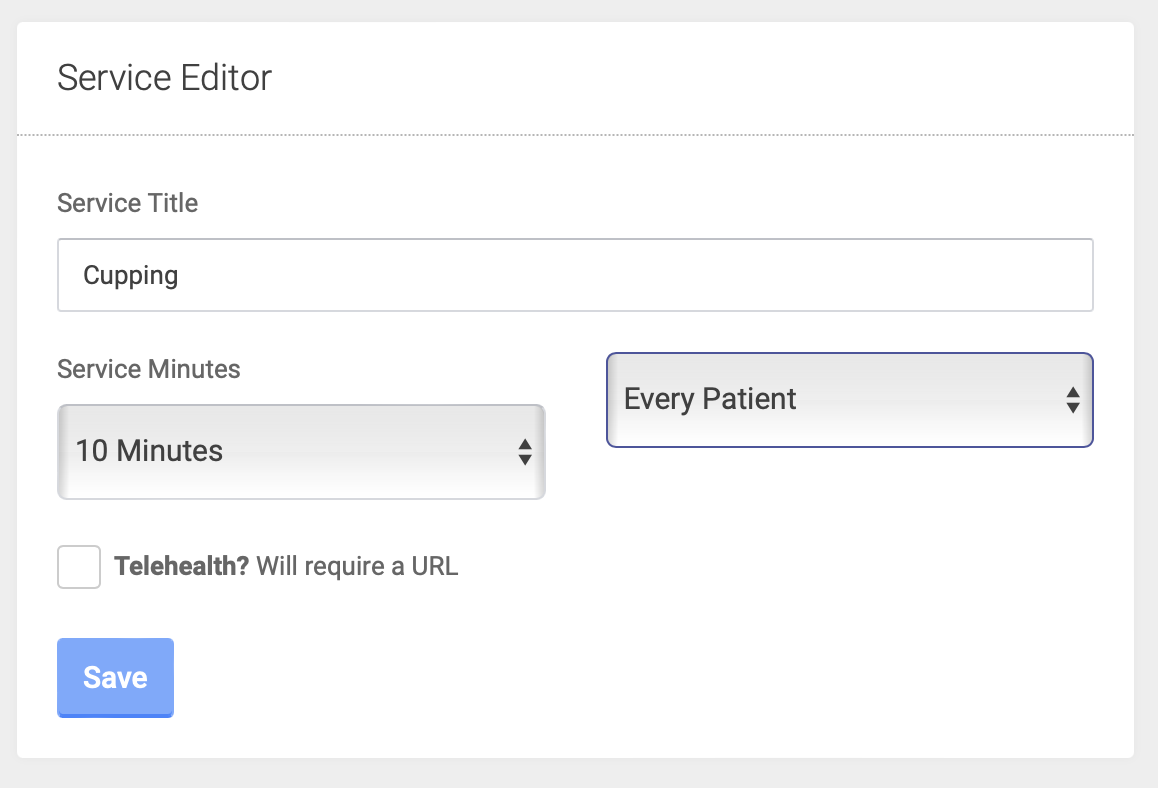
Click Save to save your new Service.
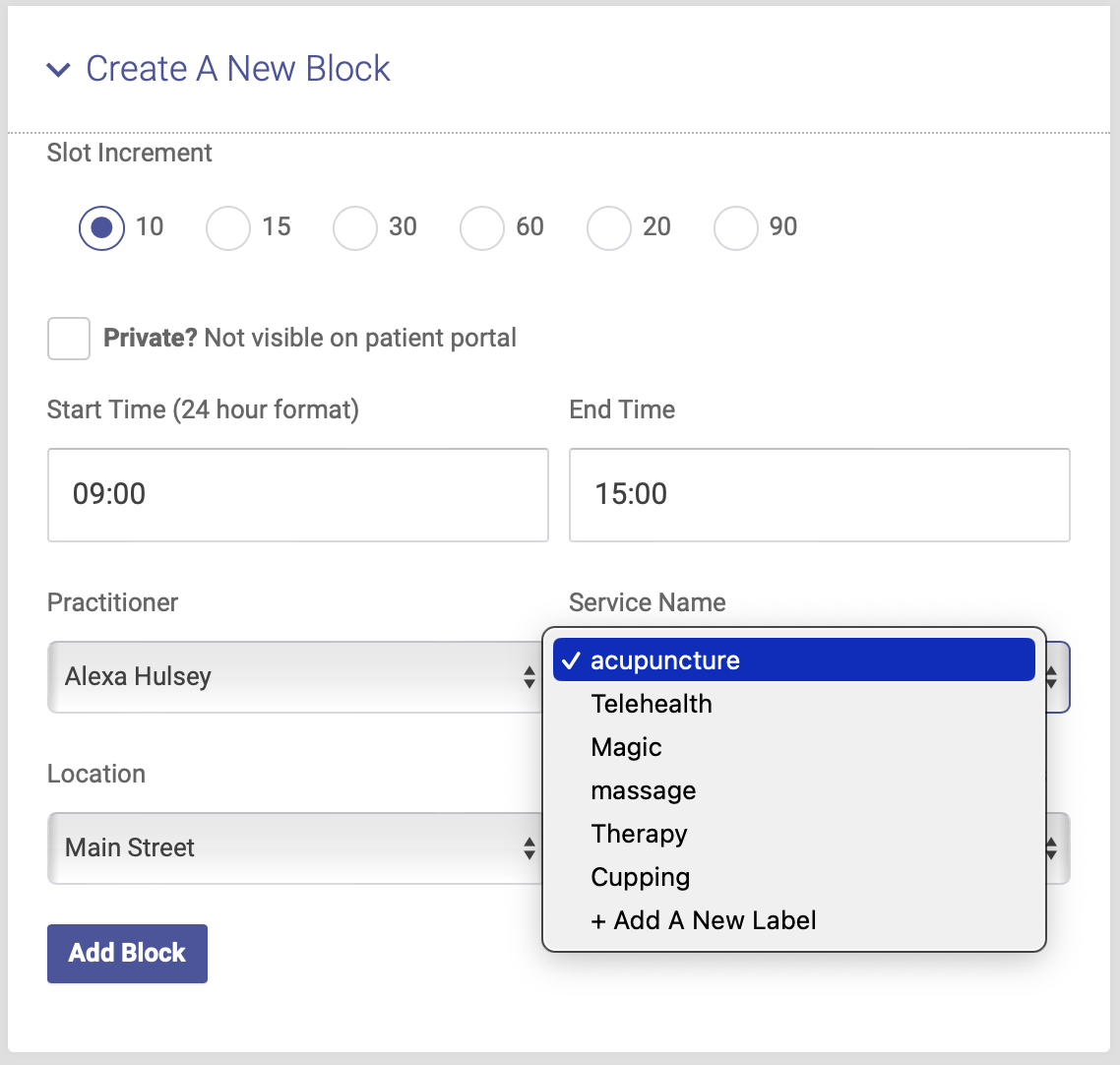
When you create
Editing a new schedule block, you’ll see the Service Name field next to the Practitioner name field. You can select from the available service names, or add a new one byclicking “+Add a New Label” in the drop down menu:
Editing or deleting Service Names
To editmake orchanges deleteto anyan ofexisting Service, find your Service Name labels, you’ll go toon the left-handlist sideon menuthe Services page, and click Appointments —> Services:
Edit.
OnThe thisService pageEditor you’llbox seewill a list of the service name labels you’ve created so far. To delete one, click the name of the label, thenopen on the right hand side of the pagepage. In the Service Editor box, you can change the nameService ortitle, deleteminutes, it:who can book, and telehealth options:
Click Save to save the changes to your Service.
HidingDeleting a Service Name
By default, all of your service names will show on the patient portal, as tabs across the top of the appointments page:
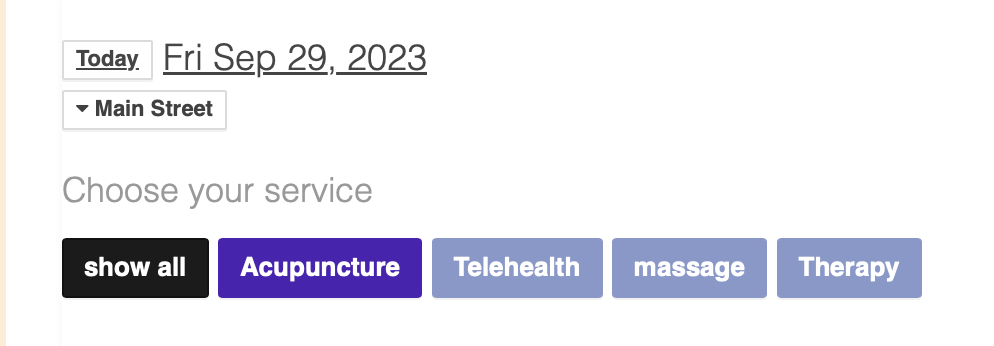
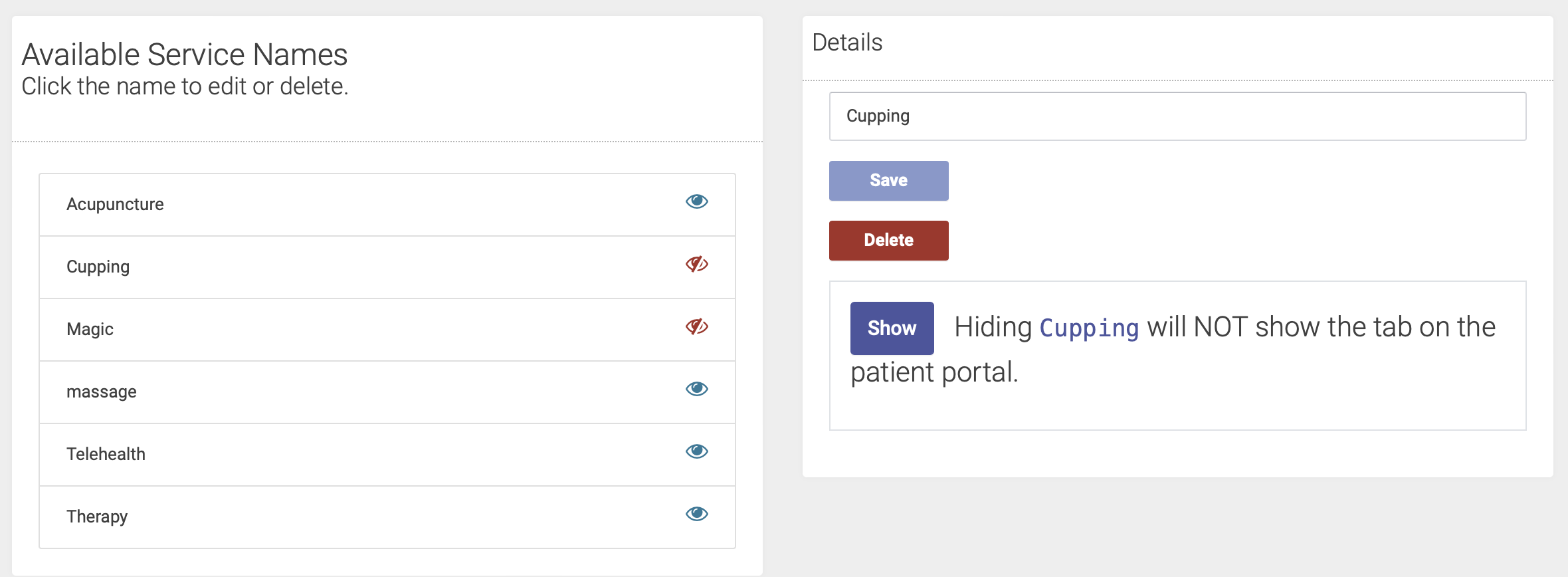
You have the option to "hide" a service name, meaning you can still assign it to a block, but it won't show up on the patient portal. This is a good option for services that you offered in the past but no longer offer, or if you don't want patients to be able to book online for a certain service.
To hidemake a Service Name label, you’ll gochanges to thean left-handexisting sideService, menufind andyour click Appointments —> Services. Select the service that you'd like to hide, then click the Hide button:

Once you click Hide, that service will NOT appear on the patient portal, and you'll see a red eye icon next to itService on the list ofon services.the YouServices can always reverse this actionpage, and allowclick theEdit.
The toService showEditor box will open on the patientright portalhand byside clickingof the servicepage. nameClick the red Delete button to delete your service. Once you delete a Service, it will not be available for any future schedule blocks. It will still appear on theexisting list,blocks thenthat clickinghave thealready Showbeen button:scheduled.
Here's a quick video tutorial on hiding service names: