
Waiting Lists
Each day / location combination can have a waiting list.
Adding a patient to the waiting list.
- Click the plus sign at the bottom of the menu


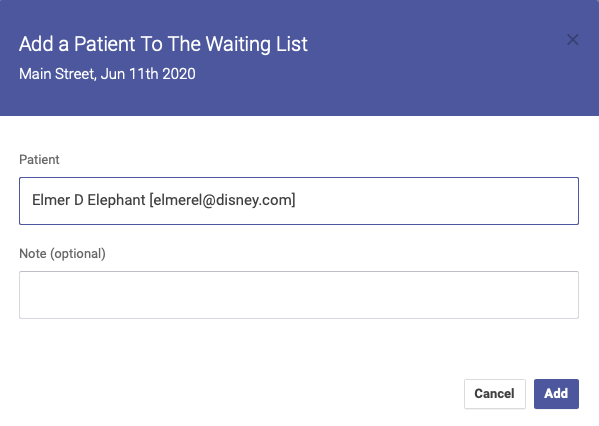
This will create a waiting list under the button, menu.
When deleting a block with appointments in it all those appointments will be cancelled but also added to the waiting list with a note stating who they were to see and what time.
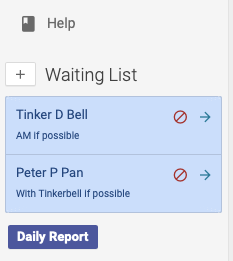
Adding appointments from the waiting list.
Once there are patients in the waiting list you can easily add them to open slots on any block for that day / location.
- Click once on the appointment slot (not any of the icons) to select it. It will turn light green indicating that it has been chosen for a waiting list patient.


 A modal will popup.
- Confirm the slot information you are about to populate.