Intake Form Settings
Open ACU allows you to create multiple intake policies and questionnaires. You’ll designate which forms automatically get sent to new patients, and which are sent manually.
You’ll setup your intake forms from the Intake Settings page. There are three sections to complete when setting up your forms:
- Sending Intakes to New Patients
- Intake Policies
- Intake Questionnaires
Sending Intakes to New Patients
Check the “Send Intake” box if you want to automatically send an intake form to a new patient when they create an account. You’ll also enter verbiage for the text of the email that will be sent with the intake. Be sure to click Save Intake Preferences when you’re finished.
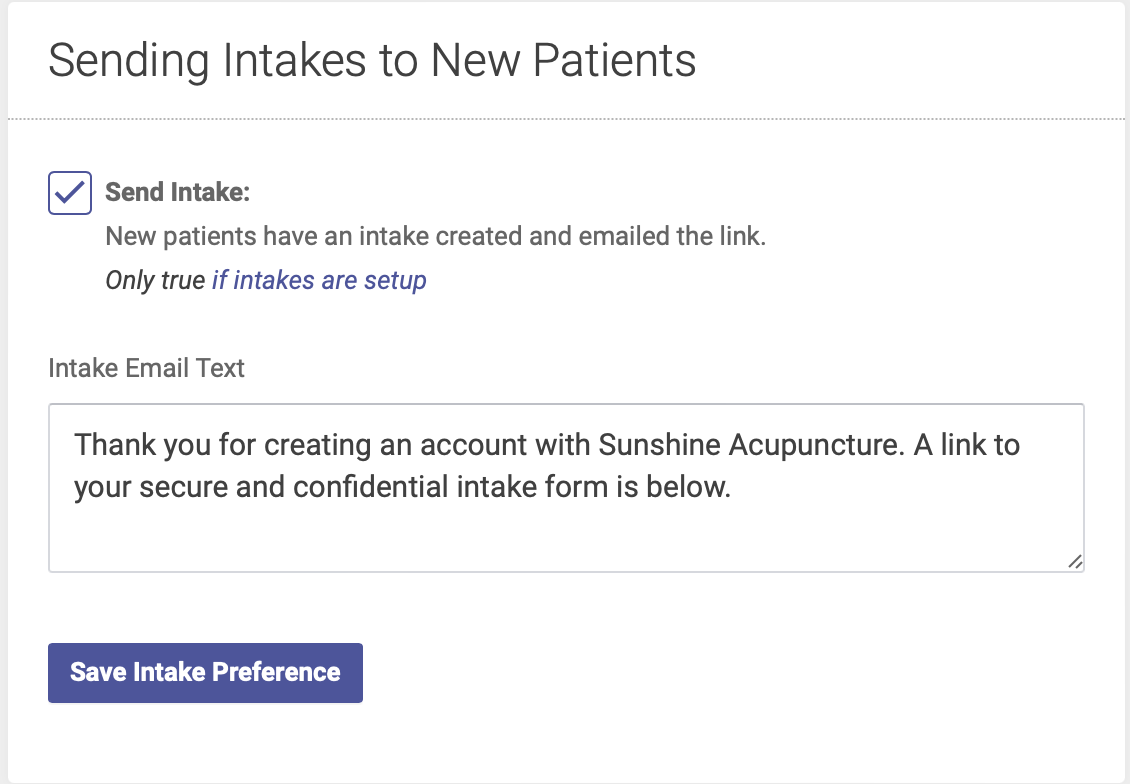
If you leave the box unchecked, you can manually send an intake form from the Patient Profile page.
Intake Policies
In the Intake Policies section, you’ll enter any information you want the patient to read and agree to before they complete their intake form. This can include financial policies, informed consent, privacy practices, etc.
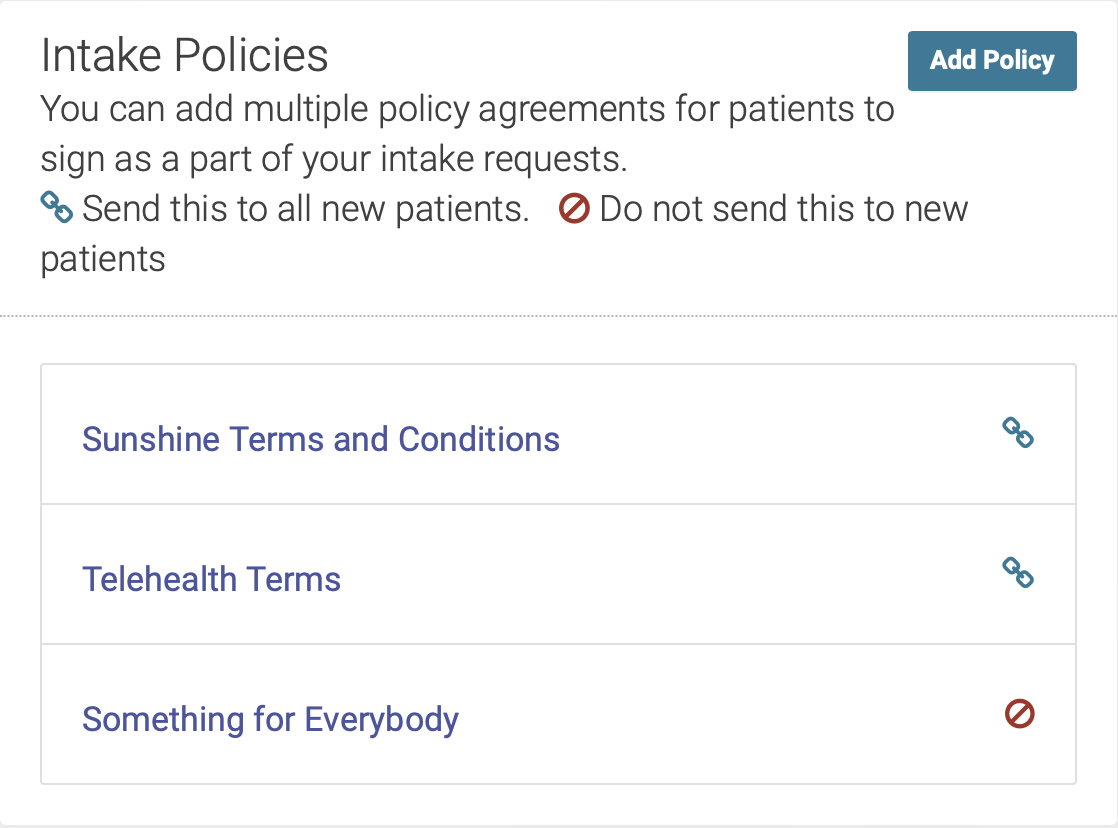
You can create as many Intake Policies as you like. This section will display a list of your current policies, and is where you can add, edit or delete policies.
Policies with a link icon will automatically be sent to new patients (if this feature is set up). Policies with a crossed-out circle icon will NOT automatically be sent to new patients, and can be sent manually from the Patient Profile page.
Adding an Intake Policy
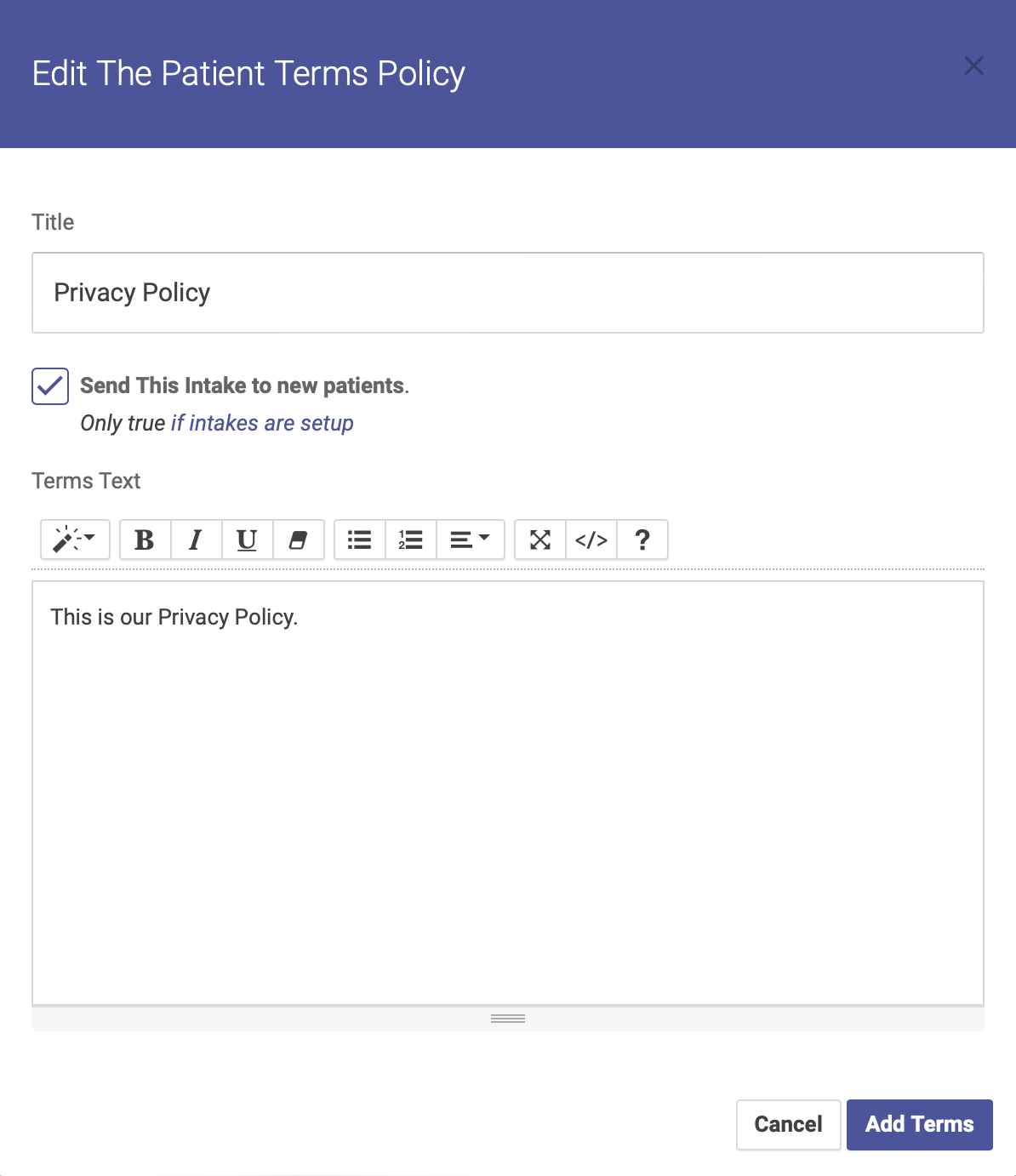
To add a new Intake Policy, click the Add Policy button. Enter your title, text, and check the Send This Intake to New Patients box if you want this policy to automatically be sent to new patients (if you leave the box unchecked, you can still manually send a policy form from the Patient Profile page). Be sure to click Save Terms when finished.
Editing or Deleting an Intake Policy
To edit an existing Intake Policy, click the policy title on your list of policies. You will then be able to edit your policy’s title and terms, and whether or not this policy will automatically be sent to new patients. You can also delete a policy but clicking on the title. Be sure to click Save Terms when finished.
Intake Questionnaires
In the Intake Questionnaires section, you’ll create your questionnaire forms for health history, review of symptoms, and any other information you want to gather for a patient’s first appointment.
You can create as many Intake Questionnaires as you like. This section will display a list of your current questionnaires, and is where you can add, edit or delete policies.
Questionnaires with a link icon will automatically be sent to new patients (if this feature is set up). Questionnaires with a crossed-out circle icon will NOT automatically be sent to new patients, and can be sent manually from the Patient Profile page.
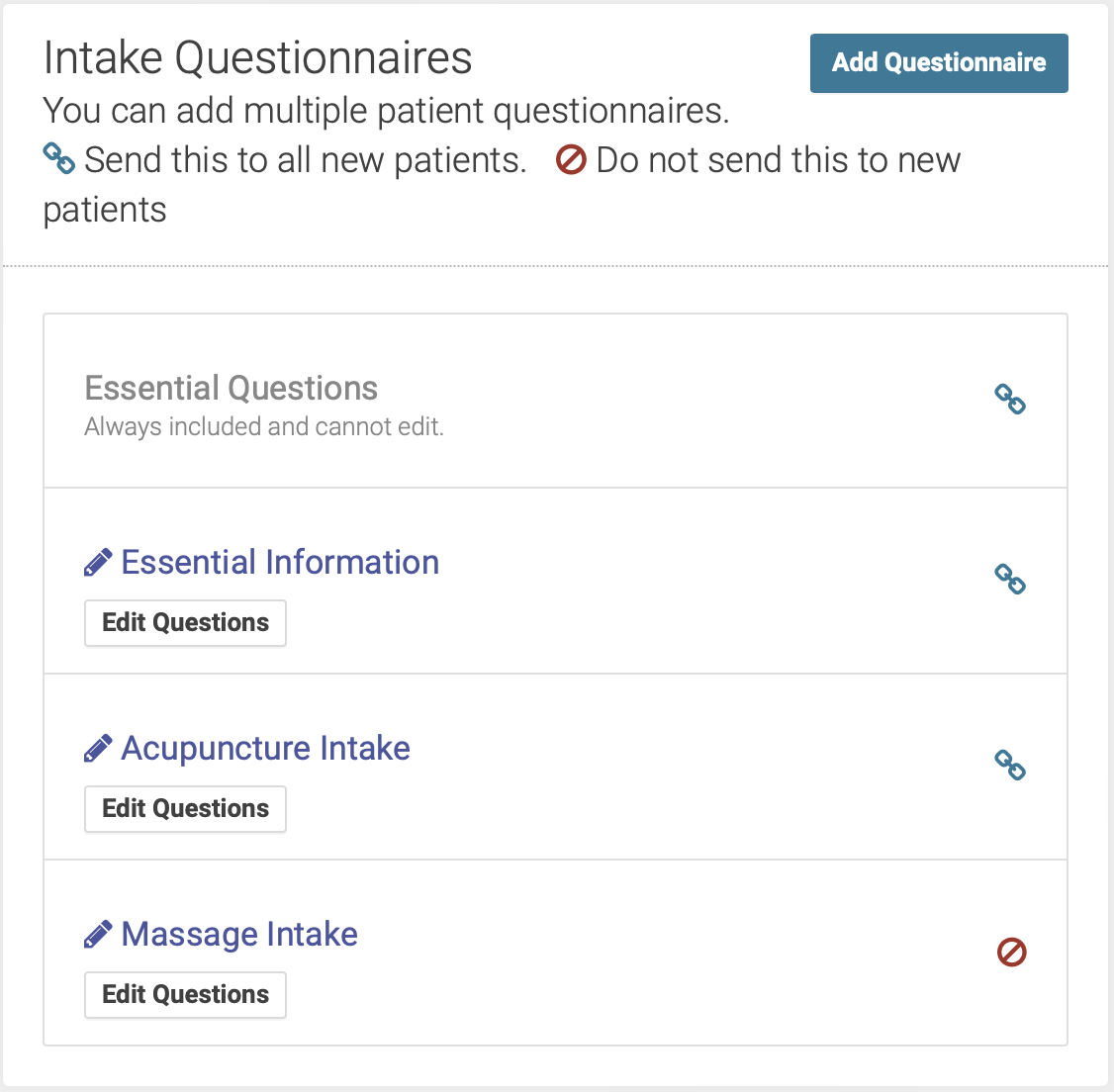
Adding a Questionnaire
To add a new Questionnaire, click the Add Questionnaire button. Enter your title, description / instructions, and check the Send This Intake to New Patients box if you want this policy to automatically be sent to new patients (if you leave the box unchecked, you can still manually send a policy form from the Patient Profile page). Be sure to click Add Questionnaire when finished.
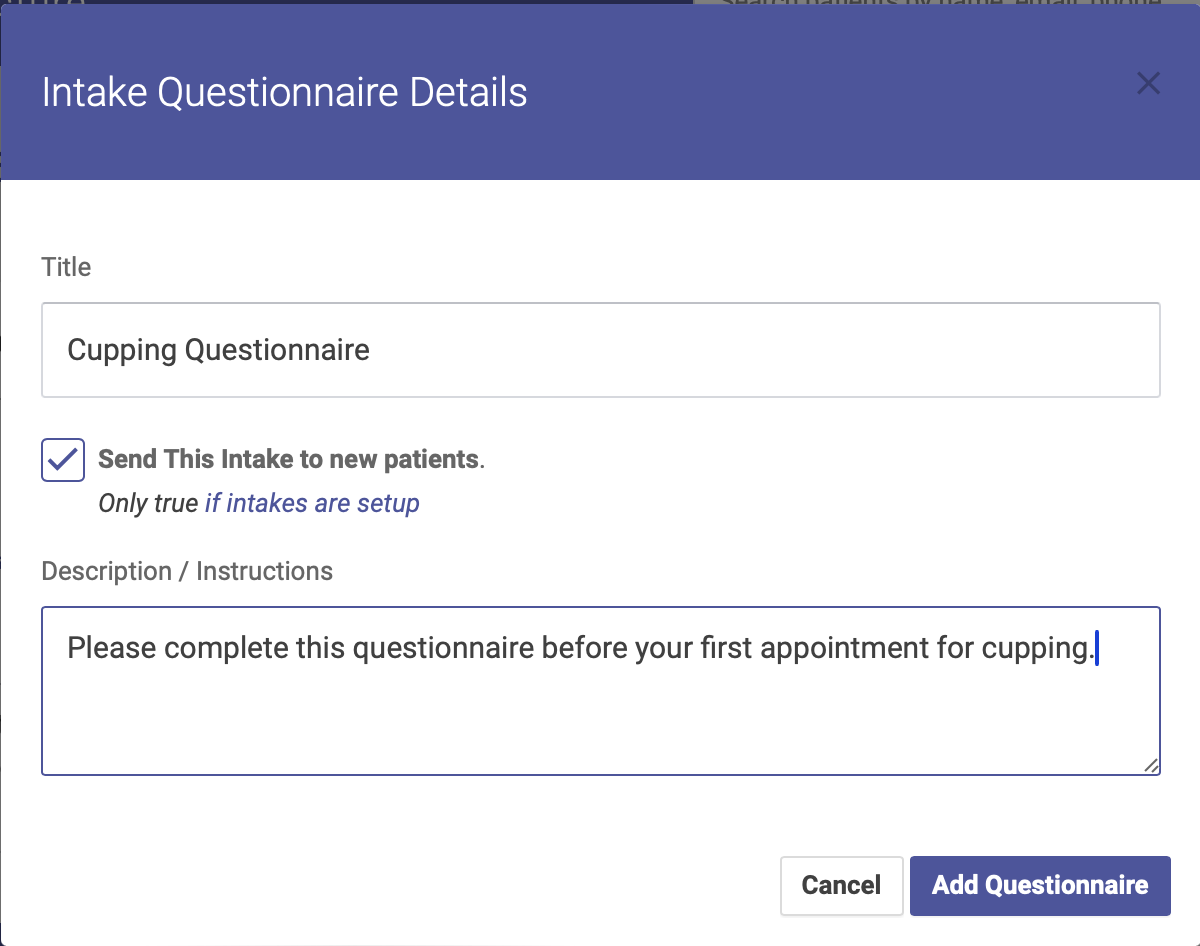
Once you’ve created a questionnaire, you can add individual questions and groups
Subhead: Adding Individual Questions and Groups
To add and edit Questions and Groups for your questionnaire, click the Edit Questions button:
Screenshot
You can then use the Add Group and Add Question buttons to add question groups and individual question. You must add at least one group, and each question must be assigned to a group.
In this section you’ll add question groups and individual questions. You’ll see two buttons below the Intake Questions header: Add Group and Add Question:

Question Groups
To add a group, click the Add Group button and a popup modal will appear. Enter your Group name and click Create Group. Your group is now saved.
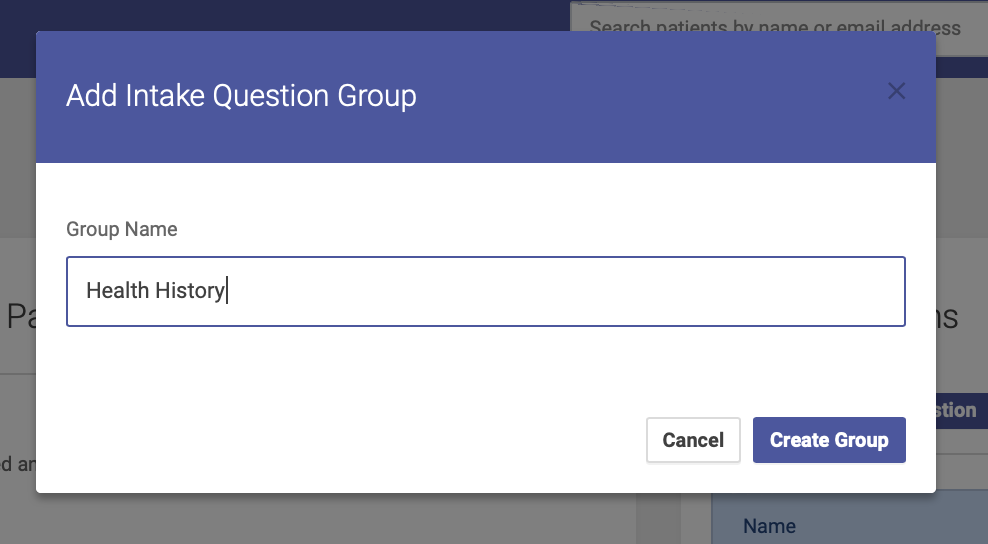
Add a Question
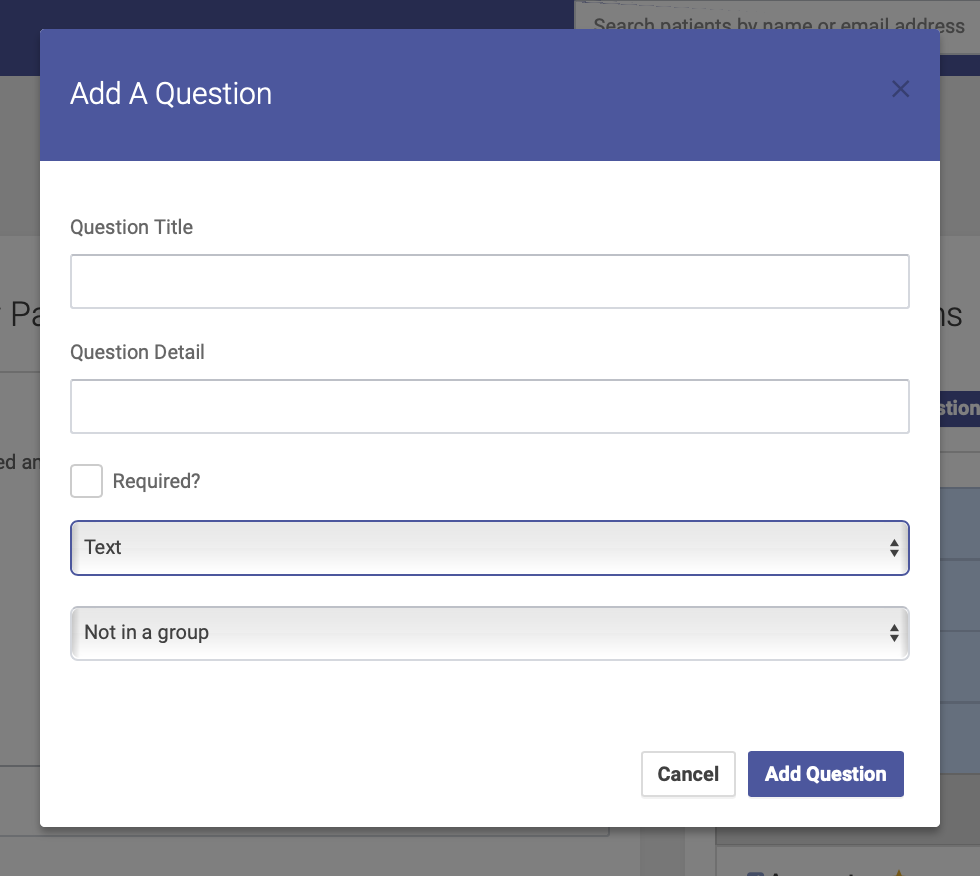
To add an individual question, click Add Question and a popup modal will appear. Enter your question title and detail, choose your answer field type, and assign your question to a group, if applicable. Click Add Question to save your question.