
Create an Event in Open ACU
Open ACU allows you to schedule group events with multiple participants. Read on for step-by-step instructions.
1. Create a new event
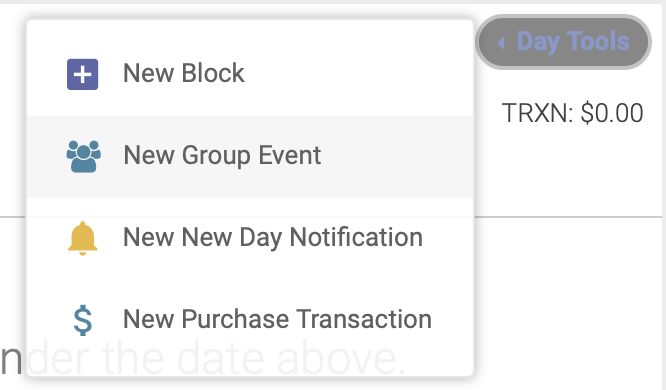
Select your date on the schedule. At the top of the day's page, click Day Tools --> New Group Event:
2. Event Setup
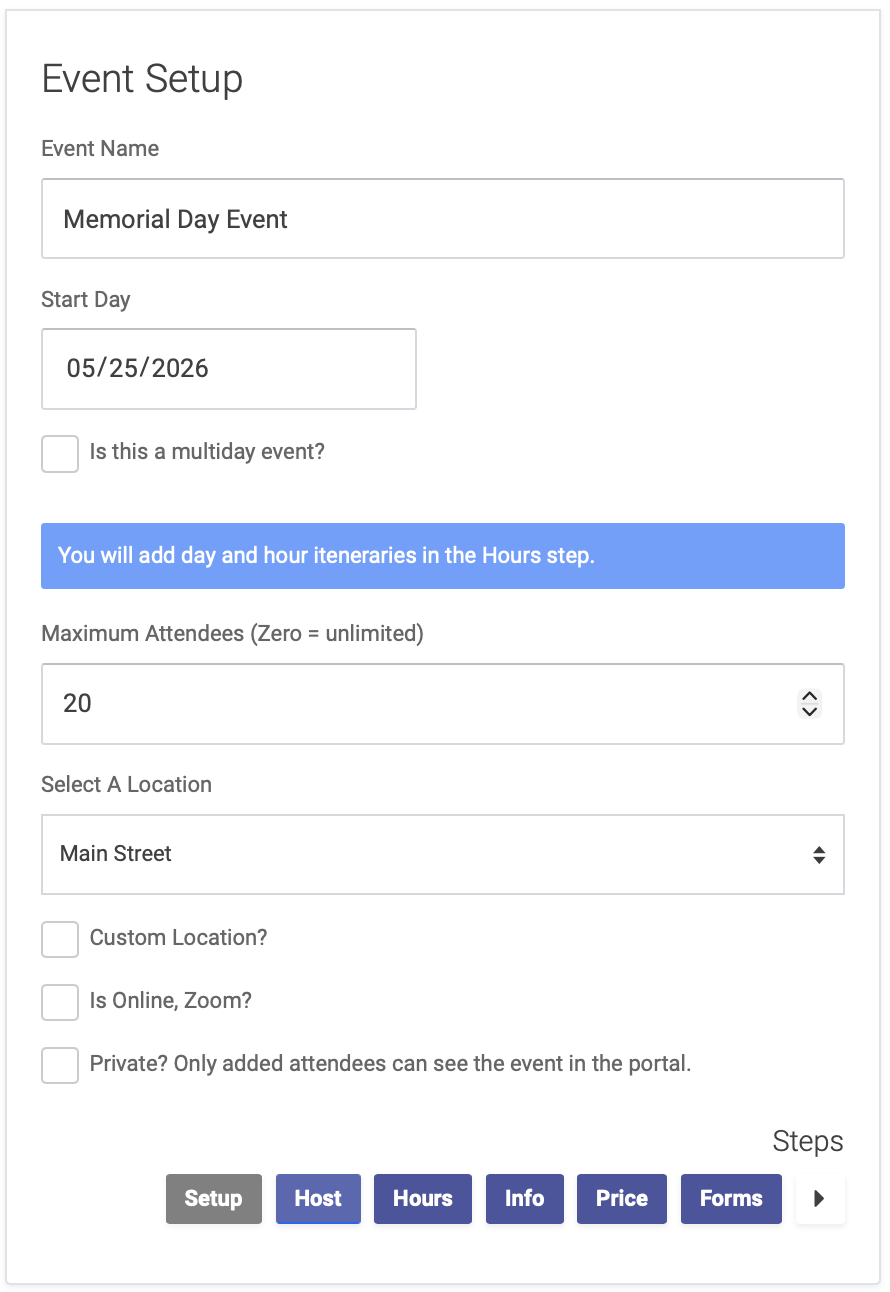
You'll now follow the Event Setup steps to enter all the details about your event:
Setup
On the Setup page, you'll enter:
- Event Name
- Start date (see this article for multiday events)
- Maximum number of attendees (zero = unlimited attendees)
- Location (you can select your clinic location, a custom location, or an online location such as Zoom)
- Event image
Click the right arrow at the bottom of the page to advance to the next step: Host
Host
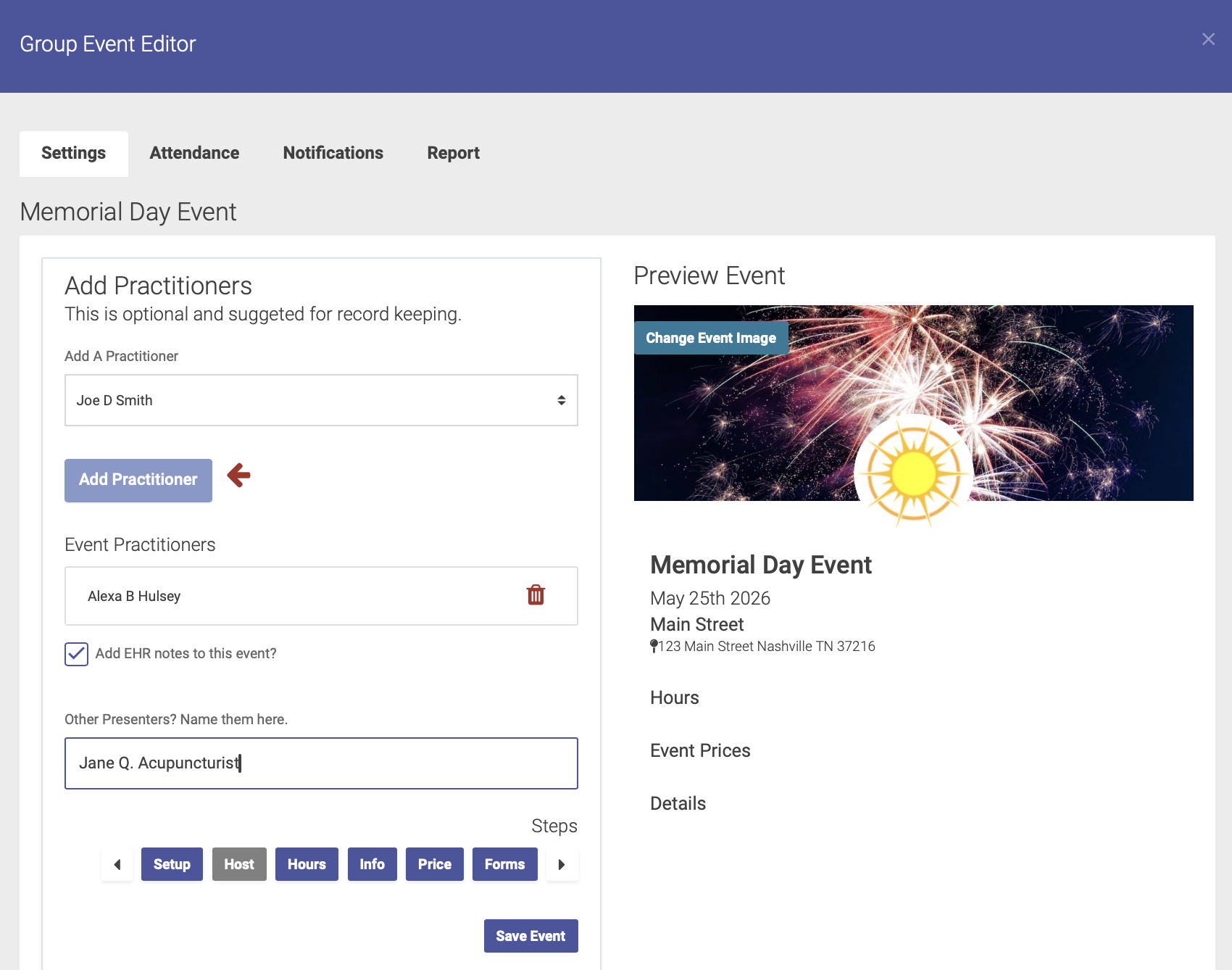
On the Host page, you'll enter:
- Event Host from a dropdown menu of your clinic's Practitioners. To add a Practitioner, select their name from the dropdown menu, then click the Add Practitioner button. You can add multiple practitioners per event.
- Click the "Add EHR notes to this event" checkbox if you want to enter and save health records for this event.
- If you have other event presenters or hosts who are not on the menu of your clinic's Practitioners, you can add their name in the Other Presenters box
Click the right arrow at the bottom of the page to advance to the next step: Hours
Hours
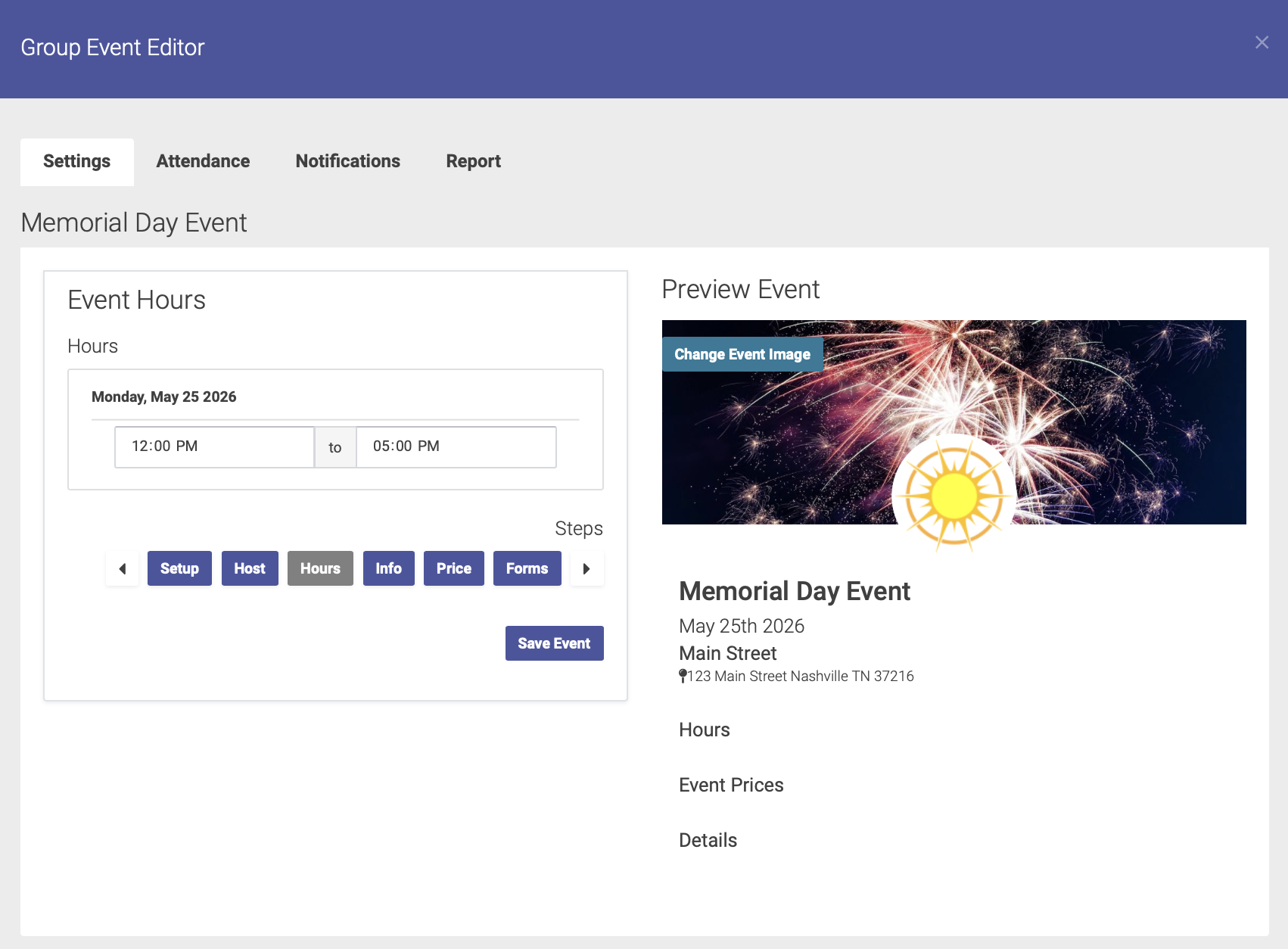
On the Hours page, you'll add your Agenda Items to your event. You must have at least one agenda item.
Click on the right arrow at the bottom of the page to advance to the next step: Info
Info
On the Event Info page, you'll enter more details about your event:
- Event Description: enter a description of your event so attendees know what to expect
- Event Details: here's where you'll enter the fine print such as cancellation policy, parking information, etc
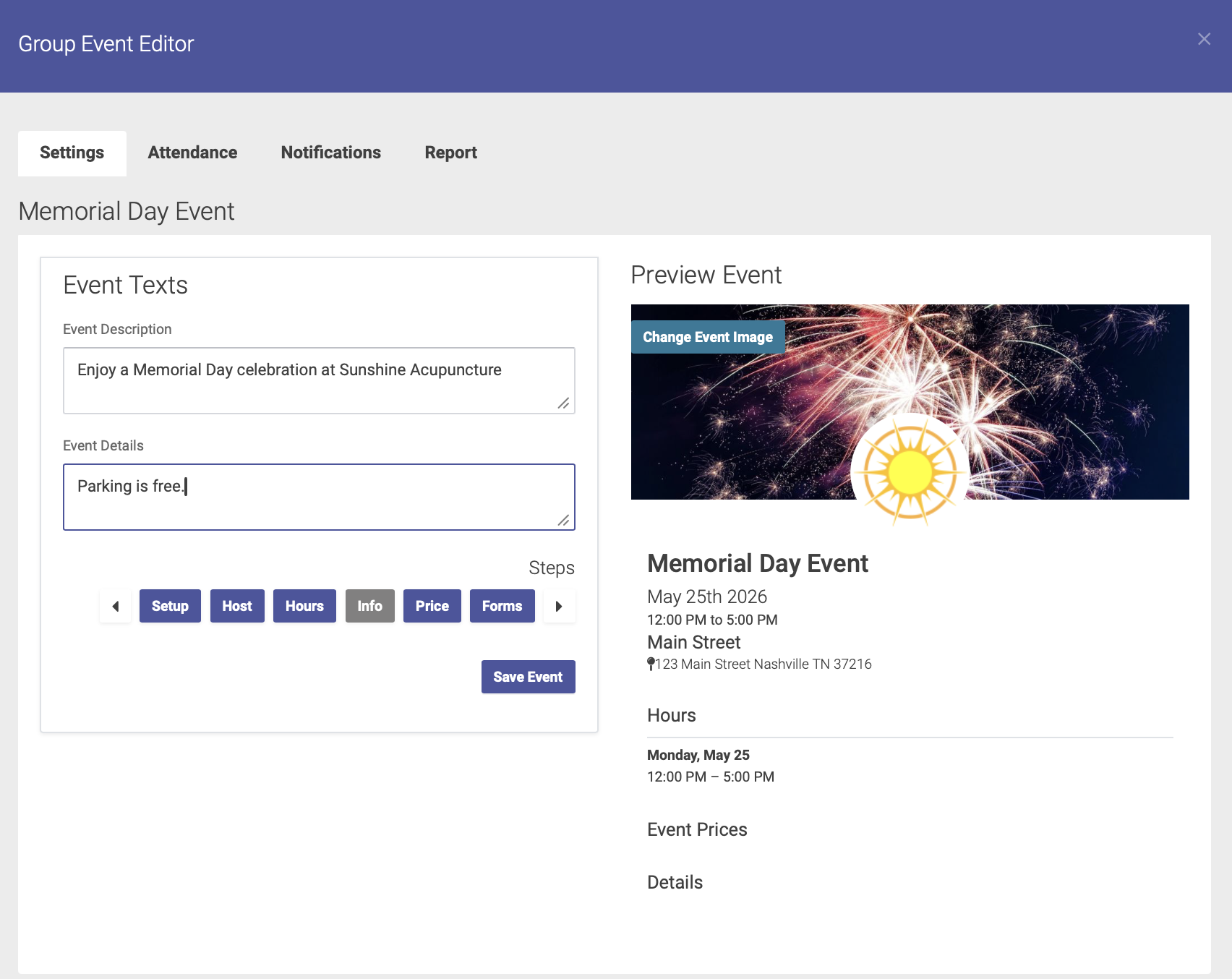
Click on the right arrow at the bottom of the page to advance to the next step: Price
Price
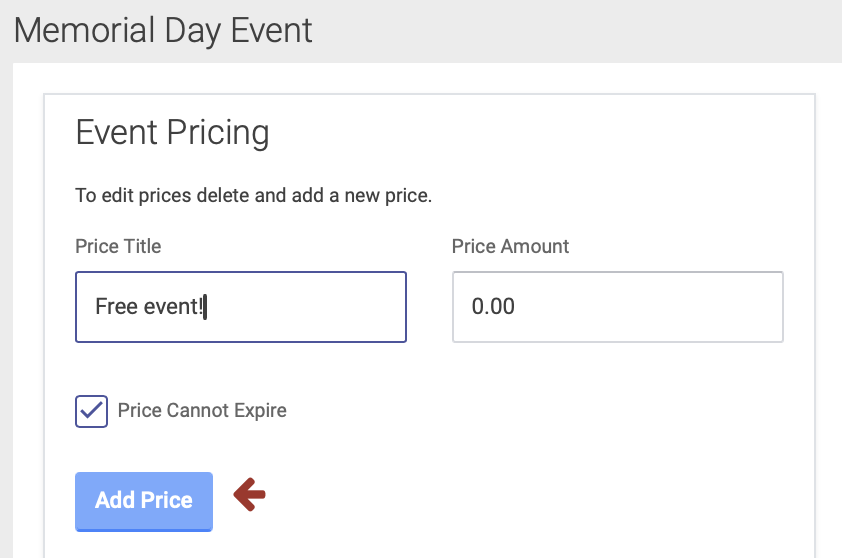
On the Price page, you'll enter your pricing for the event.
For cana addfree expirationevent: Enter datesyour price title and 0.00 for your price amount. Click the Add Price button to save:
For a pricepaid for an early-bird pricing option.event:
- Enter your price title, amount, and expiration date (if applicable). Then click the Add Price button.
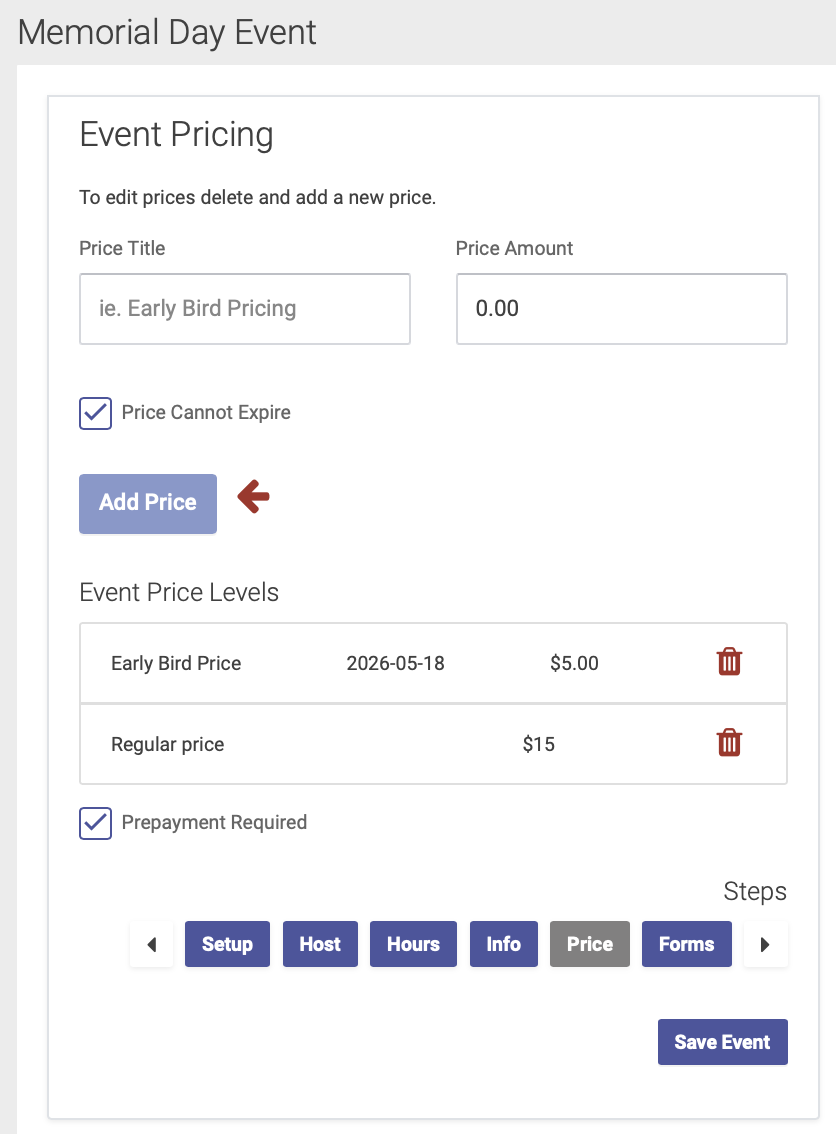
Click on the right arrow at the bottom of the page to advance to the next step: Forms
Forms
On the Forms page, you have the option of sending forms to attendees, to be completed in advance of the event.
- Select the forms you'd like to send from your clinic's Intake Form options,
- Or click the Create a New Form to create a new form for your event. This will take you to your Intake Settings page.
- You can skip this step if you do not require attendees to fill out a form for this event.
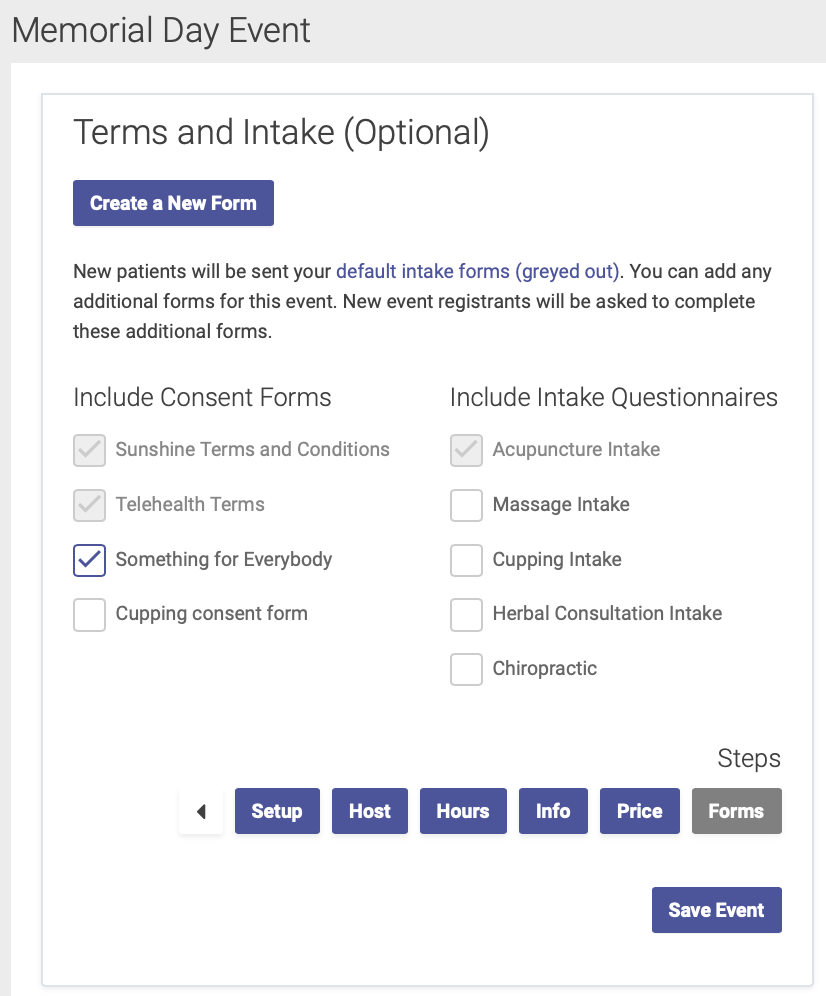
Click Save Event to finish the event setup process
Next step: Event Notifications