
Creating a Multi-day Event
Our Events function allow you to create an event that spans multiple dates. Here's how to do that.
Event Setup
On the Event Setup page, click the box next to "Is this a multiday event?" You can then enter the start and end dates for your event:
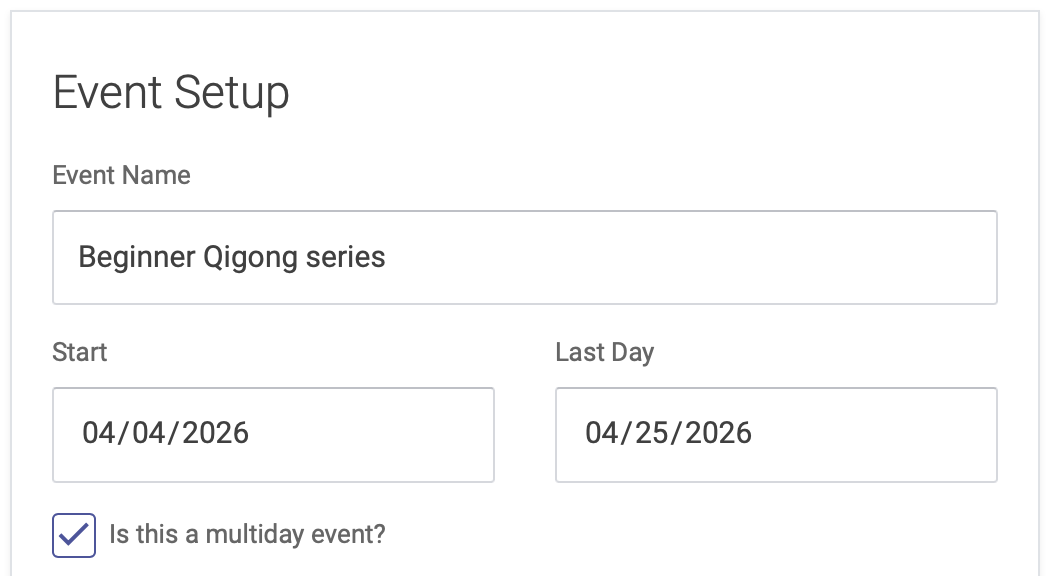
Click the right arrow at the bottom of the page to advance to the next step: Host
Host
On the Host page, you'll enter information about the event host(s), the same as you would for a single-day event:
Click the right arrow at the bottom of the page to advance to the next step: Hours
Hours
On the Hours page, you'll enter the hours on your multiple dates as separate Agenda Items:
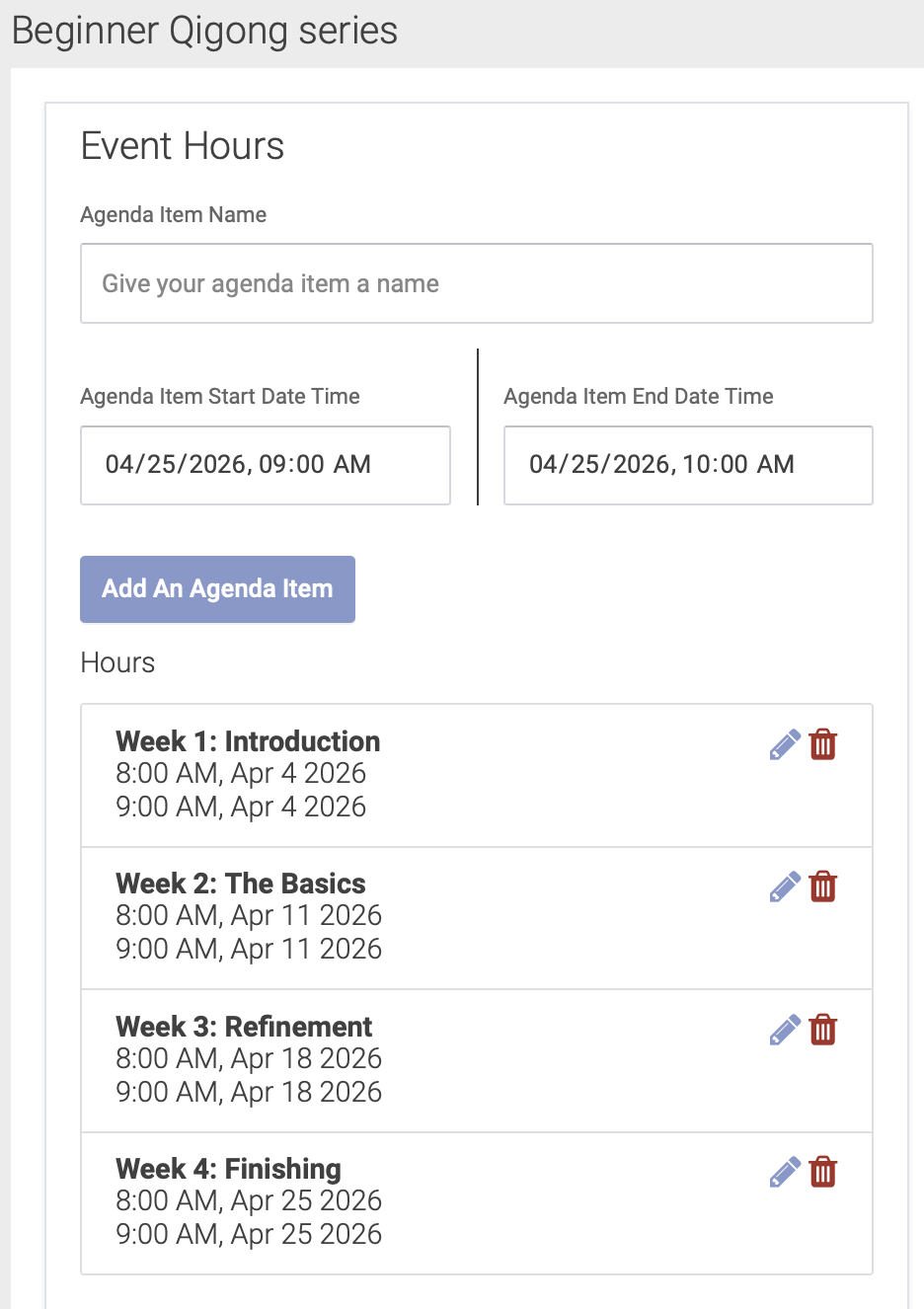
Click the right arrow at the bottom of the page to advance to the next step: Event Info
Event Info
Enter your description and details for the event. In the description box, it's helpful to add information about dates and times. This will show up in the About section on the event URL:
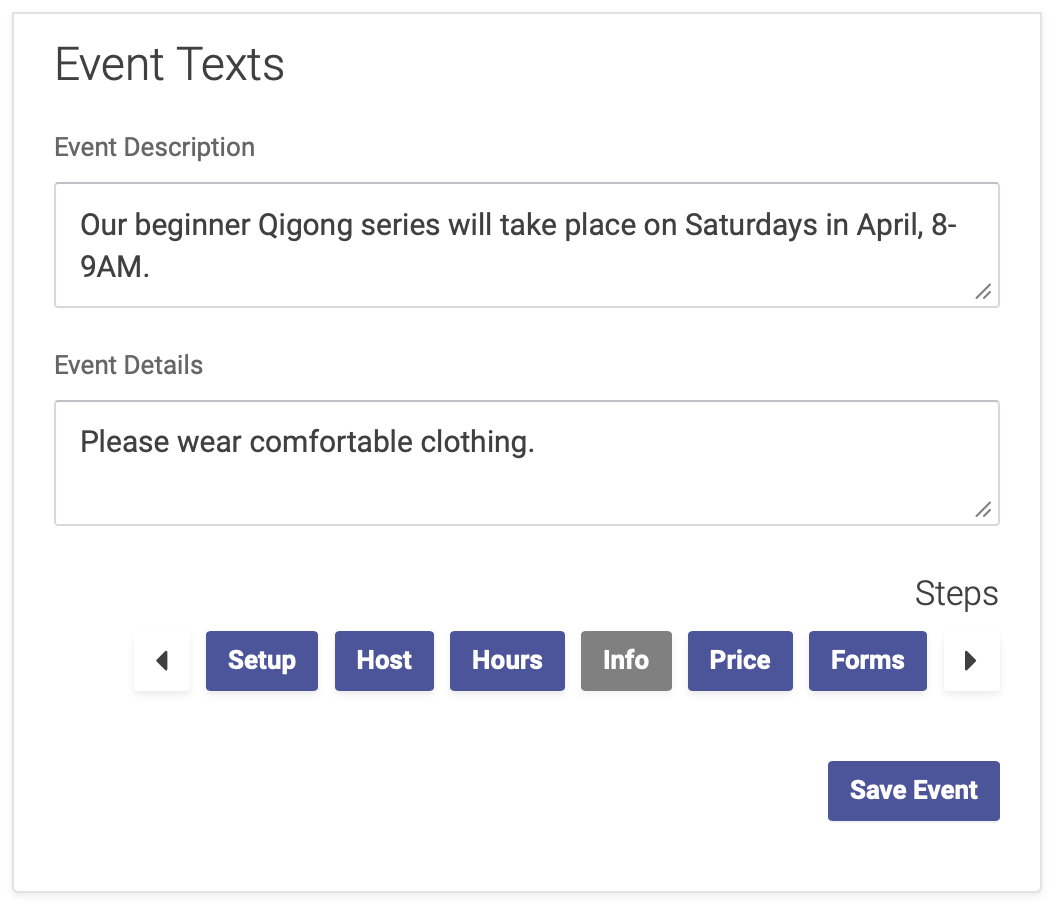
Click the right arrow at the bottom of the page to advance to the next step: Price
HostPrice
On the Price page, you'll enter your pricing for the event, the same as you would for a single-day event. You can add expiration dates to a price for an early-bird pricing option.
Click the right arrow at the bottom of the page to advance to the next step: Forms
Forms
On the Forms page, you have the option of sending forms to attendees, to be completed in advance of the event.
Click Save Event to finish the event setup process
PriceNext step: Event Notifications