How to Register for an Event
Here's how to register for an event on the patient portal:
Step 1:
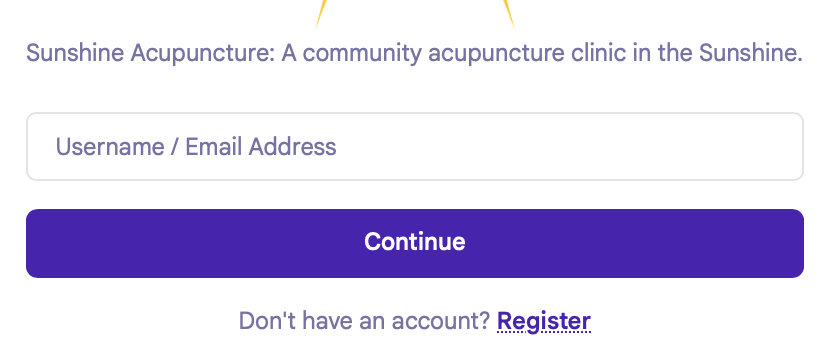
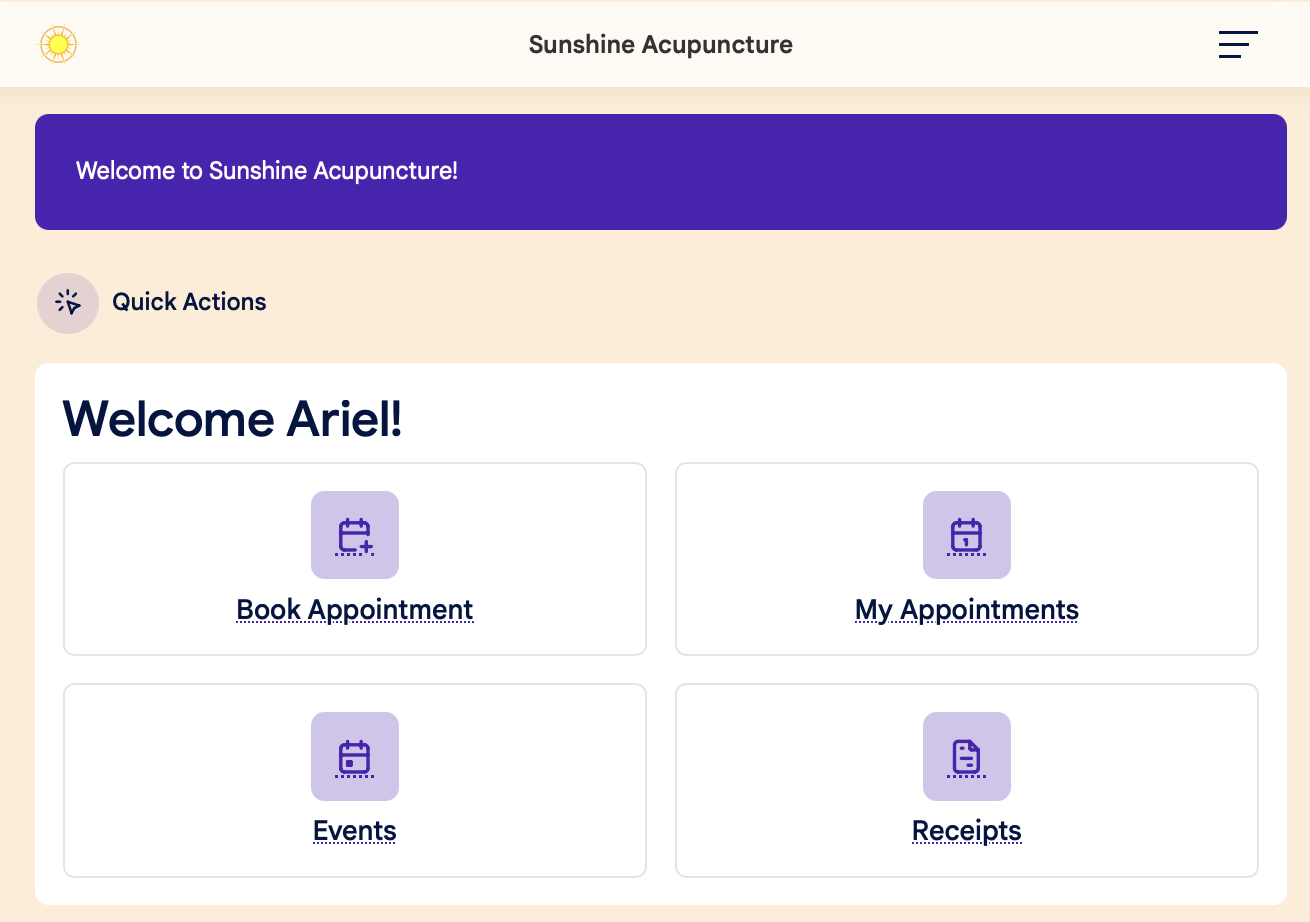
Log into your patient account, and click on the Events tab on the home page dashboard:
Step 2:
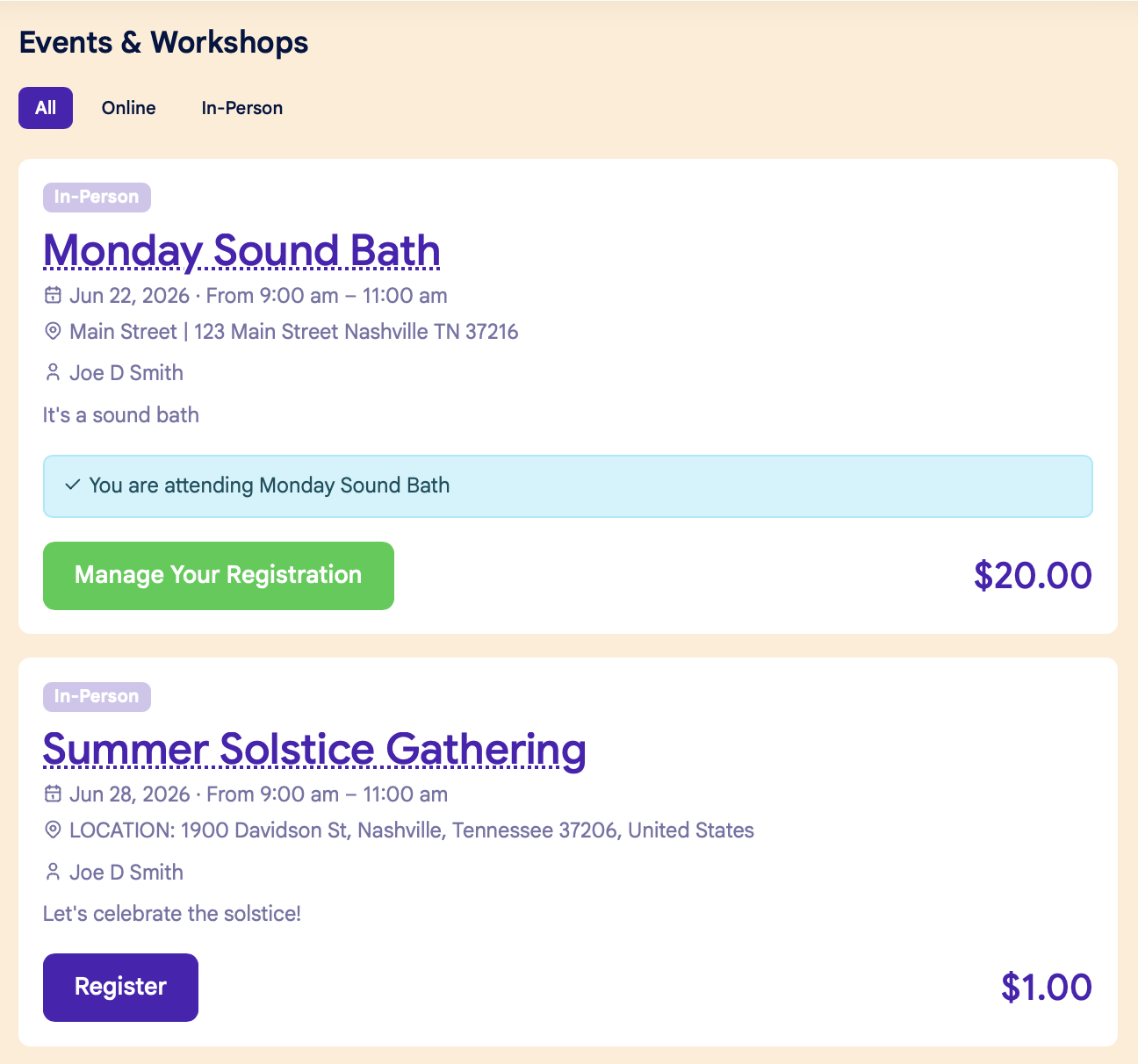
The All Events page will show a list of all upcoming events:
Step 3:
Click the "Register" button for your event, then follow the prompts to complete your registration.
Cancel your registration:
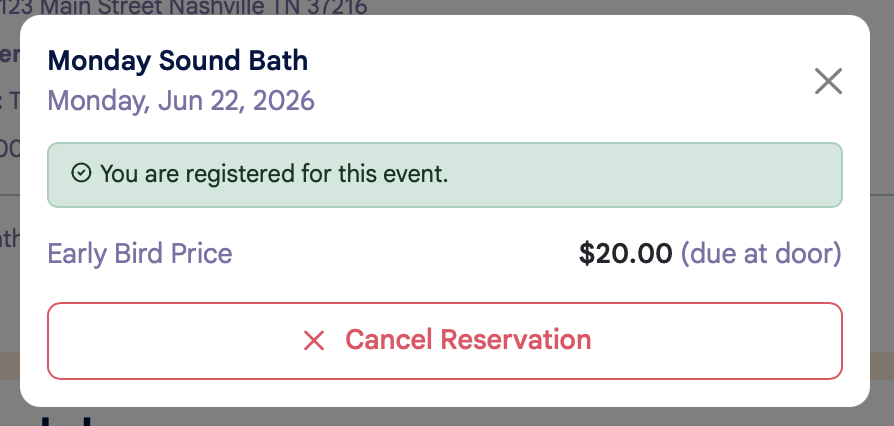
If you want to cancel your registration, click the Manage Your Registration button for your event. Then follow the prompts to complete your cancellation:
Waiting list:
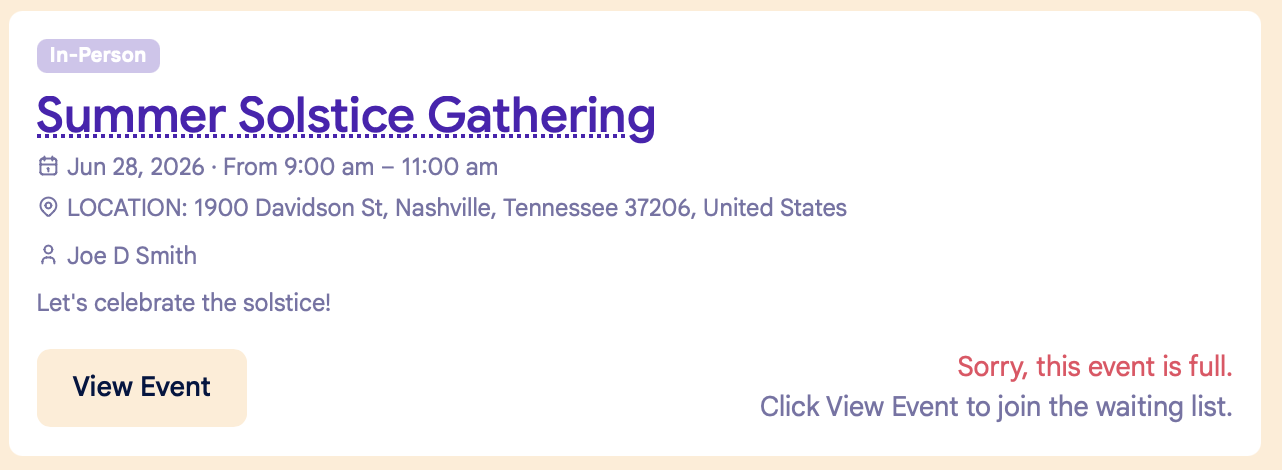
If an event is full, you can add your name to the Waiting List. Click the View Event button to add your name:
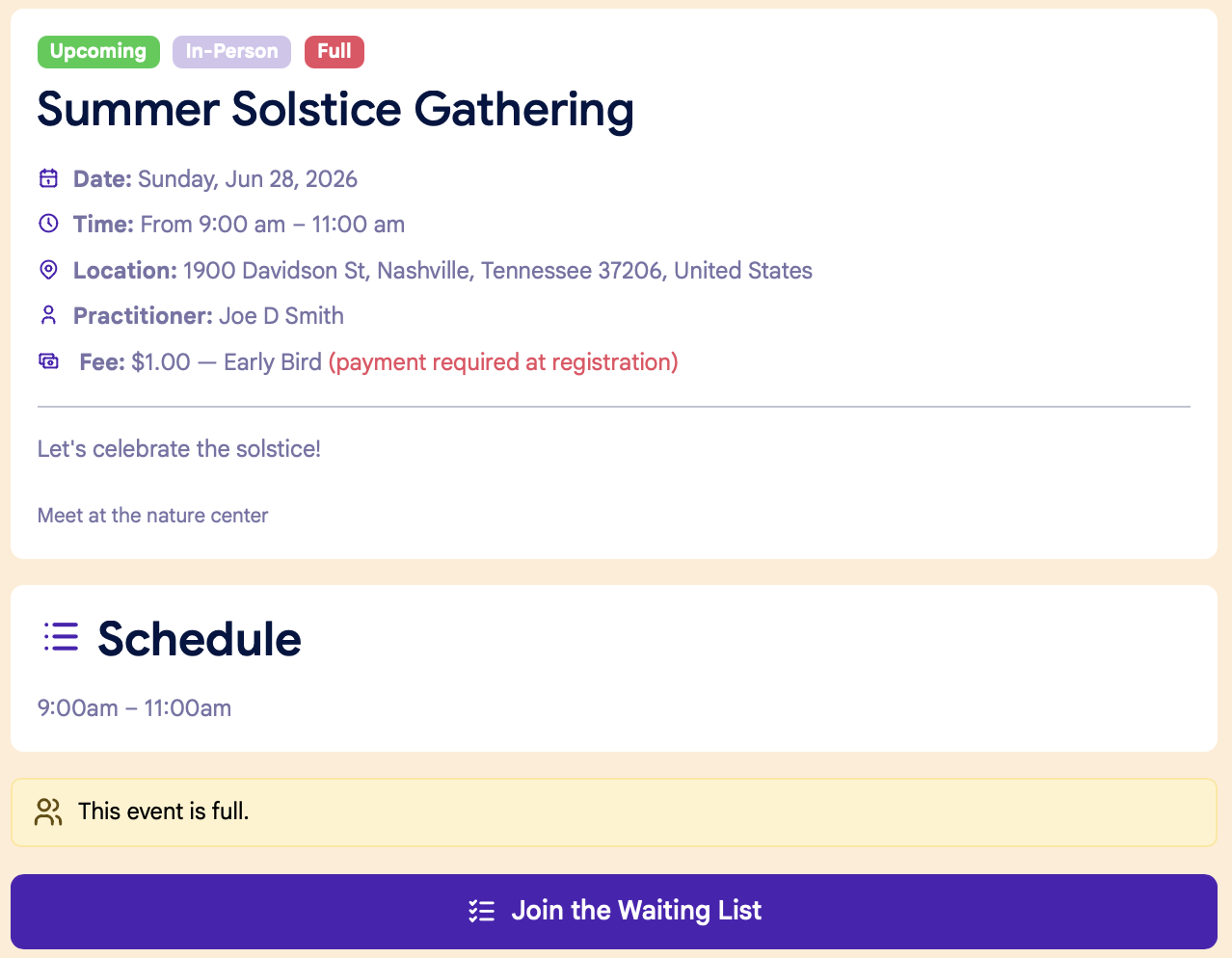
On the event page, click Join the Waiting List to add your name:
If you don't have a patient account:
You must create a patient account in order to register for an event. If you don't have a patient account, click "Don't have an account? Create one" on the clinic's patient portal login page: