
Checking in Event Attendees
At the time of your Event, you'll check in attendees when they arrive, similar to checking in for an appointment.
Step 1:
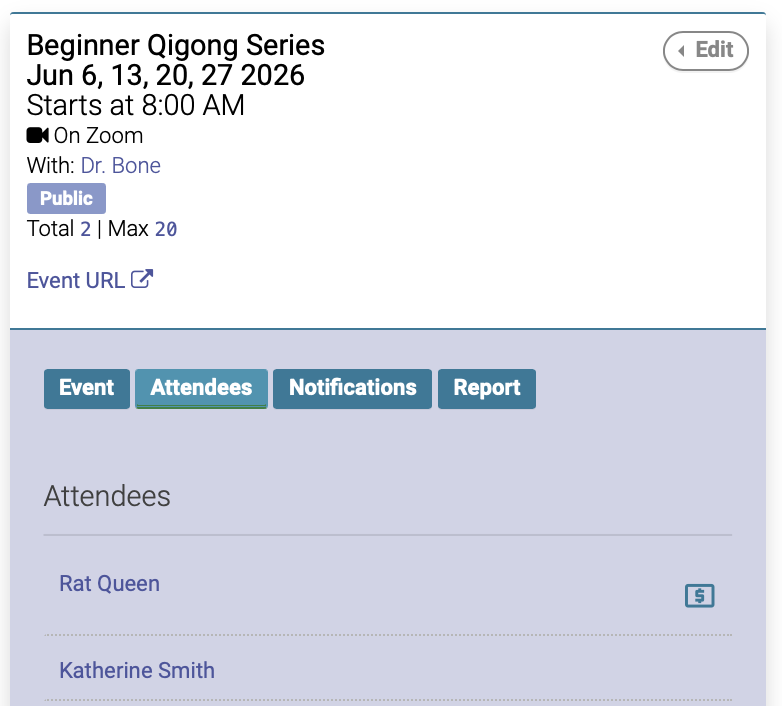
Go to the Event date on the calendar, then click the Attendees tab. If an attendee has a dollar sign icon next to their name, that means they have pre-paid for the Event:
Step 2:
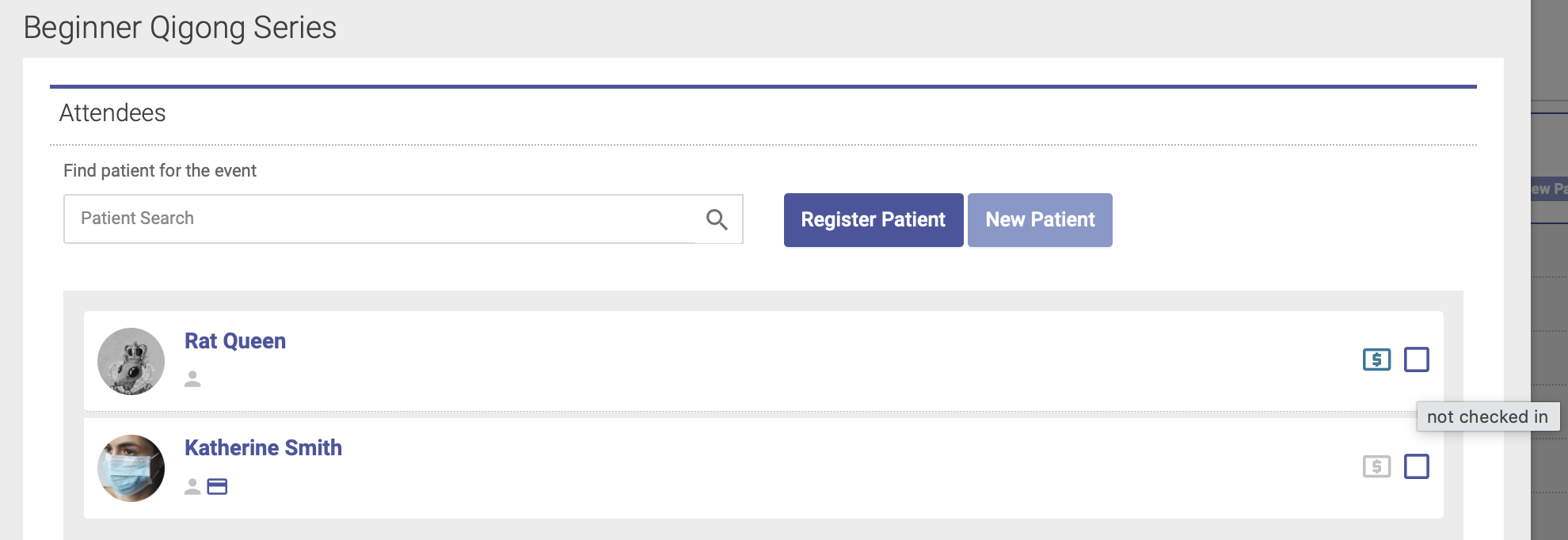
To check in an attendees, click the checkbox icon next to their name on the Attendees tab:
Step 3:
A window will now appear where you can check in the attendees, and complete their payment if needed:
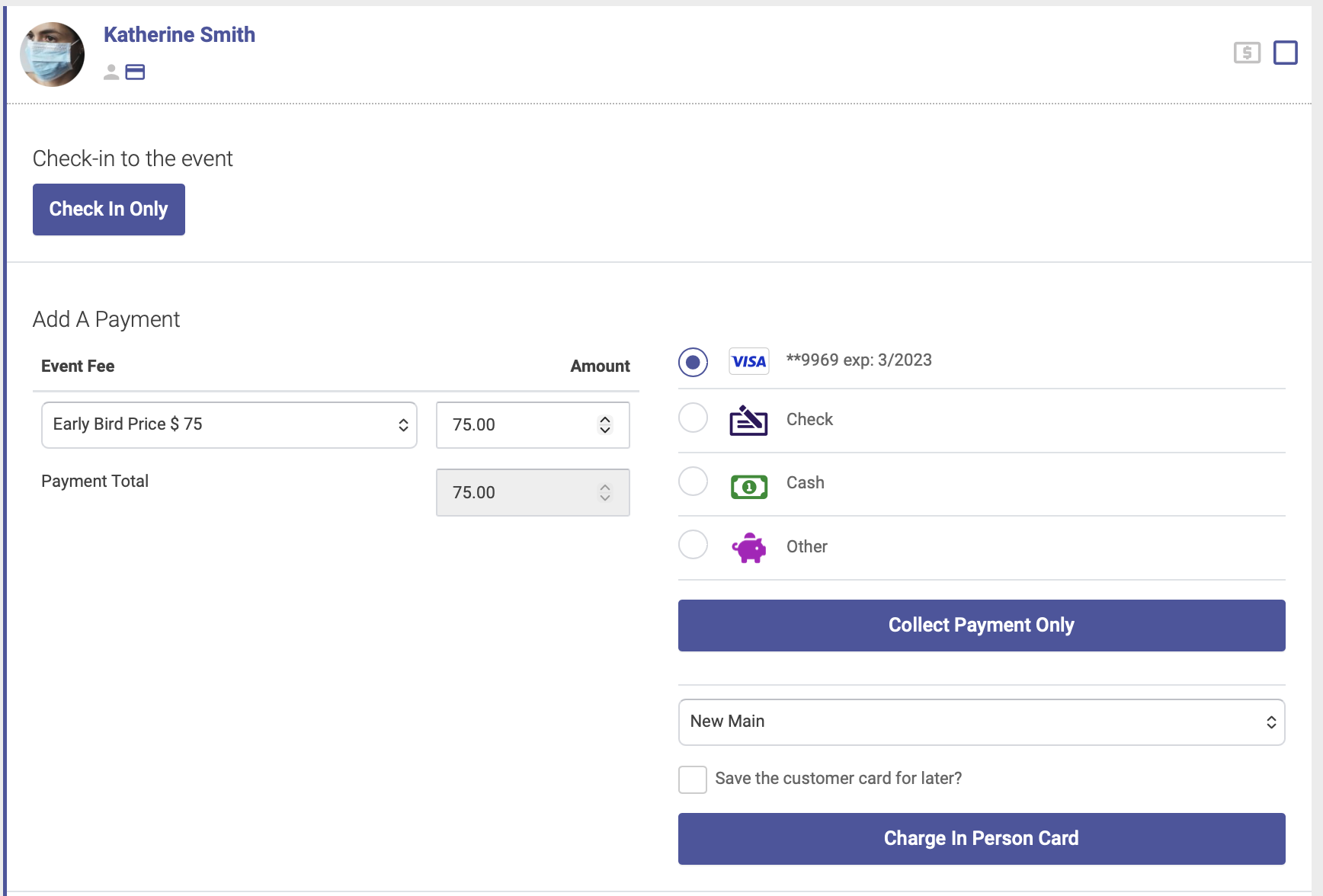
Once you've completed the checkin, a check will appear next to their name on the Attendees tab:

If your event includes EHR notes, you must check in an attendee first before recording EHR notes.