Event Waiting List
If your event registration is full, you can add people to the waiting list.
Add someone to the waiting list
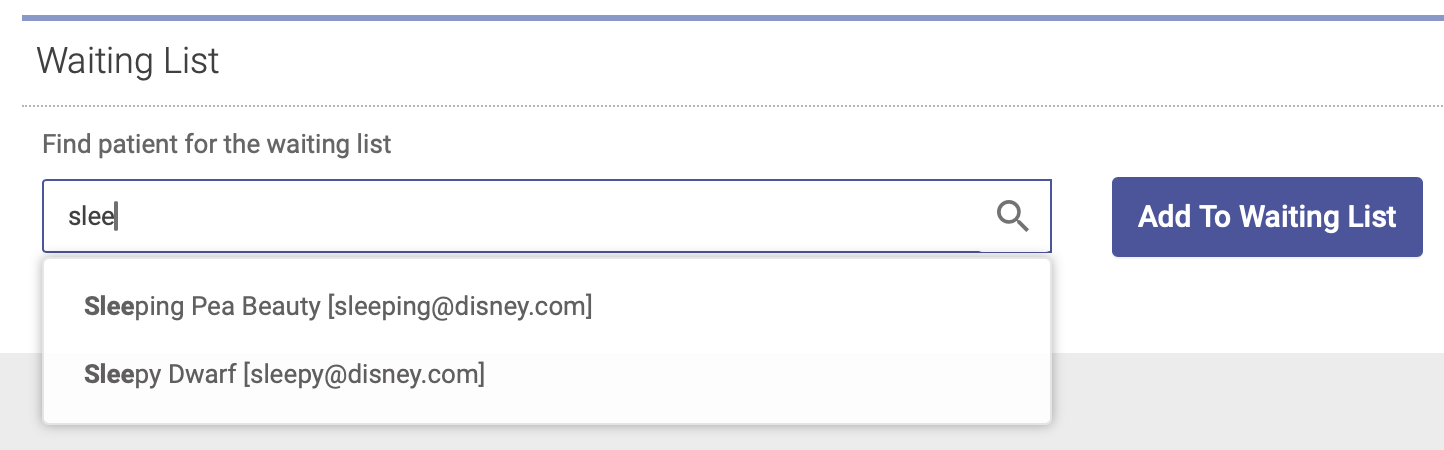
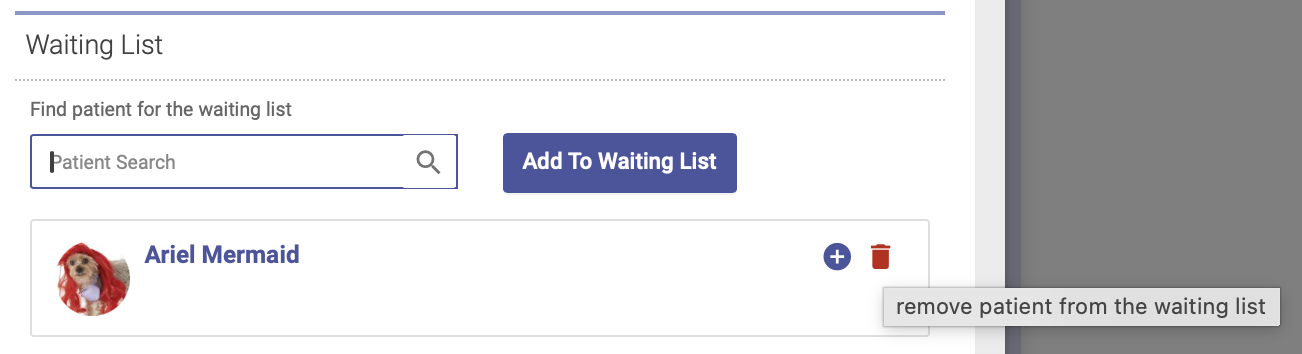
To add someone to the event waiting list, open the Attendees tab on your Group Event Editor and scroll down to the Waiting List section. Type a patient's name into the search field, highlight their name, then click Add to Waiting List:
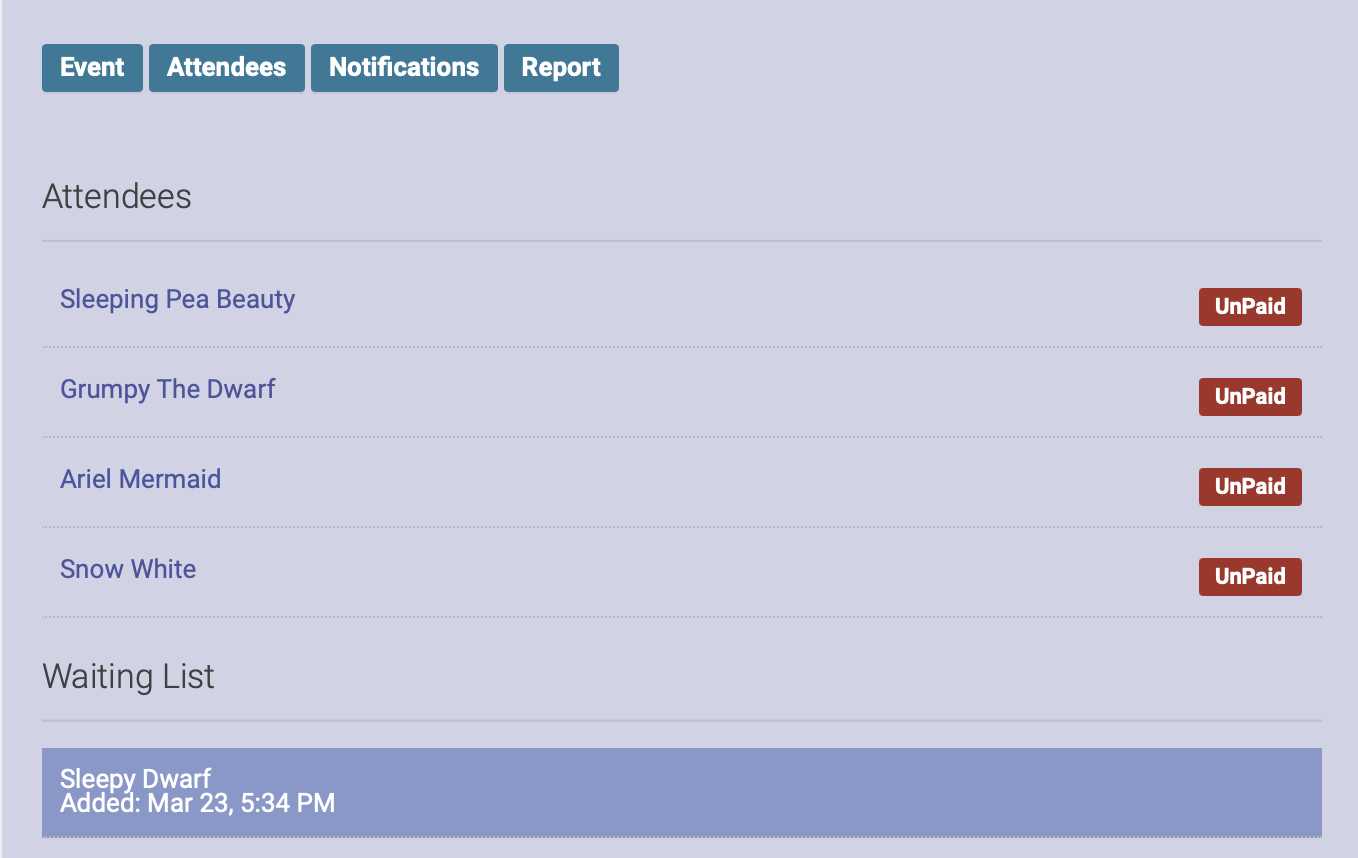
You will now see their name on the event waiting list, under the list of registered attendees:
Register someone on the waiting list for the event
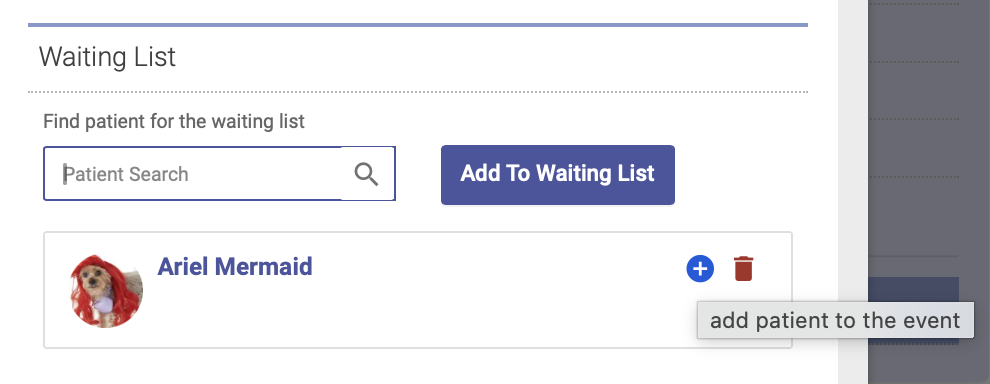
If a spot opens up and you want to register someone on the waiting list for the event, open up the Attendees tab. Click on the plus sign (+) next to the person's name. This will move them off the waiting list and register them for the event:
Remove someone from the waiting list
To remove someone from the waiting list, open the Attendees tab, then click on the trash can icon next to their name. This will remove them from the waiting list:
Waiting list via Patient Portal
People can also add themselves to the waiting list via the event URL.
If registration is full, the event URL will display a message that registration is full, with a button for people to add themselves to the waiting list:
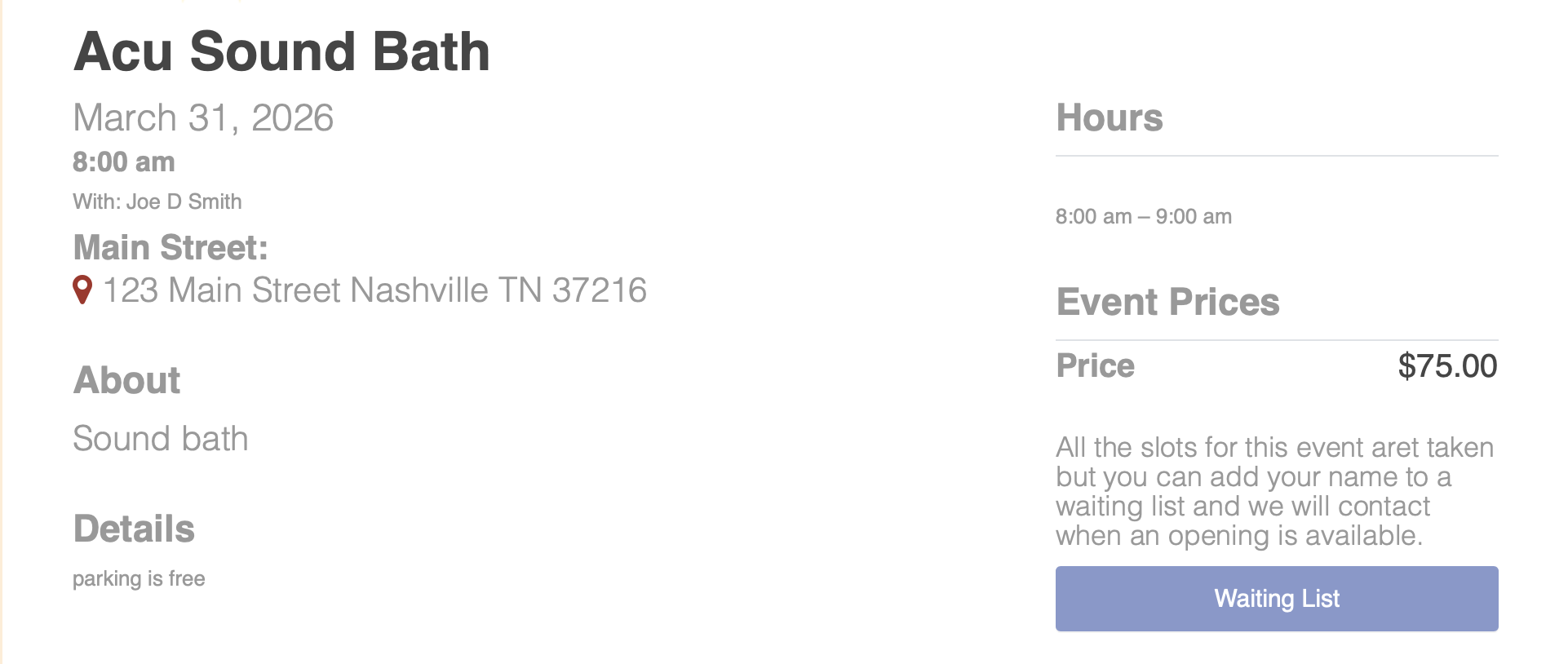
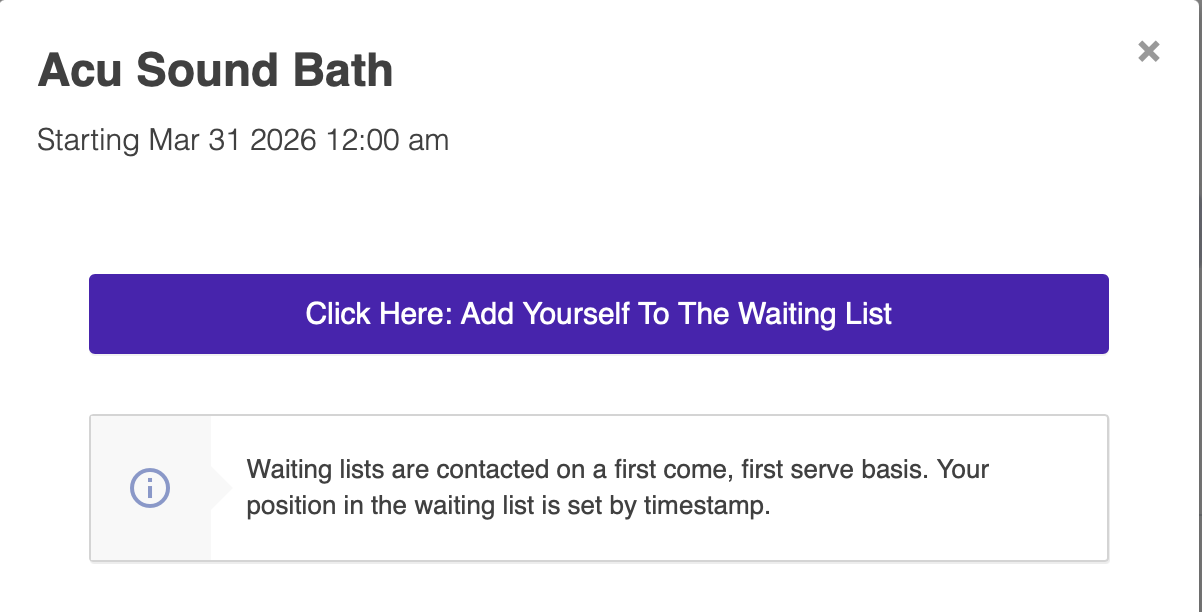
Once they click that button, they'll be prompted to sign in and complete the steps to add their name to the waiting list:
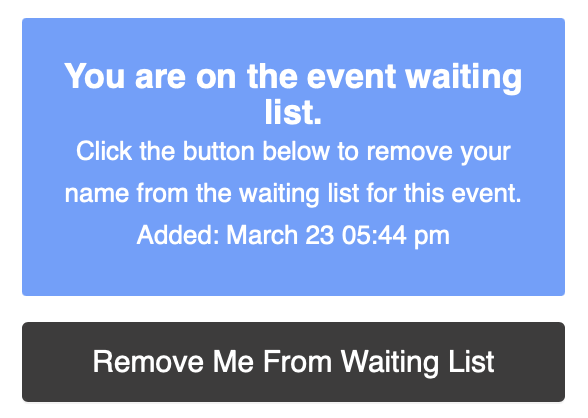
The event URL will then show a message that they've successfully added their name to the waiting list. They can click the "Remove Me from Waiting List" button to take their name off the waiting list: